

How to Set Up Your Venue's Booking System
This guide gives an overview to configuring booking slots, availability, and seating arrangements.
Tip: Bookings allow you to offer recurring venue bookings based on rules like operating hours and experience availability. This is a subscription-based feature — you can set up and preview bookings without a subscription, but to go live you must choose a subscription plan. Explore subscription options here.
To get started with setting up your bookings, you'll want to head over to your Bookings Setup, from your overview page this can be found in a couple of spots. Here in the top menu.
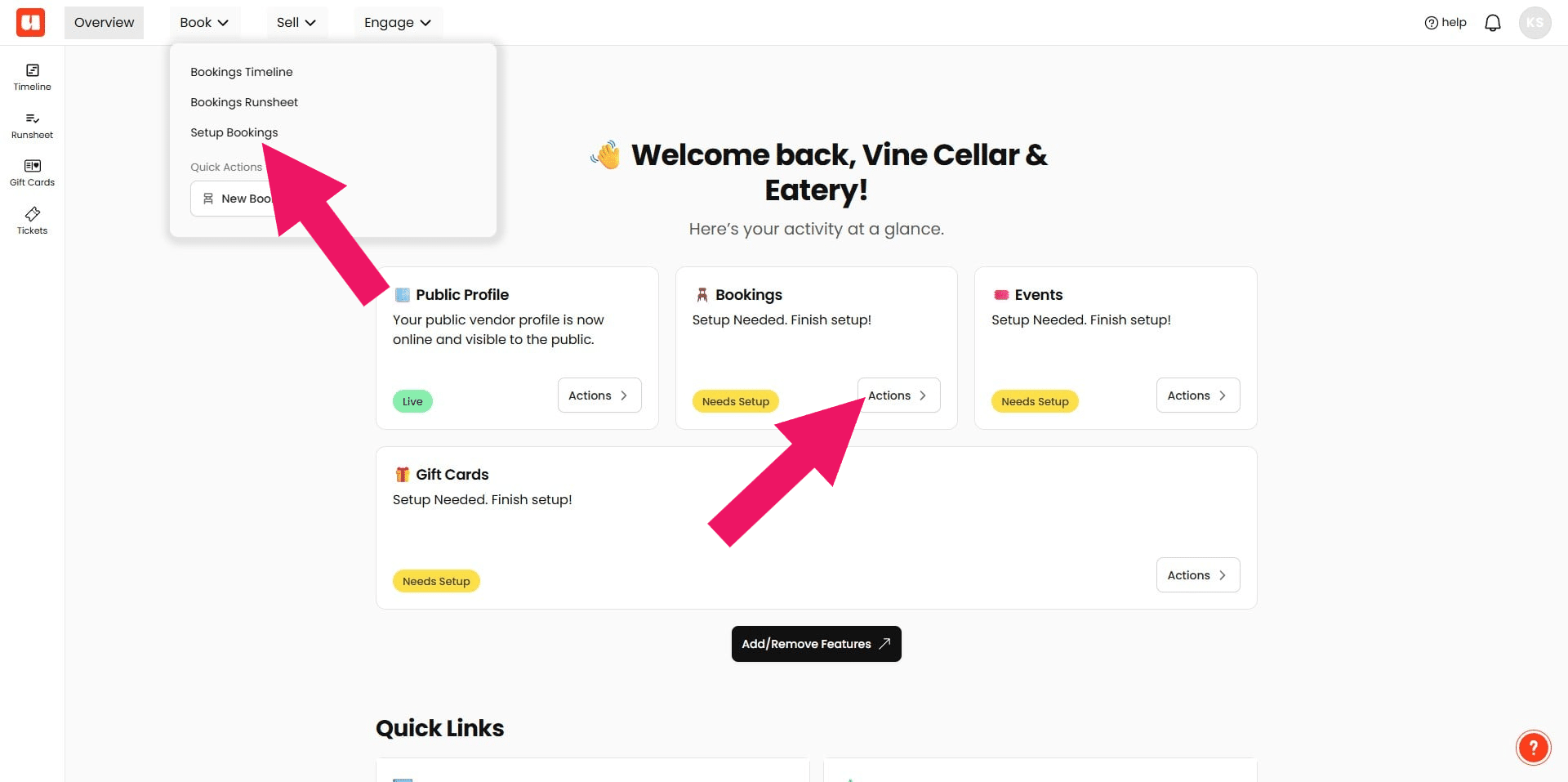
Bookings Setup has a number of sections you'll need to populate. Use the left menu to navigate each section. Items with an (*) are required.
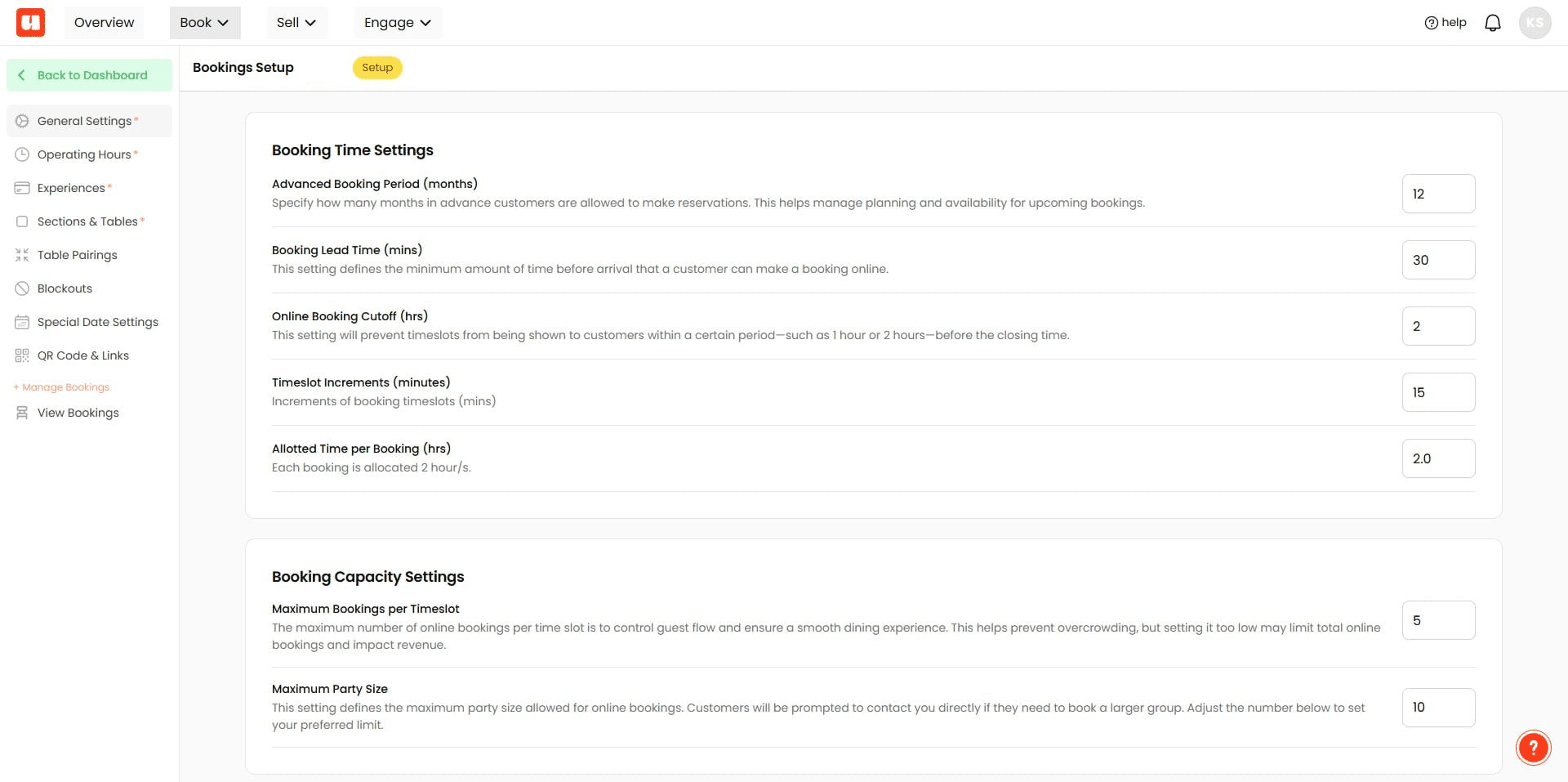
General Settings
First up, your General Settings. These are your default settings some of which can be overridden by certain experiences we'll cover more lately. We've added defaults here but we recommend going through these and adjusting to your needs. It's likely you will have had a setup with the Usefull team to help you configure these correctly.
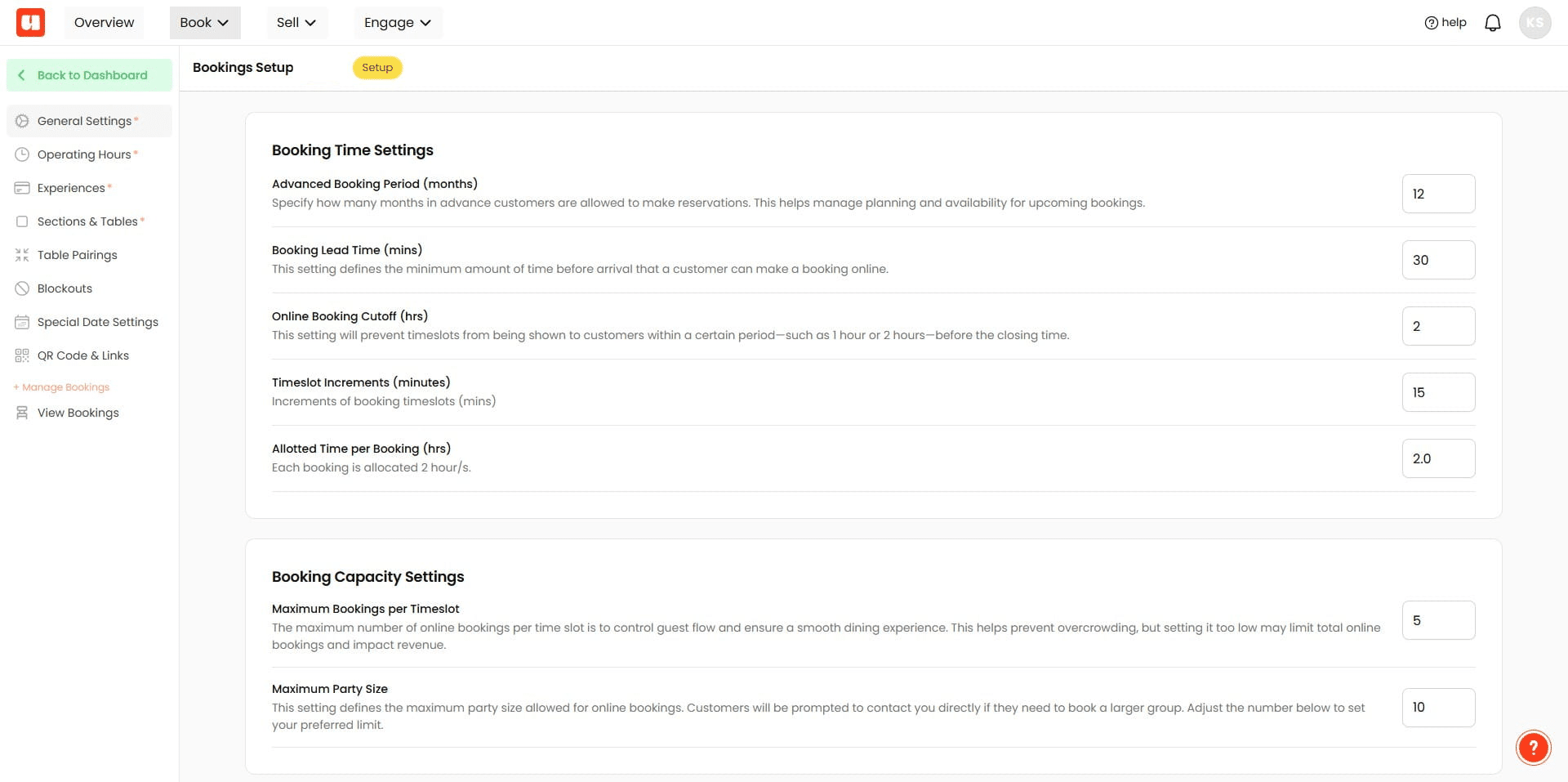
Take your time going through each General Setting, we have added explainer text to help guide you through.
Payment Settings
If you're wanting to use the Booking Guarantee Feature or take Upfront payments for any of your booking experiences. You'll need to setup a Stripe account. Check out this guide for more.
.](https://assets.guidejar.com/uploads/42255daa-0197-4c99-9dd5-06928df7eb62/uv1EDfb1gFhJJcPiIhlaBjtRP5o1/88c42098-6a4c-42d1-90e9-a8e5d57a2aaa/1777165855198.jpeg)
Be sure to add your booking policies and terms, like cancellation policies etc. These are send along with booking confirmation emails.
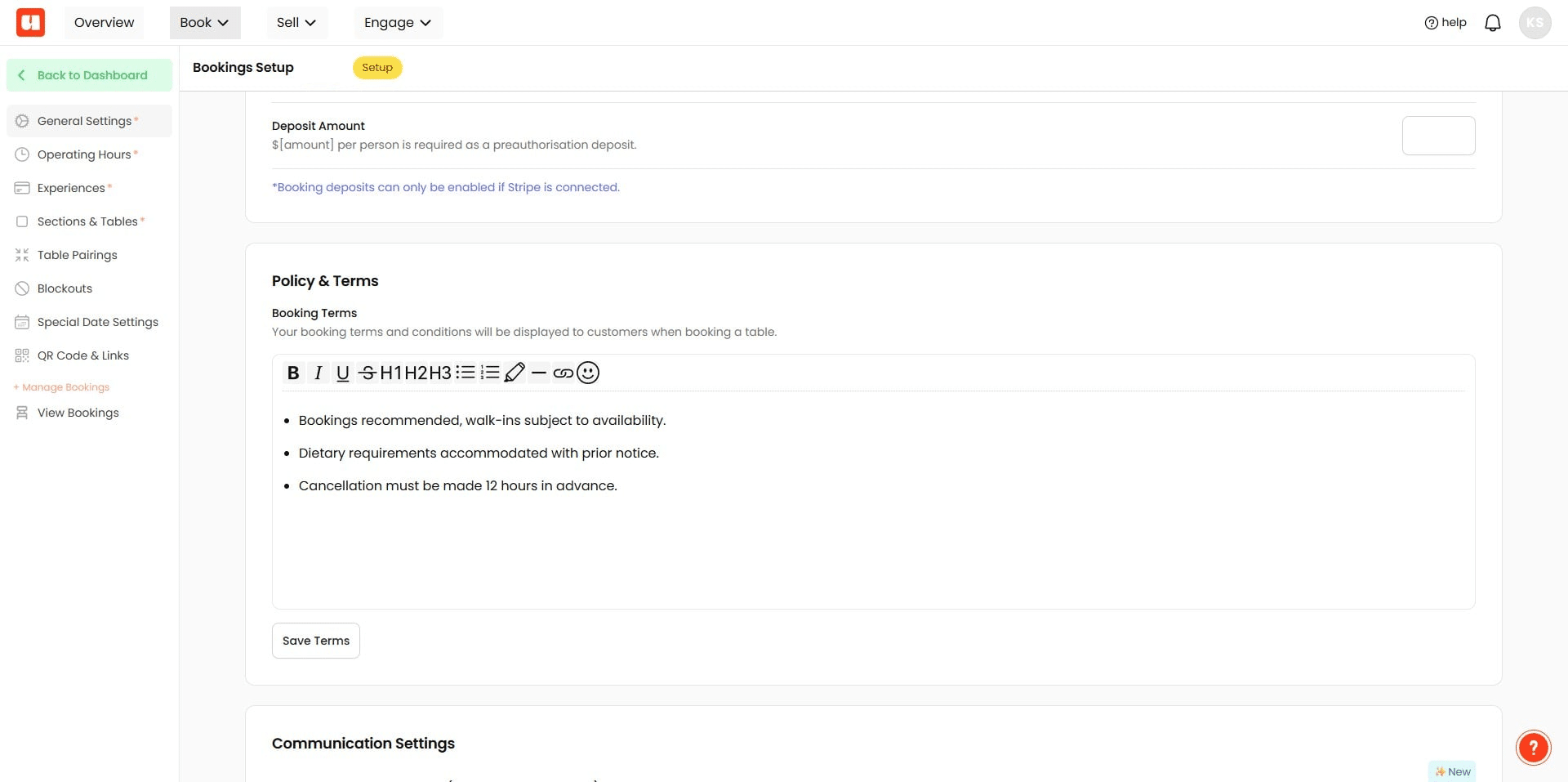
Venue Operating Hours
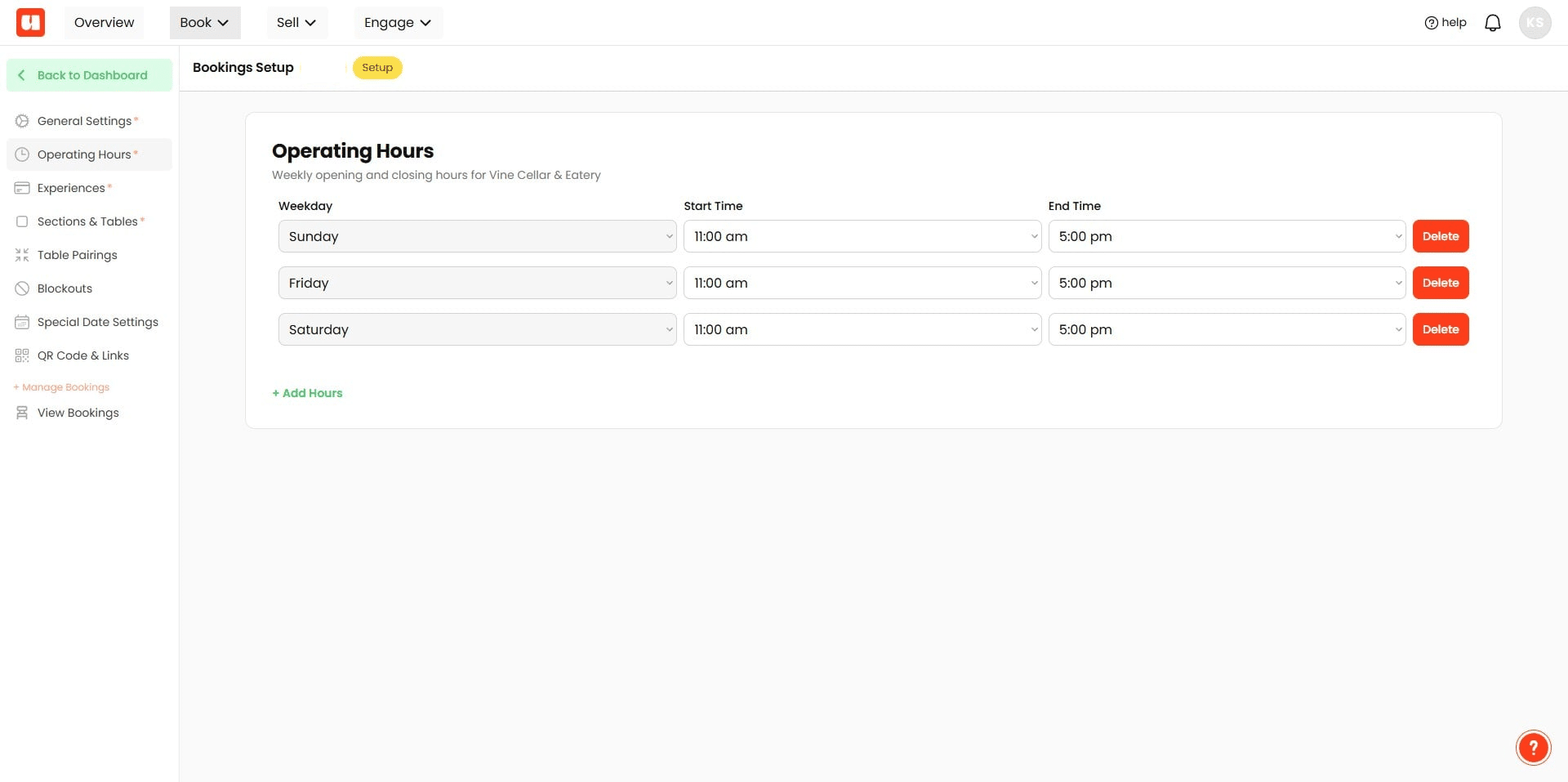
Operating hours define when your venue is open to accept bookings. These are your default hours but can be adjusted for specific experiences.
Experiences and Services
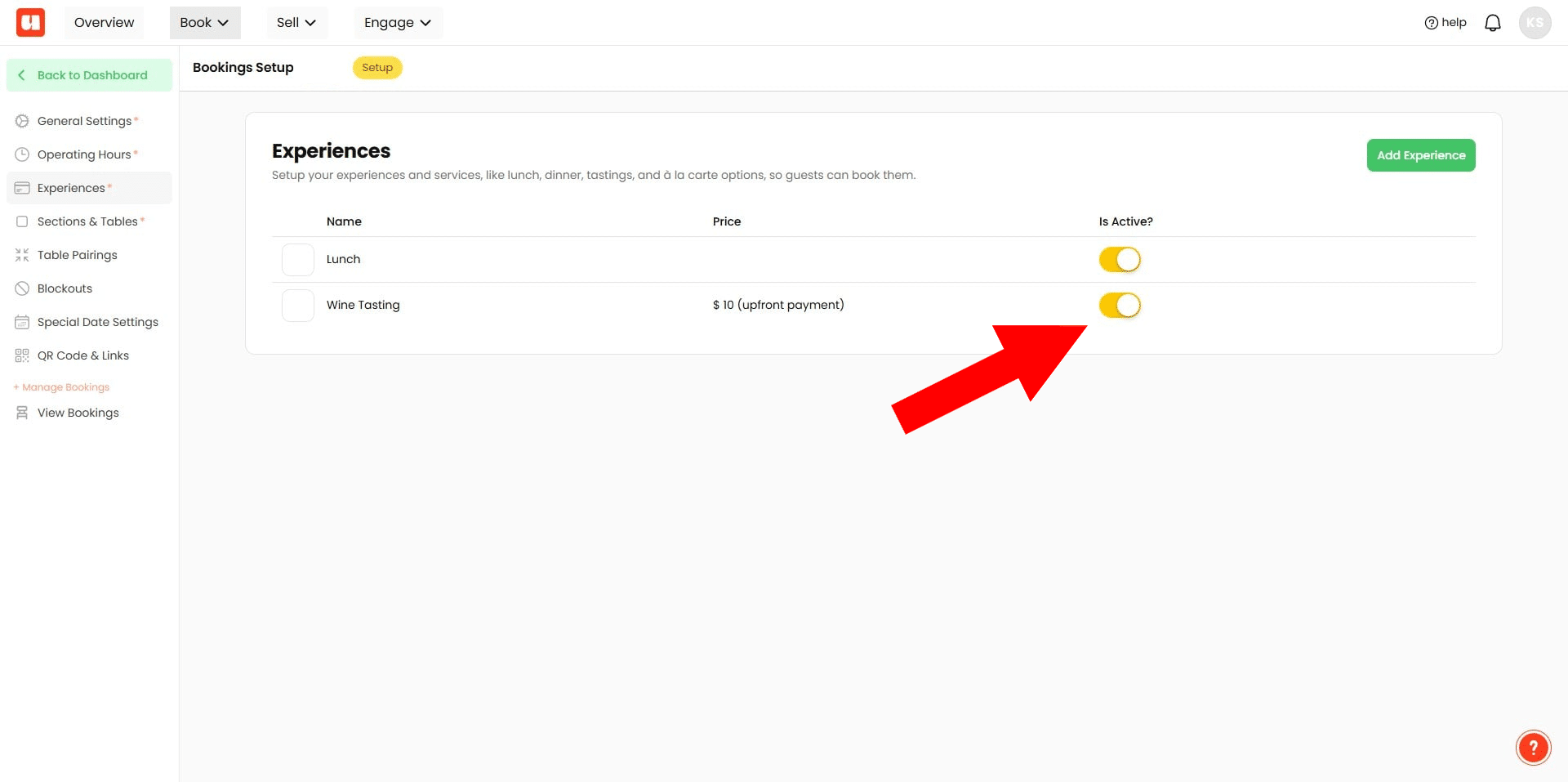
Experiences are the items your customers can book on Usefull. We call them experiences because they can be anything — a Wine Tasting Experience, a Degustation Lunch, or even regular items like Dinner. These experiences are what your customers actually book, and each has its own detailed configuration, which we’ll cover in a separate guide. You must have at least one active experience to enable bookings.
Sections and Tables
Sections & Tables are essential for managing seating in your venue. You must have at least one section with seating options added. If your venue has multiple sections, customers can choose where they’d like to sit—provided the experience they select is available in that section. Sections and tables are automatically assigned when customers book online, based on the rules you set and each table’s capacity.
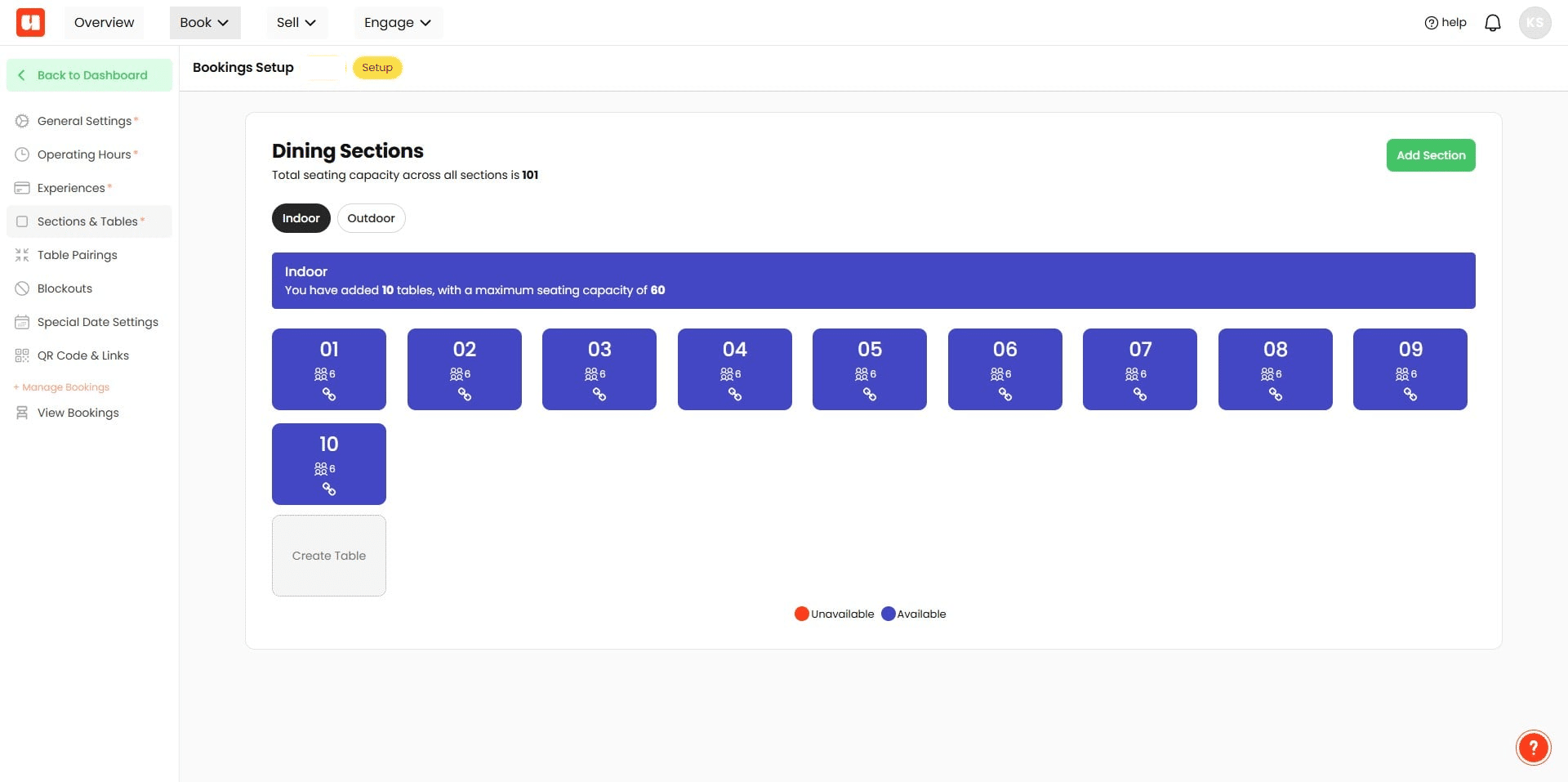
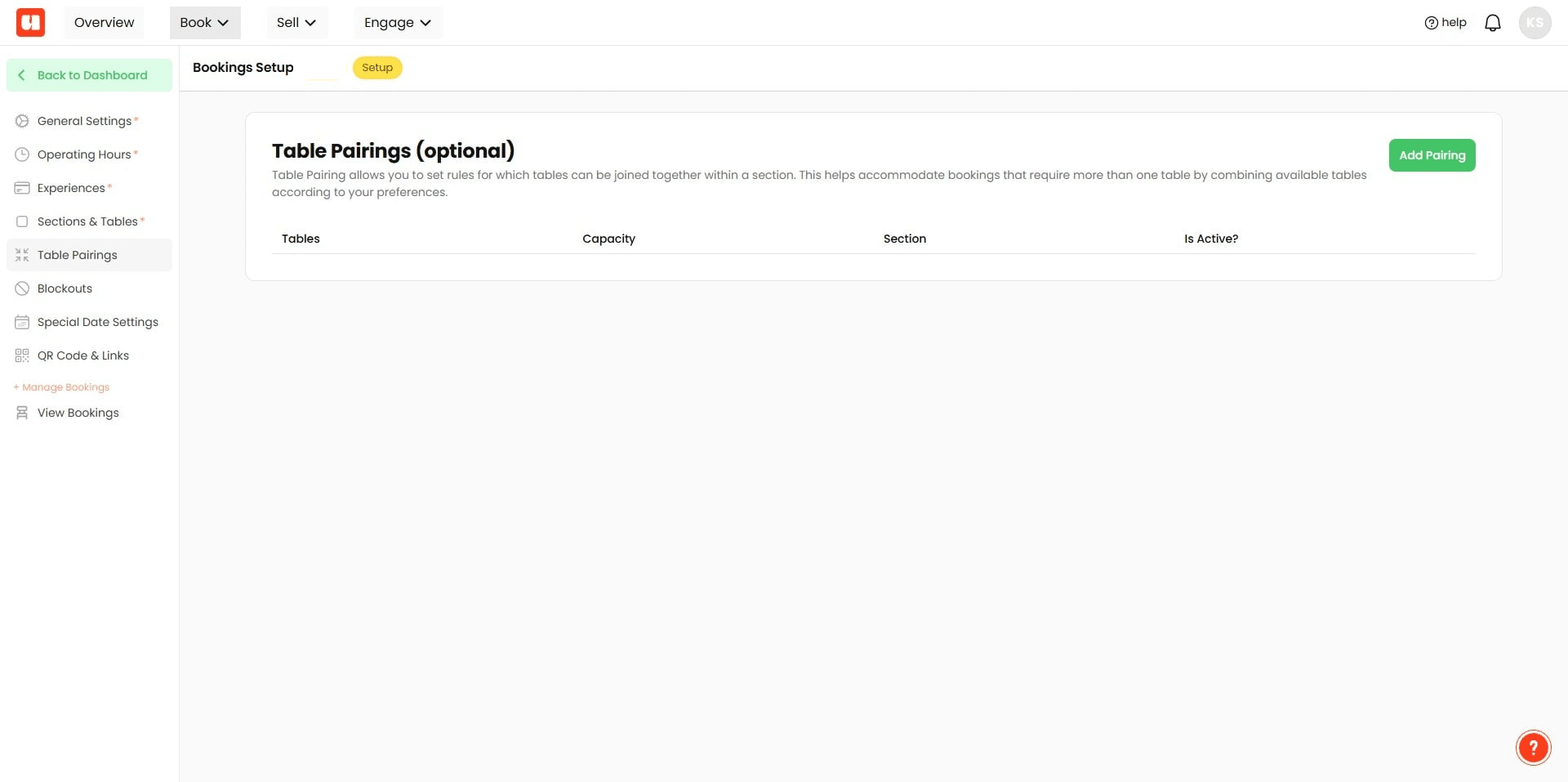
Table Parings is an optional feature where you can define how your preferred table pairing rules. If this section is left blank. Usefull will try to find an exact table match and then look for tables that can be paired to make up the capacity needed. This just gives you more control.
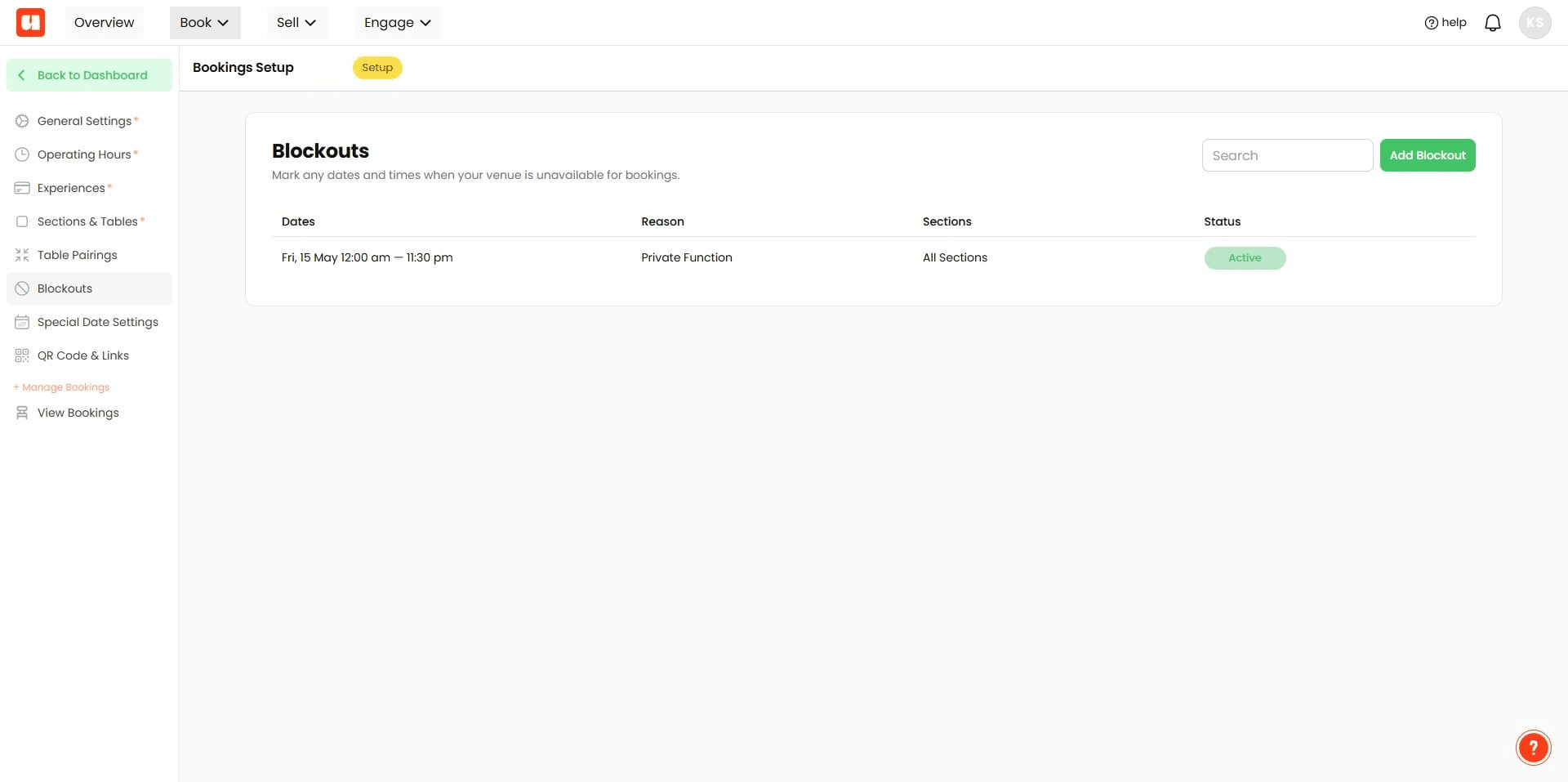
Venue Blockouts
It's likely from time to time that your venue will be closed for a private function, taking a break, or if a specific section is not available for booking. You'll need to add a Blockout. We'll cover this in more detail in another guide.
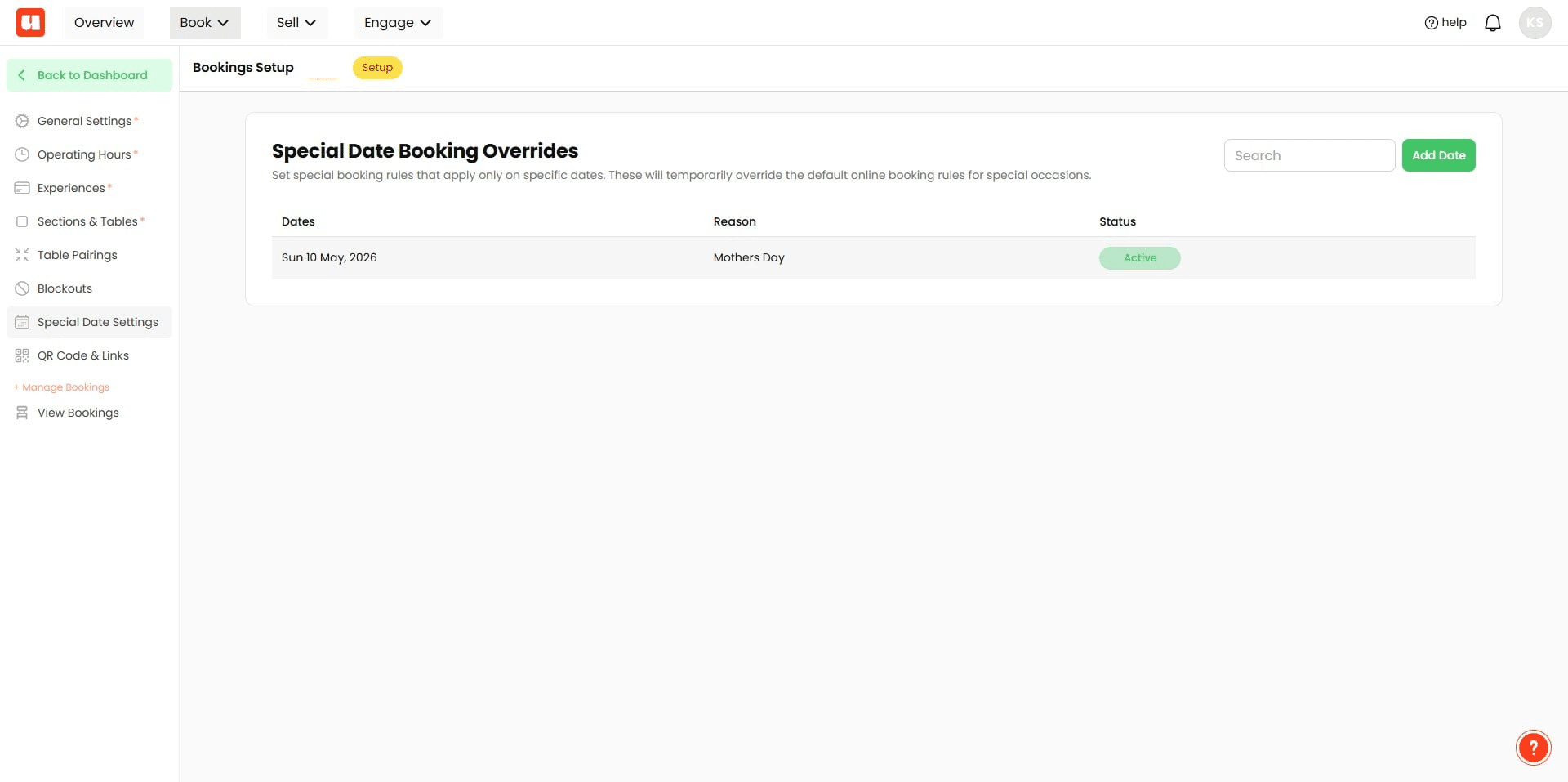
Special Dates and Booking Overrides
Special Dates allow you to flag dates in your booking calendar and setup special booking rules for that day. For example if you require a booking guarantee that is different from your usual booking flow on a special date you can set that up here.
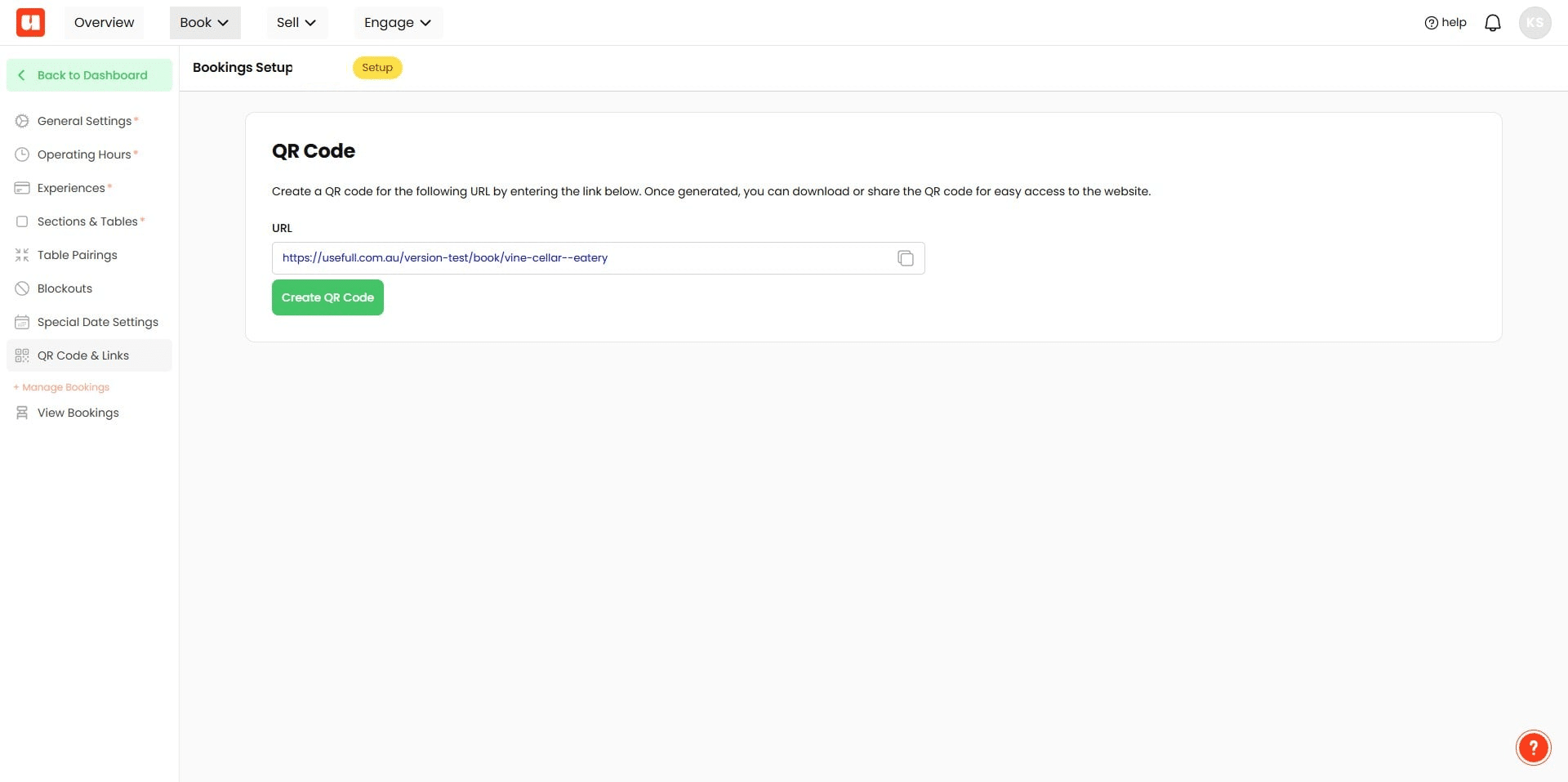
Finally, you can create a booking QR Code and have access to your booking link that you can share to social and on your web site.
Frequently Asked Questions
- Do I need a subscription to set up bookings and go live?
You can set up and preview bookings without a subscription, but to make bookings live you must choose a subscription plan. Bookings are a subscription-based feature. (The guide includes a link to explore subscription options.)
- What are the minimum prerequisites to enable bookings for my venue?
You must have at least one active experience and at least one section with seating options added. Experiences are what customers actually book, and sections/tables are required to manage seating. Additionally, ensure your venue has operating hours defined (these are defaults but can be overridden per experience).
- How do table pairings and automatic table assignment work?
Sections and tables are automatically assigned when customers book online based on the rules you set and each table’s capacity. Table Pairings is optional — if you define pairing rules you get more control. If left blank, Usefull will first try to find an exact table match and then look for tables that can be paired to meet the required capacity.
- What do I need to set up payments, Booking Guarantee, or upfront payments?
To use the Booking Guarantee feature or accept upfront payments you need to set up a Stripe account. Also be sure to add your booking policies and terms (for example cancellation policies); these are sent with booking confirmation emails. The guide links to a Stripe setup guide for more details.
- How do Blockouts and Special Dates affect bookings, and what should I check if a date isn’t available?
Use Blockouts to mark times when the venue or a specific section is closed for private functions or breaks. Special Dates let you flag calendar dates and apply different booking rules (for example a different booking guarantee). If a date isn’t available, check for blockouts or special-date overrides and verify the experience’s availability and your venue operating hours.