

How to Create a Coupon Code for Ticket Discounts
This guide steps through how to create and redeem a coupon for an event.
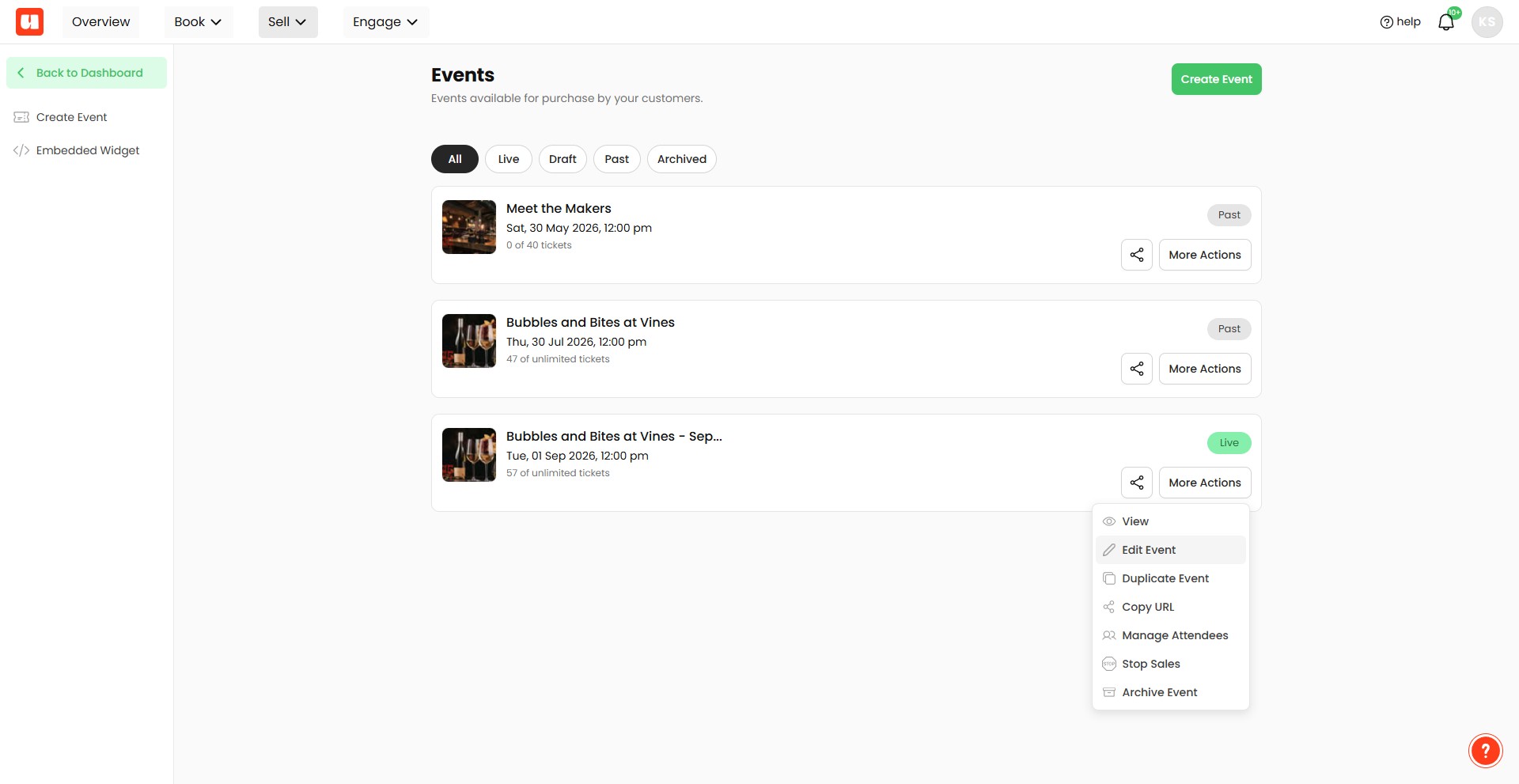
From your events list, click 'More Actions' then 'Edit Event'
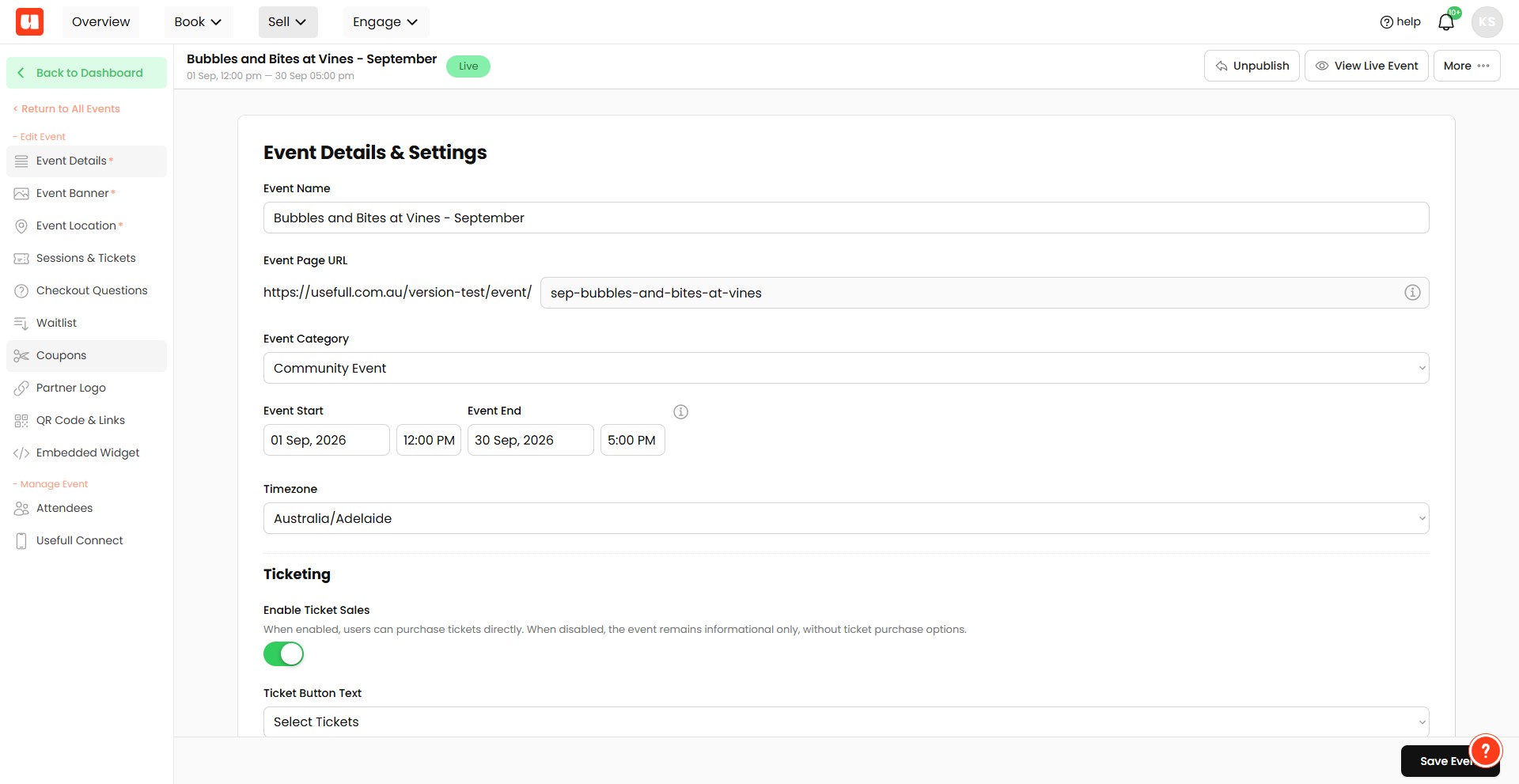
Click 'Coupons' from the left menu.
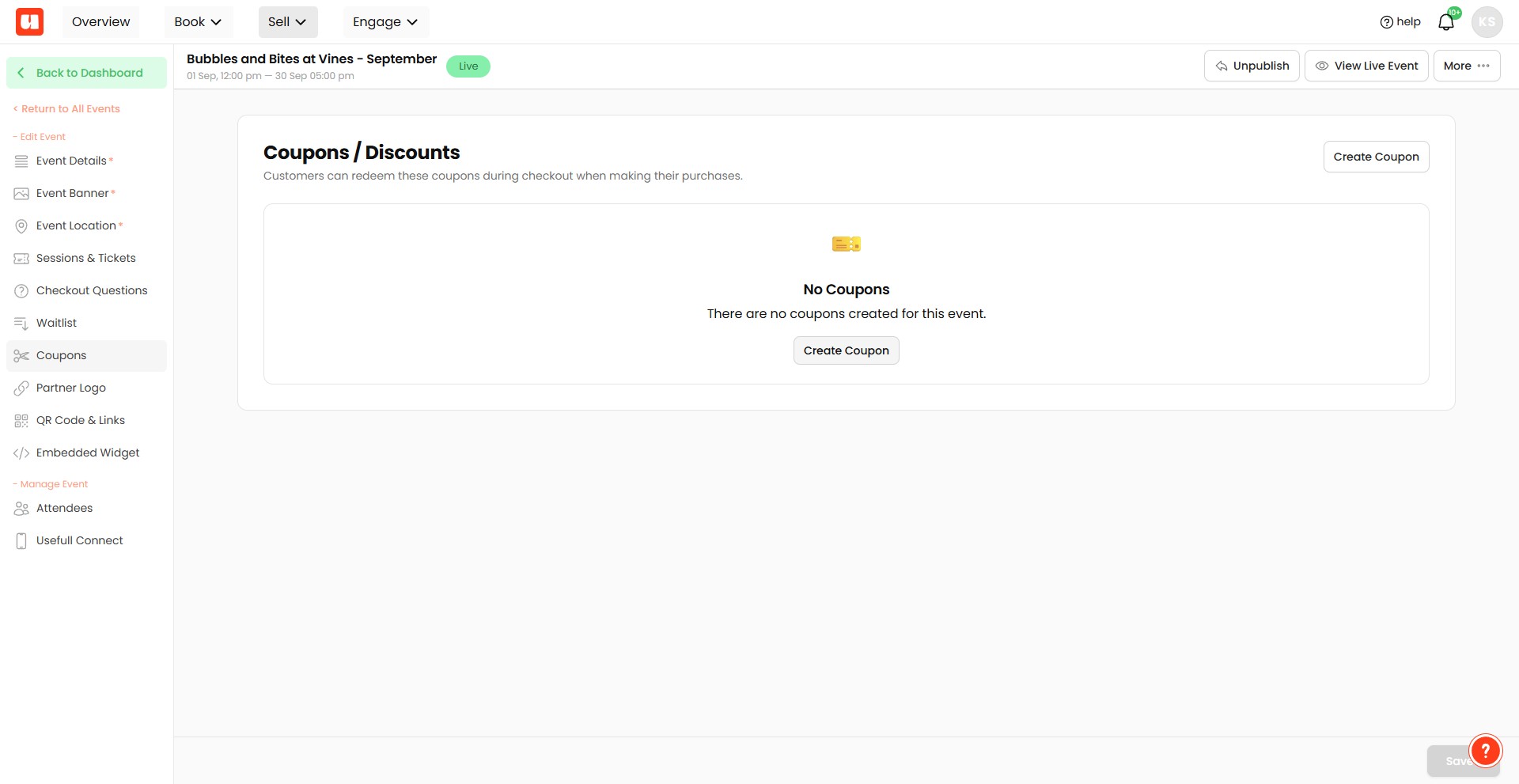
Click on "Create Coupon"
A popup modal will appear. You can create code based coupons. These will be entered by customers with the coupon code at the time of purchase. Alternatively, auto-applied coupons will auto trigger when customers add a certain volume of tickets to their cart.
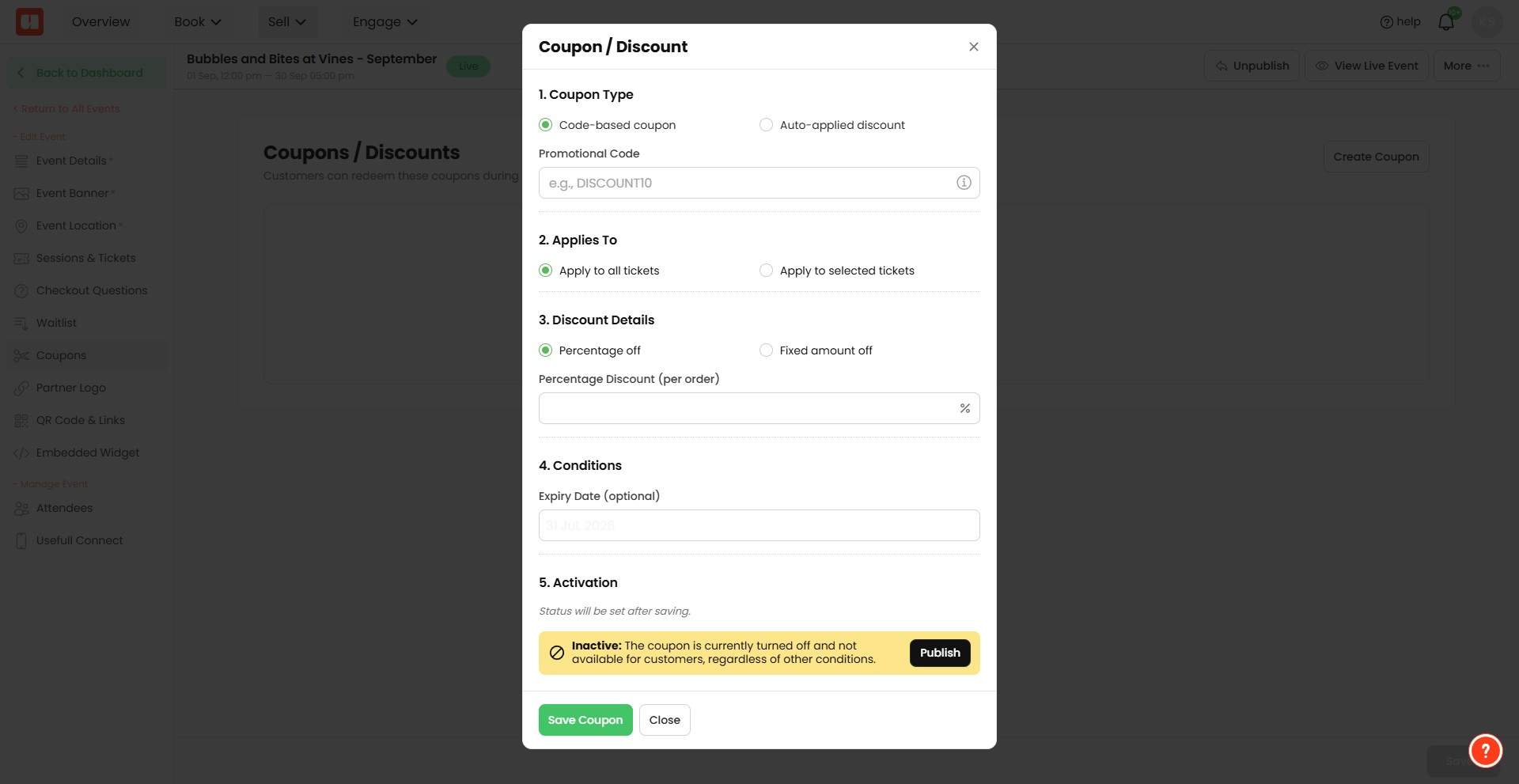
In this example we're creating a code-based coupon. Fill the details per the prompts.
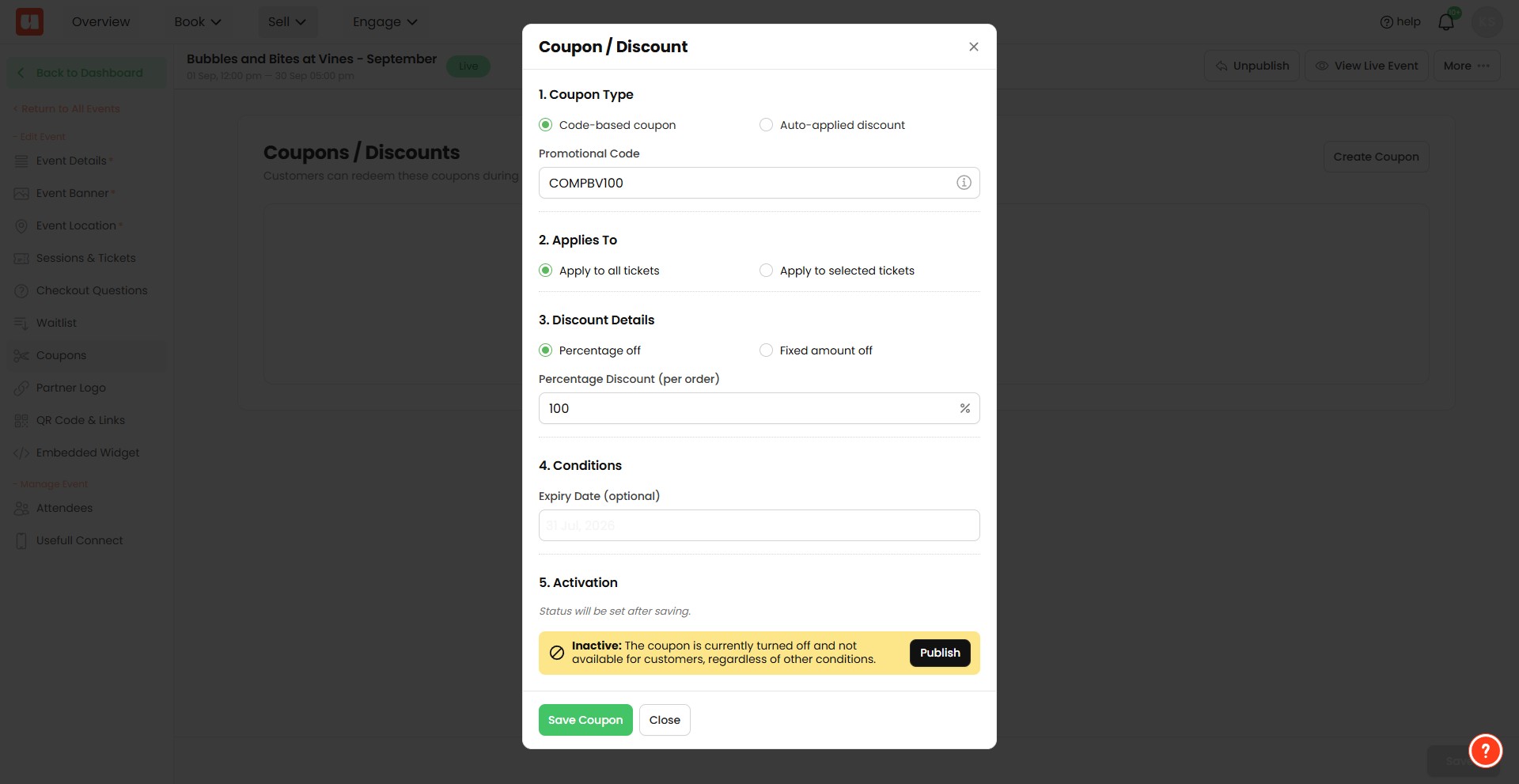
Click on "Publish" if you want to make your coupon live straight away.
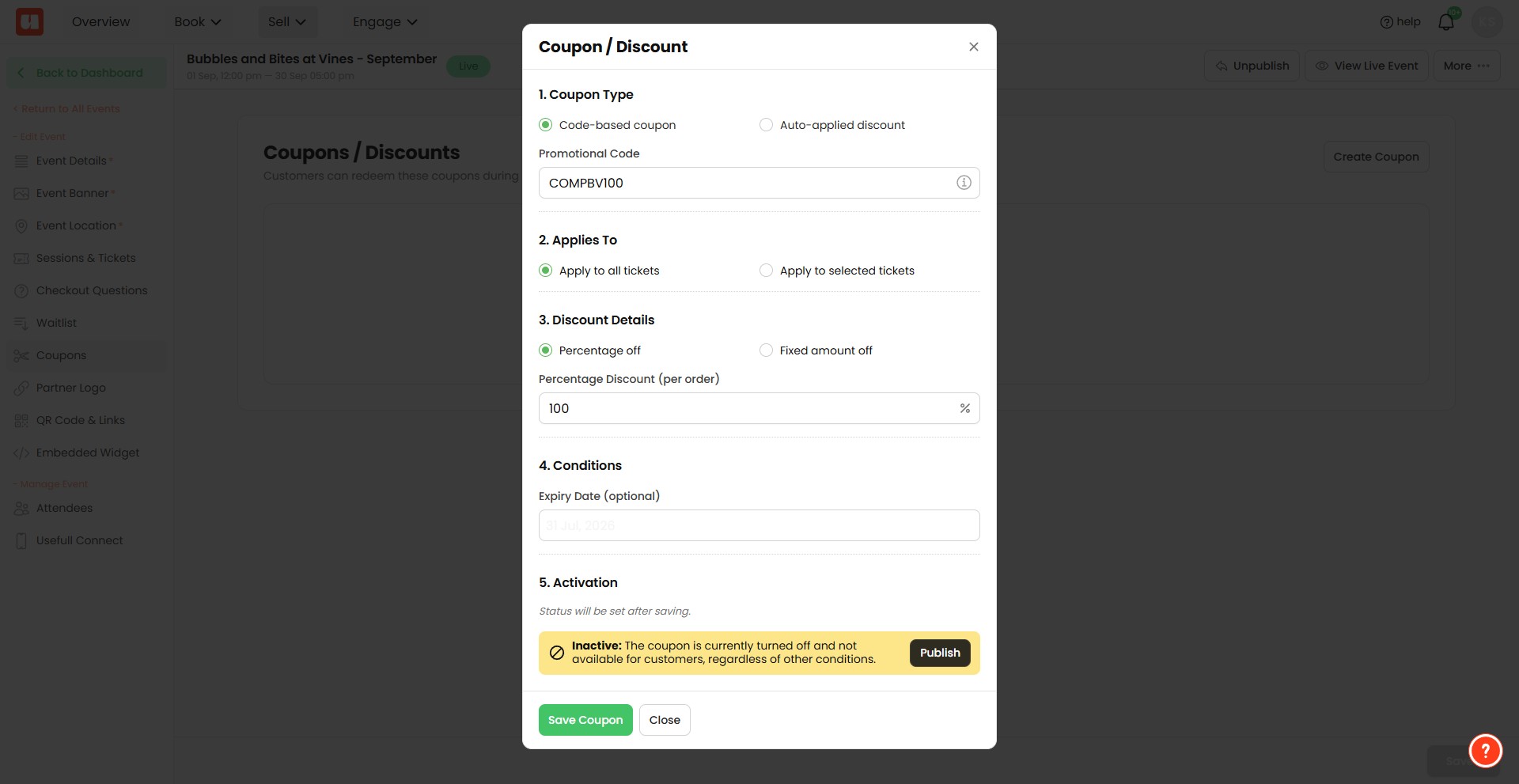
Press ctrl + c
How to Redeem a Code-Based Coupon
Open your event page.
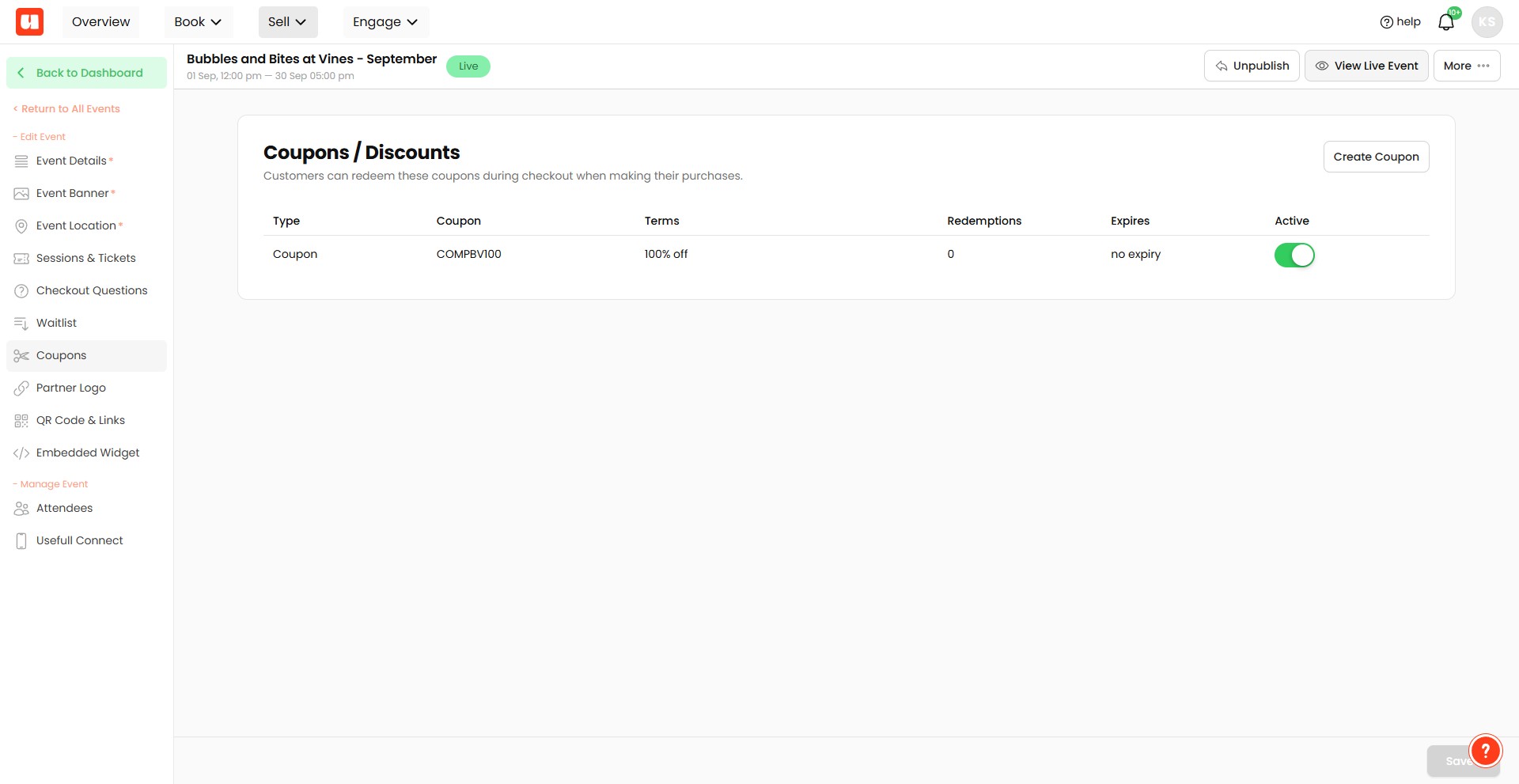
Click on "Select Tickets"

Add tickets to your order and click 'continue'
Enter details of the purchaser or attendee and click next.
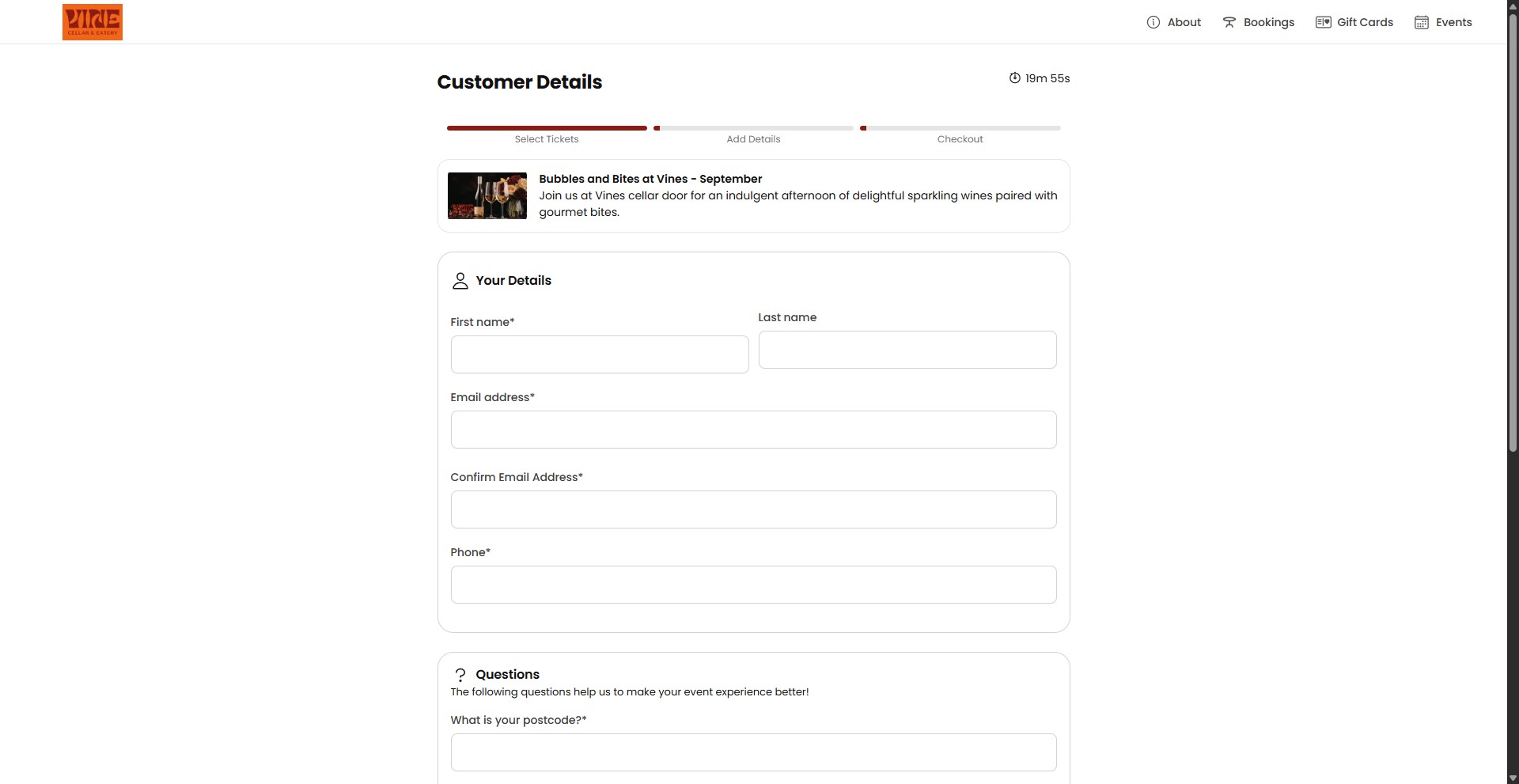
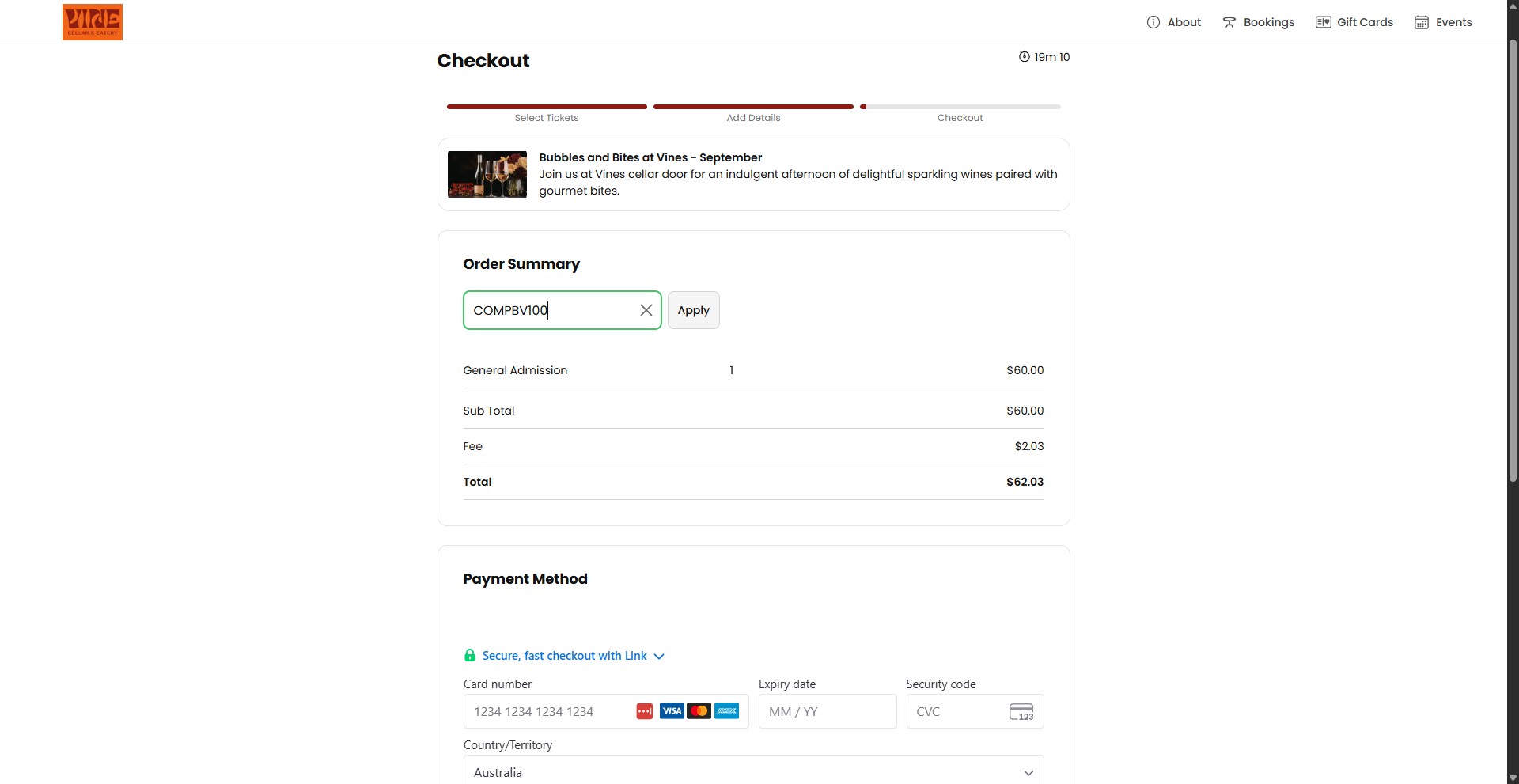
Enter your coupon code in the input field provided and click 'apply'.
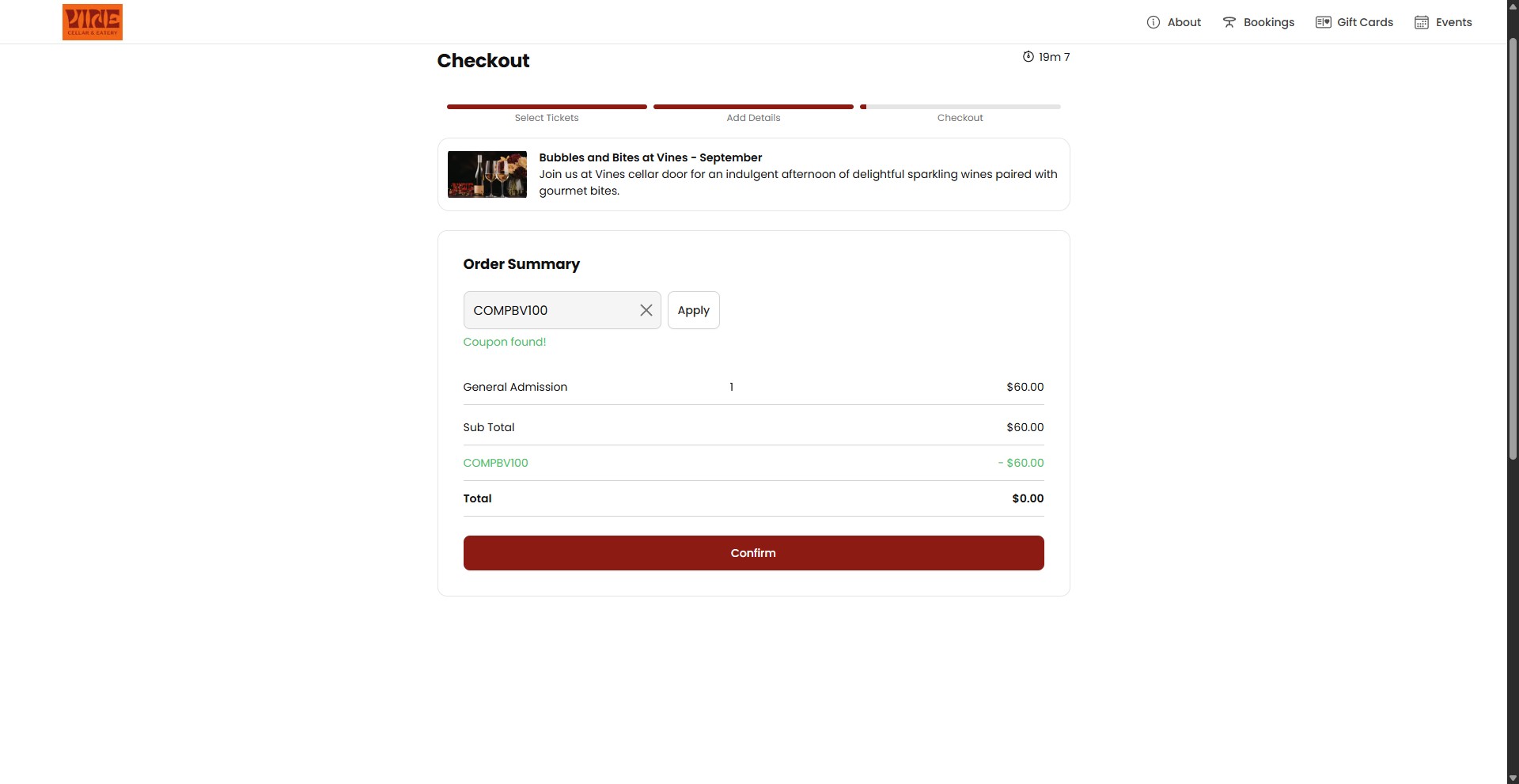
The coupon is applied to the cart with the discount visible. Click confirm to finalise your order. This is a comp ticket so no payment details are required.
Frequently Asked Questions
- What types of coupons can I create?
You can create code-based coupons (customers enter a coupon code at purchase) or auto-applied coupons (they trigger automatically when customers add a certain volume of tickets to their cart).
- How do I create and publish a code-based coupon?
From your events list click 'More Actions' then 'Edit Event'. Click 'Coupons' from the left menu, then 'Create Coupon'. In the popup modal choose a code-based coupon, fill in the details as prompted, and click 'Publish' to make the coupon live immediately.
- How does a customer redeem a code-based coupon?
Open the event page and click 'Select Tickets'. Add tickets to the order and click 'continue'. Enter purchaser/attendee details and click 'next'. Enter the coupon code in the input field provided and click 'apply'. The discount will be shown in the cart; click 'confirm' to finalise the order.
- The coupon isn’t applying — what should I check?
Make sure you followed the redeem steps in order: tickets were added and you clicked 'continue', purchaser/attendee details were entered and you clicked 'next', and the coupon code was entered into the input field and you clicked 'apply'. Confirm the discount is visible in the cart before finalising the order.
- If the coupon makes the ticket free, do customers need to enter payment details?
In the example provided, this is a comp (complimentary) ticket so no payment details are required when confirming the order.