

How to Turn On Referral Tracking for Your Event
Referral tracking lets you track visits and purchases from specific referral sources, so you can see how your marketing efforts are performing. For example, you can create unique referral links for social media, email campaigns, partners, sponsors, or influencers. When someone visits or purchases through one of these links, their activity will be connected to that referral source.
Step 1: Setup Referral Tracking
From your event dashboard, navigate to Event Settings.
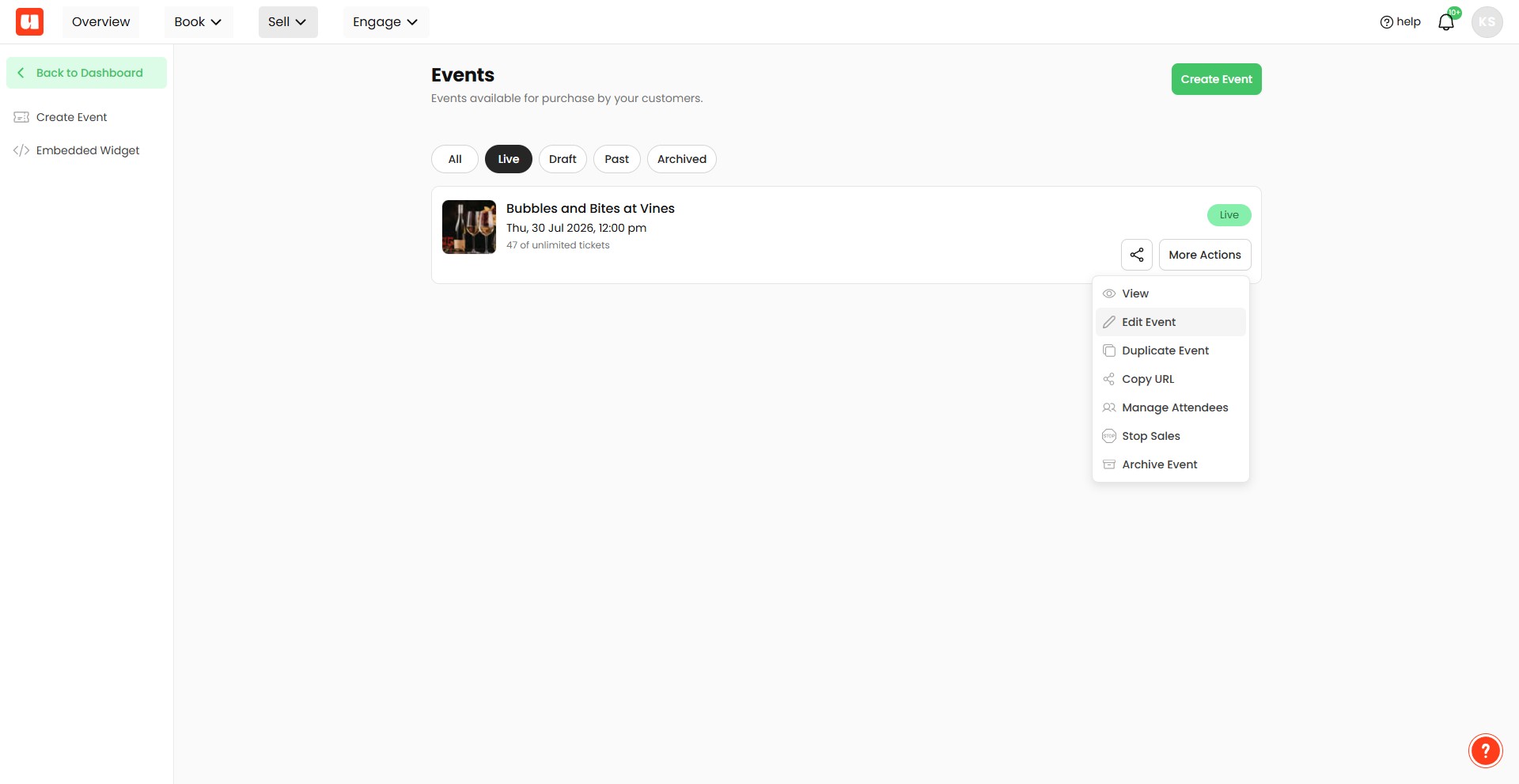
In the left-hand menu, click QR Code & Links.
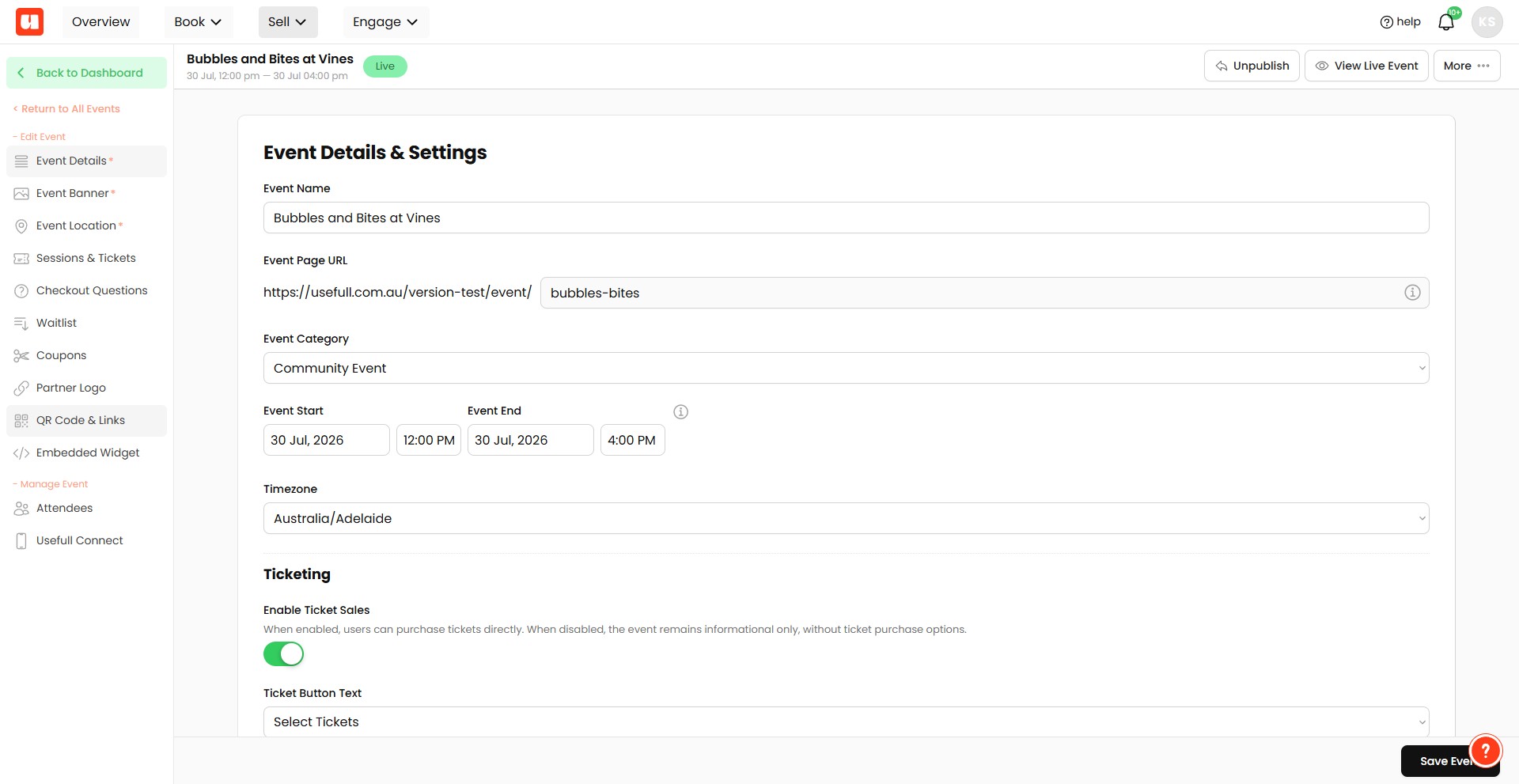
Scroll down until you see the Enable Tracking section. Make sure tracking is turned on. Once tracking is enabled, a new section called Referral Links will become visible.
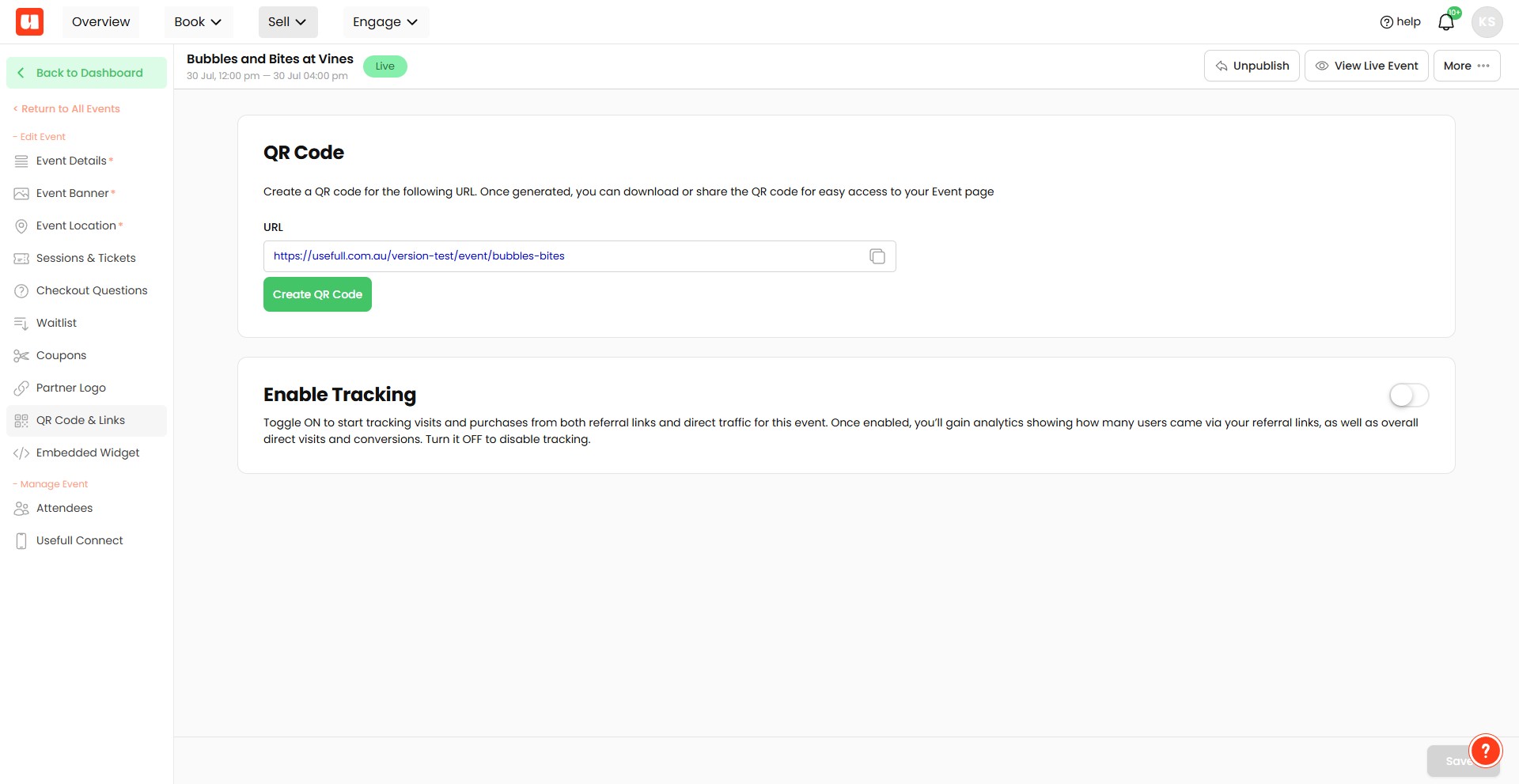
In the Referral Links section, enter a referral code. This could be something like: facebook, instagram, email, partner1, sponsorname, Then click Add.
After you add the referral code, a new link will appear. The link will include a tracking parameter that looks like this: ?source=yourreferralcode For example: ?source=facebook You can use this special referral link anywhere you want to track marketing performance, such as social media posts, email campaigns, ads, partner websites, or sponsor promotions.
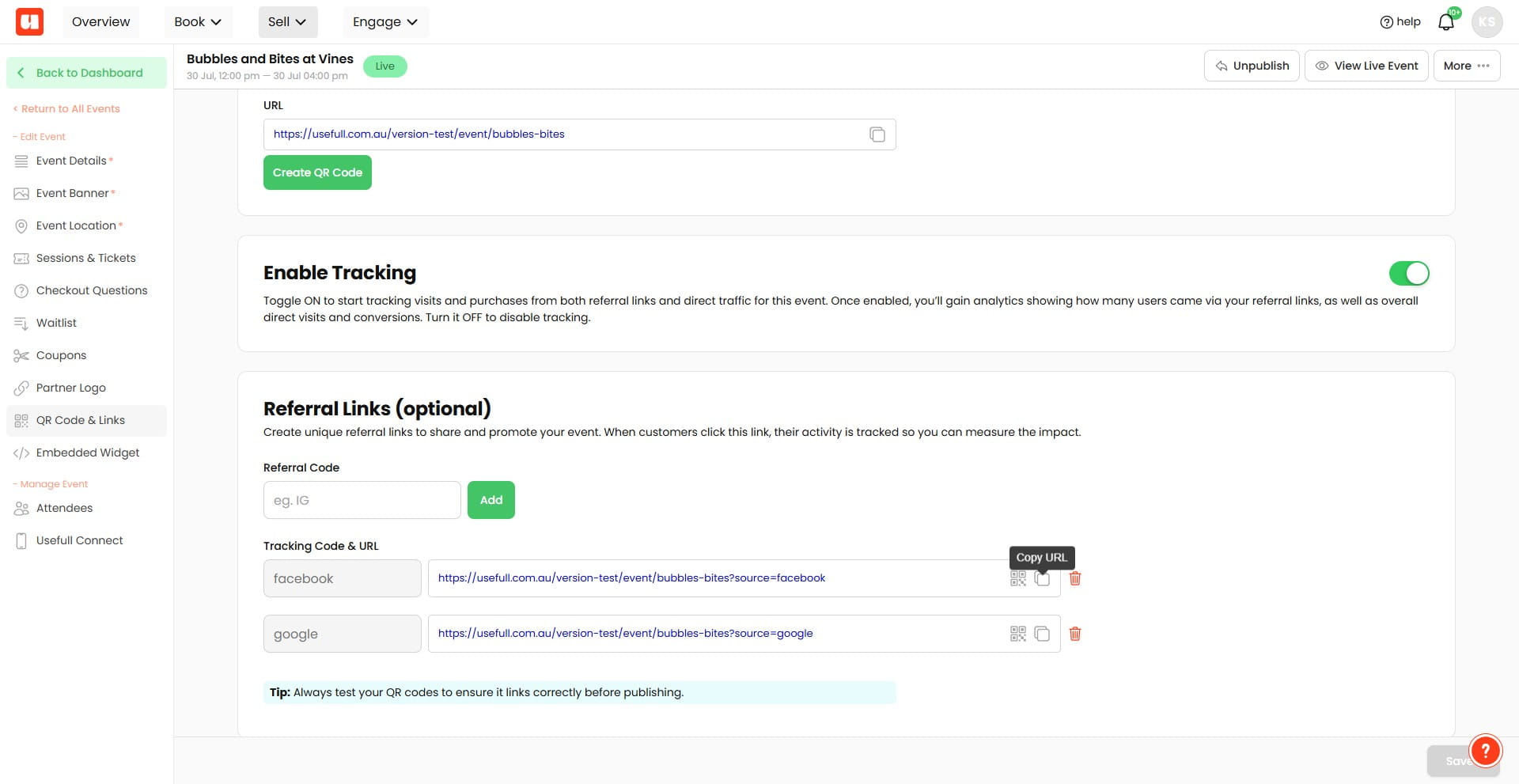
You can also download a QR code for your referral link. This is useful for printed materials, flyers, posters, signage, or in-person promotions.
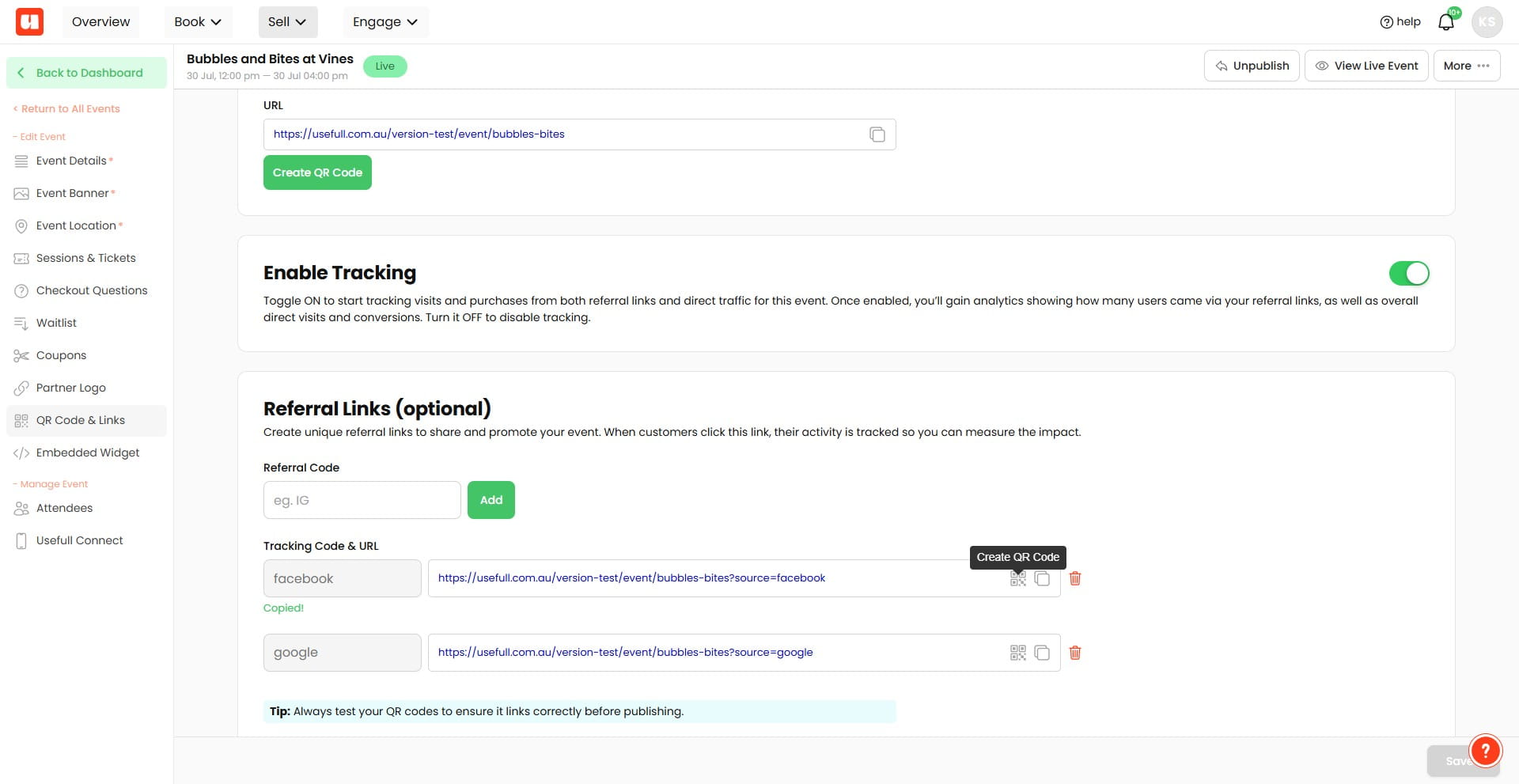
Step 2: View Referral Analytics
To see how your referral codes are performing, go to your Event Attendees Dashboard.
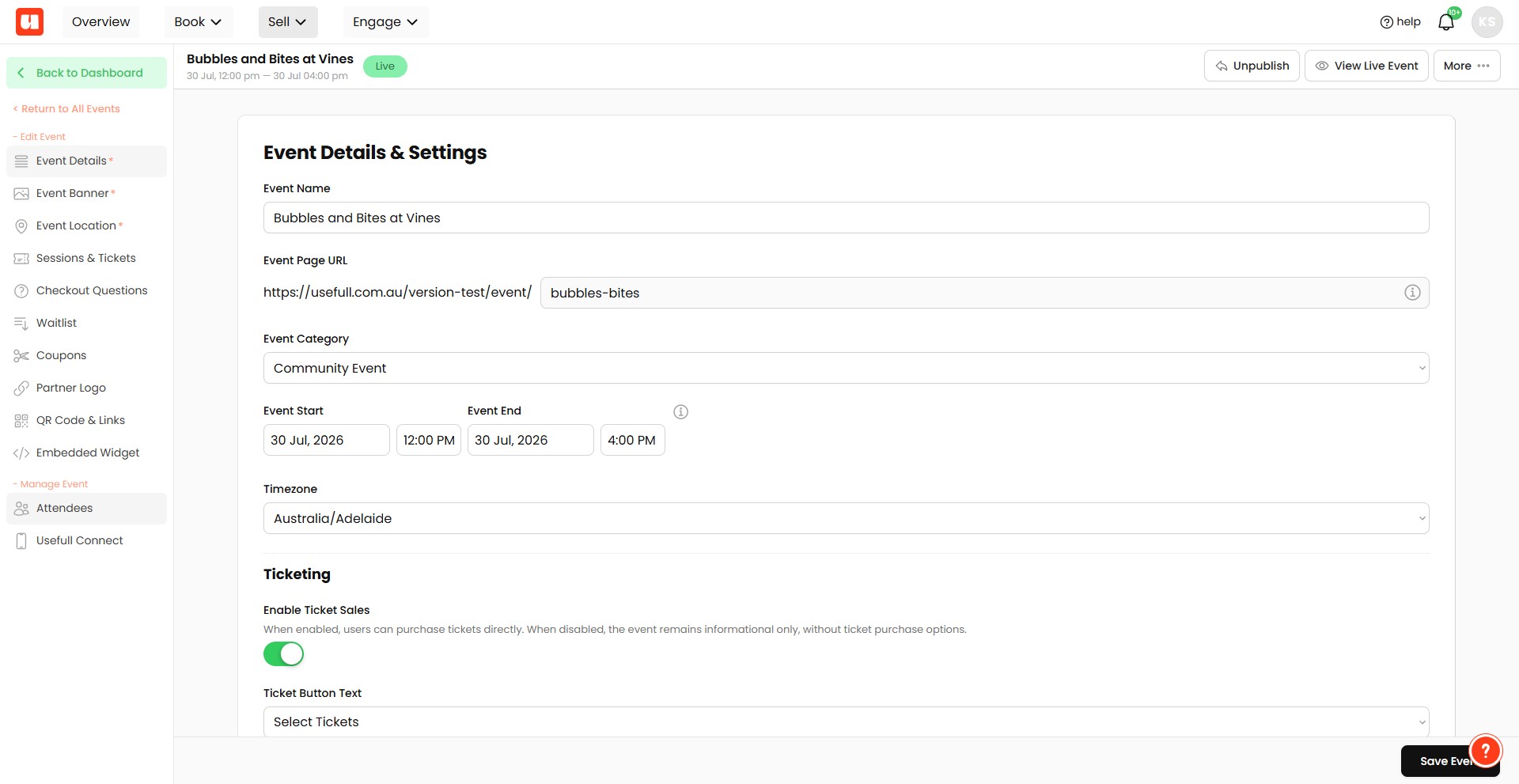
Click on "Referral Source:"
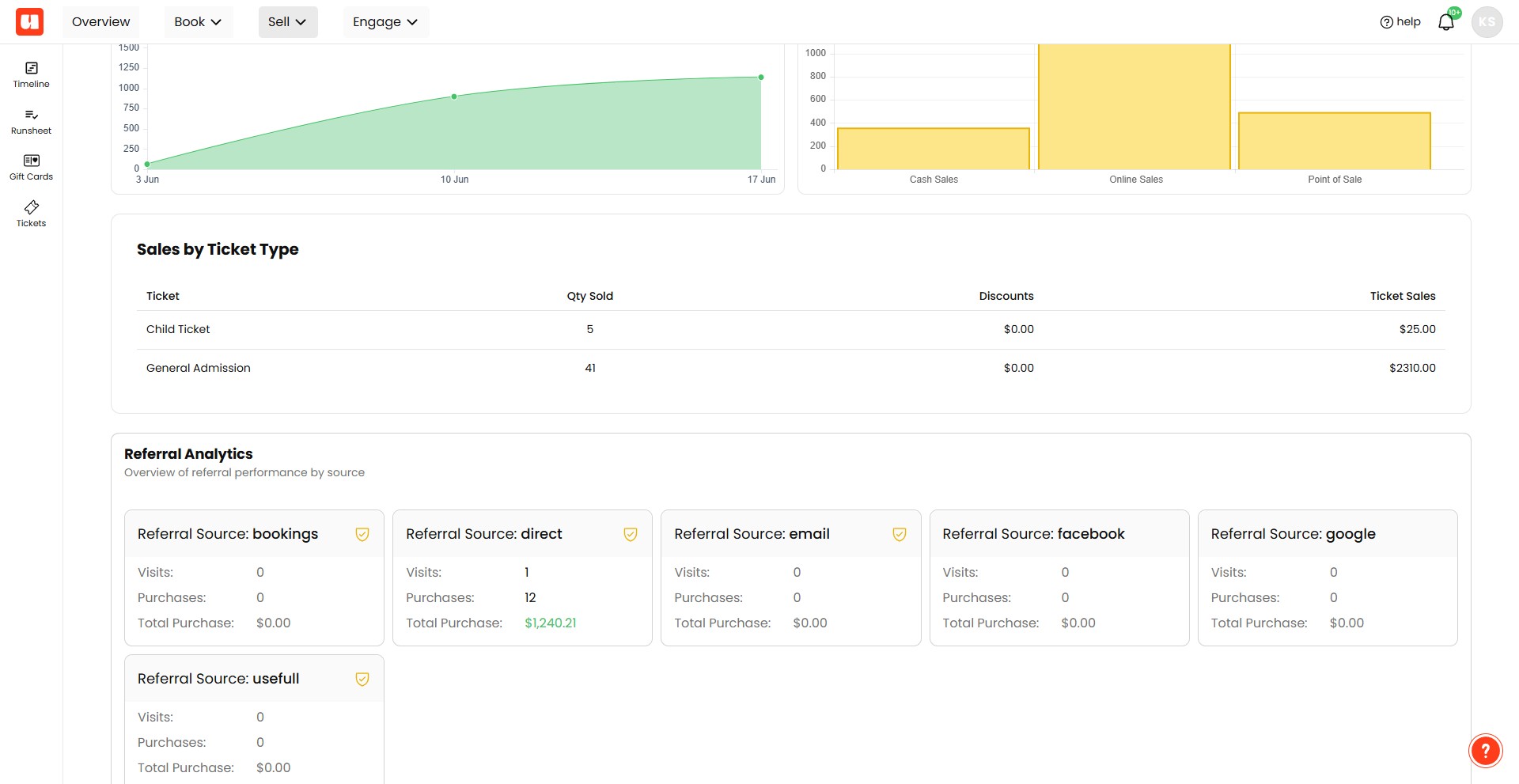
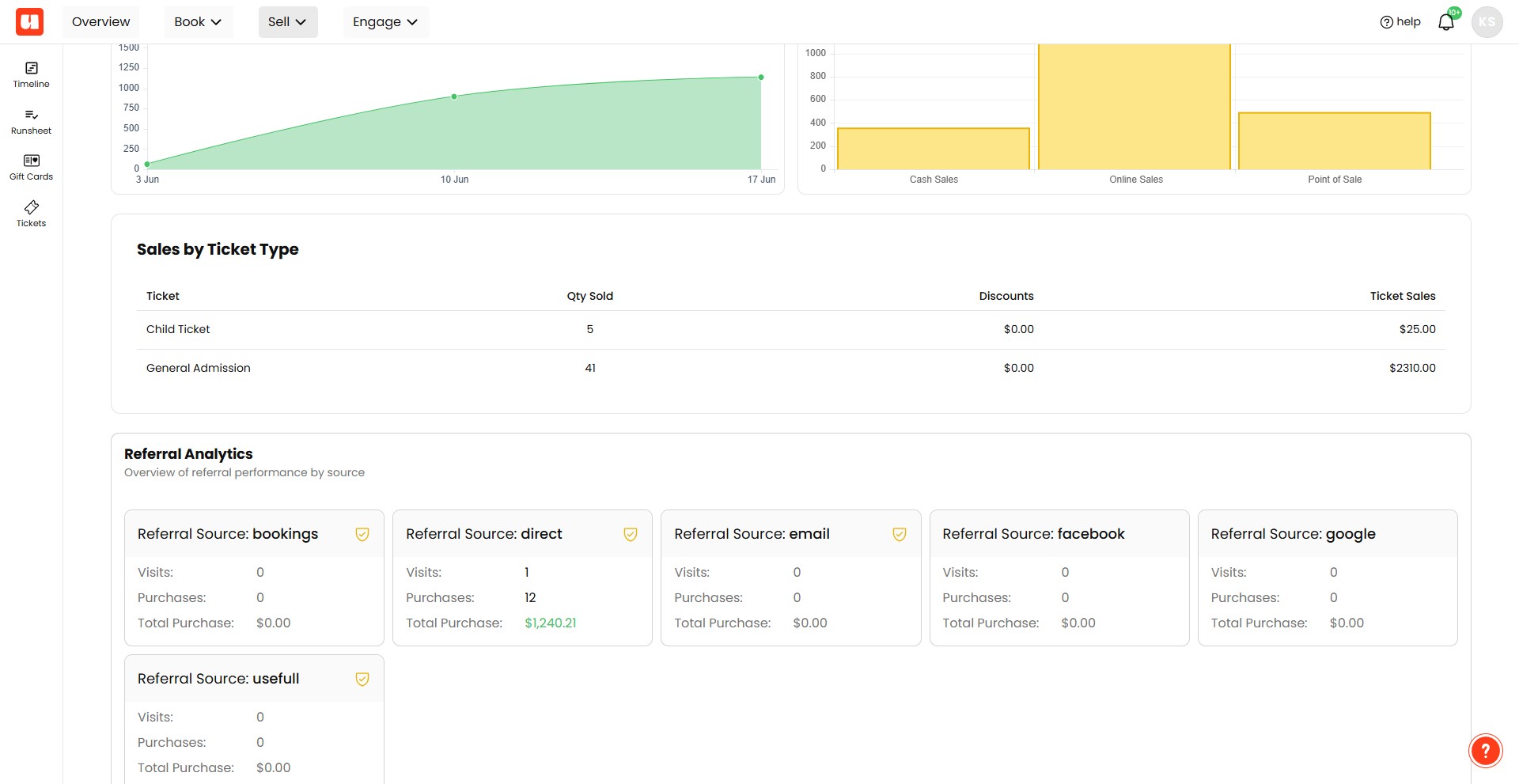
On the dashboard, you’ll see a Sales Report. At the bottom of this report, you’ll find your Referral Performance section. Here, you can review visits and purchases connected to each referral source.
That’s it! Referral tracking is now enabled, and you can start measuring which marketing channels are driving traffic and sales for your event.
Frequently Asked Questions
- How do I enable referral tracking for my event?
From your event dashboard, go to Event Settings, then click QR Code & Links in the left-hand menu. Scroll to the Enable Tracking section and make sure tracking is turned on. Once enabled, the Referral Links section will appear — enter a referral code and click Add to create the tracking link.
- What should my referral code look like and how is it used in the link?
Enter a simple label such as facebook, instagram, email, partner1, or sponsorname. After you add the code, the generated link will include a tracking parameter like ?source=yourreferralcode (for example: ?source=facebook). Use that link wherever you want to track traffic from that source.
- Where can I use the referral link and QR code?
Use the referral link in social media posts, email campaigns, ads, partner websites, or sponsor promotions. You can also download a QR code for the referral link to use on printed materials such as flyers, posters, signage, or for in-person promotions.
- I don’t see a referral link or QR code — what should I check?
Make sure Enable Tracking is turned on in QR Code & Links. After tracking is enabled, add a referral code and click Add — a new tracking link (and the option to download its QR code) appears only after you add the code.
- How can I view performance for my referral codes?
Go to your Event Attendees Dashboard and click on "Referral Source:" On the dashboard’s Sales Report, scroll to the bottom to find the Referral Performance section, where you can review visits and purchases connected to each referral source.