

How to create a complimentary gift card
Create a complimentary Gift Card in the Usefull staff dashboard and access the recipient’s Gift Cards record.
Navigate to the Usefull staff dashboard at the provided URL
Use this guide if you'd like to create a complimentary gift card for a customer.
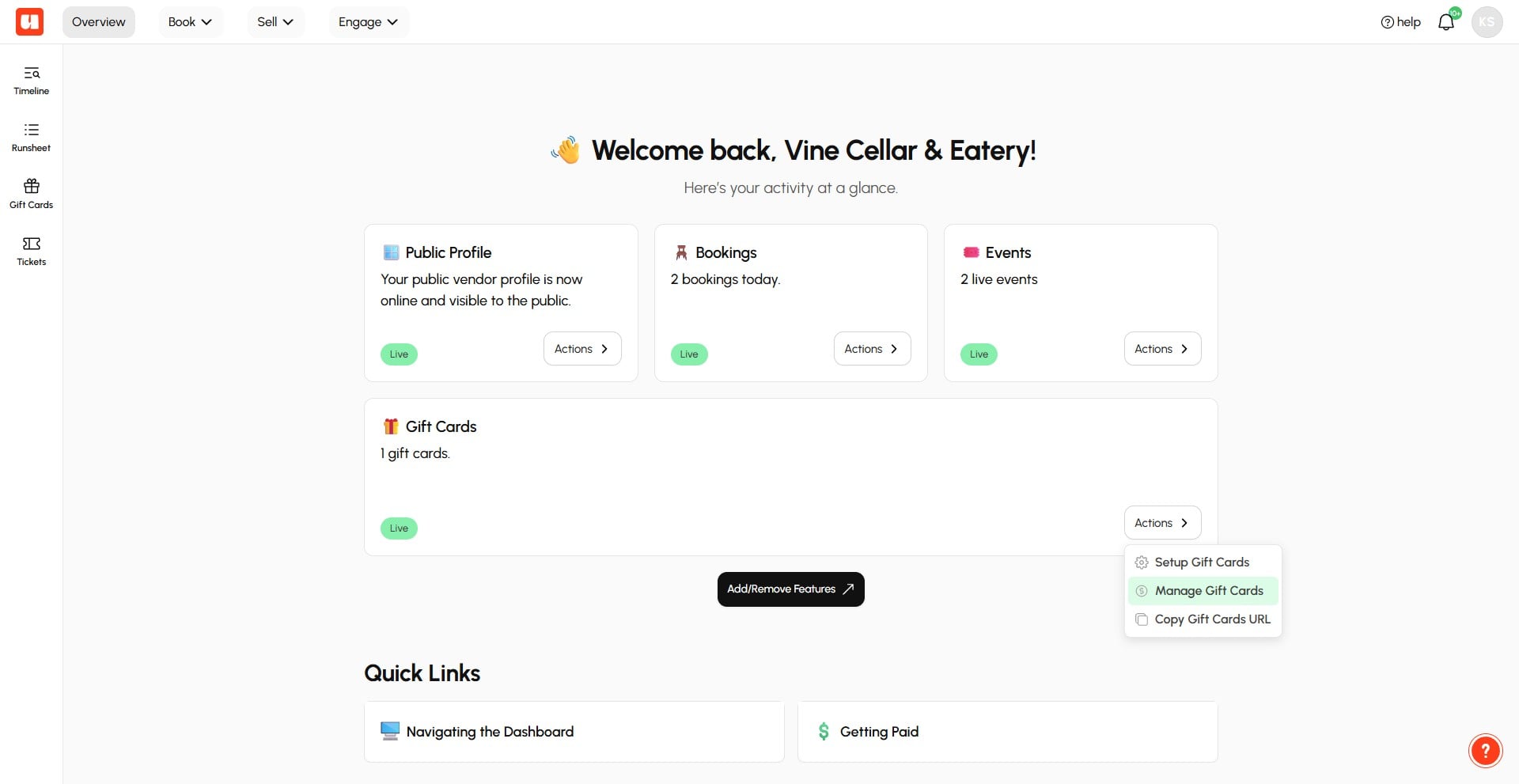
Open the Actions menu on the Gift Cards card, then select Manage Gift Cards
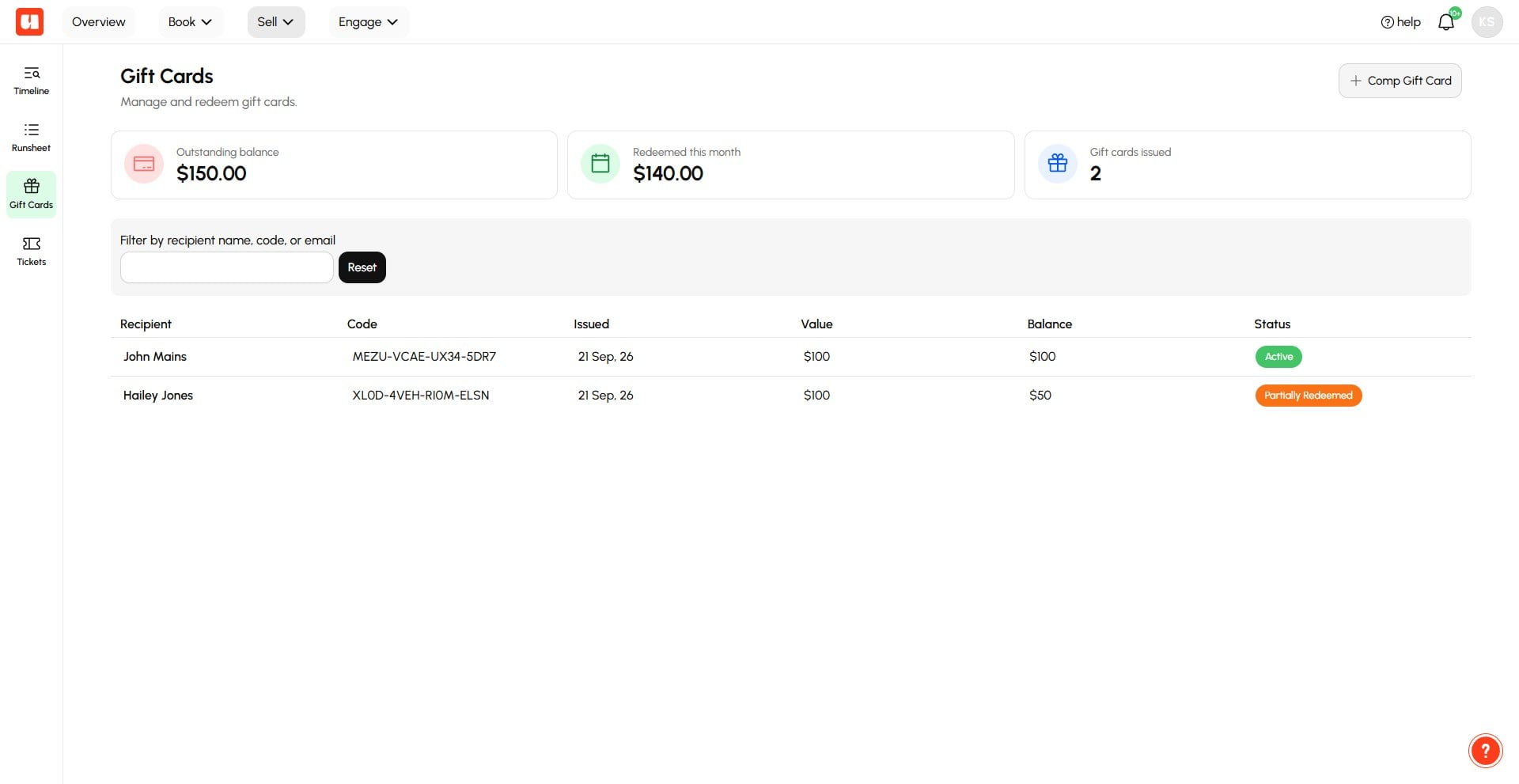
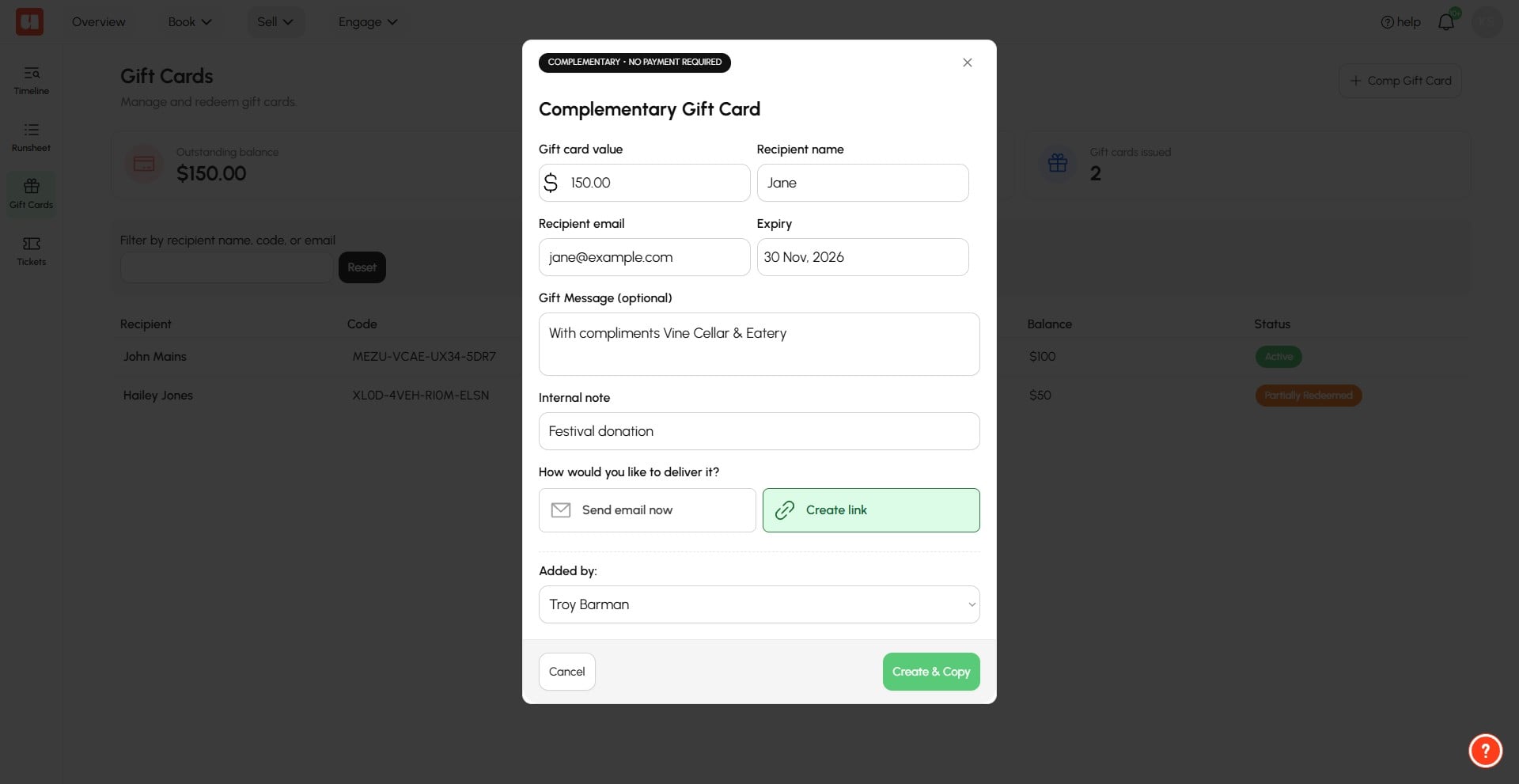
Click + Comp Gift Card in the upper-right corner
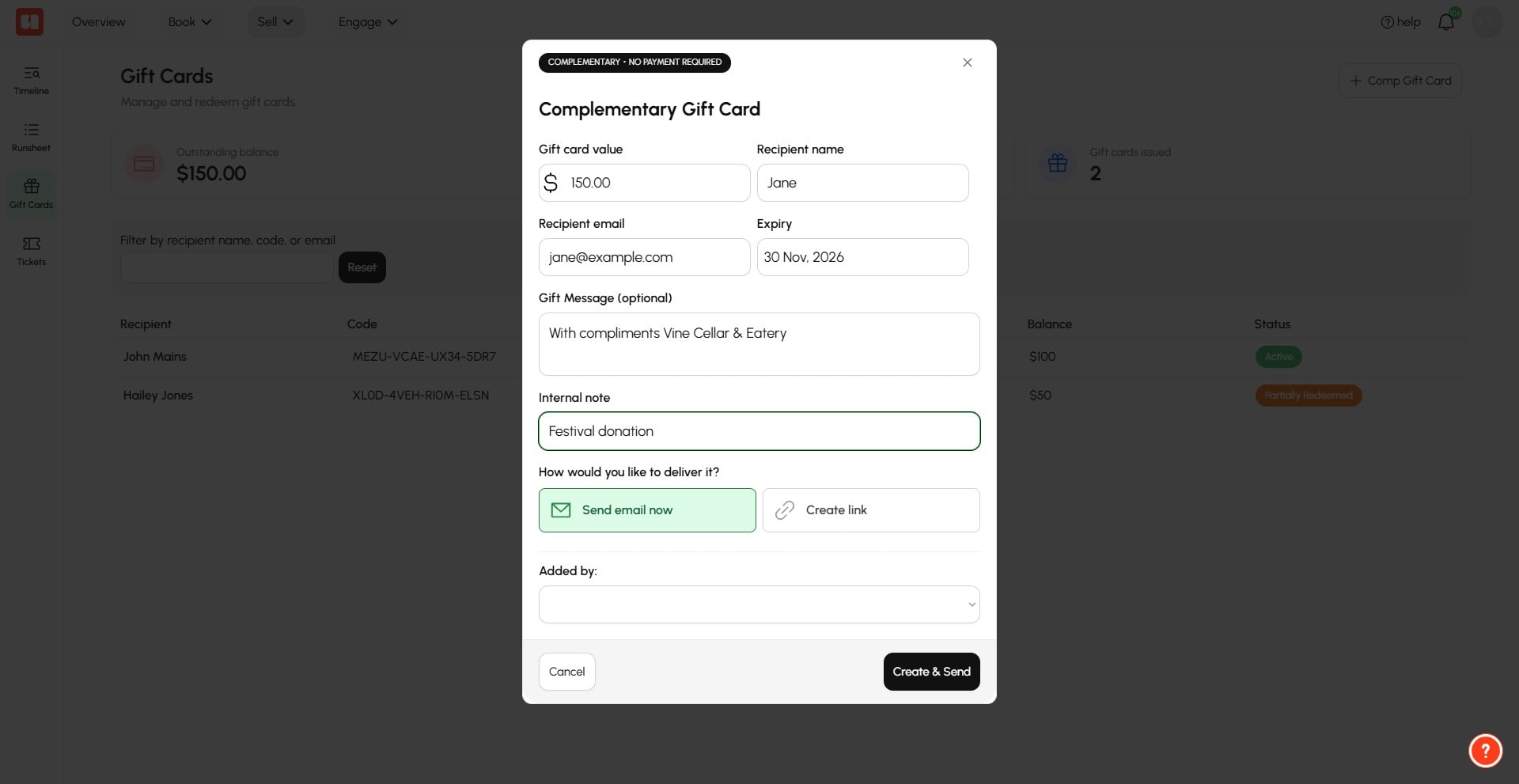
Complimentary gift cards can be emailed directly to the recipient or a link created to copy into a personal email. In this example we'll create a link.
Fill out the card details including redeemable value and expiry date. Under How would you like to deliver it?, select Create link
Open the Added by dropdown
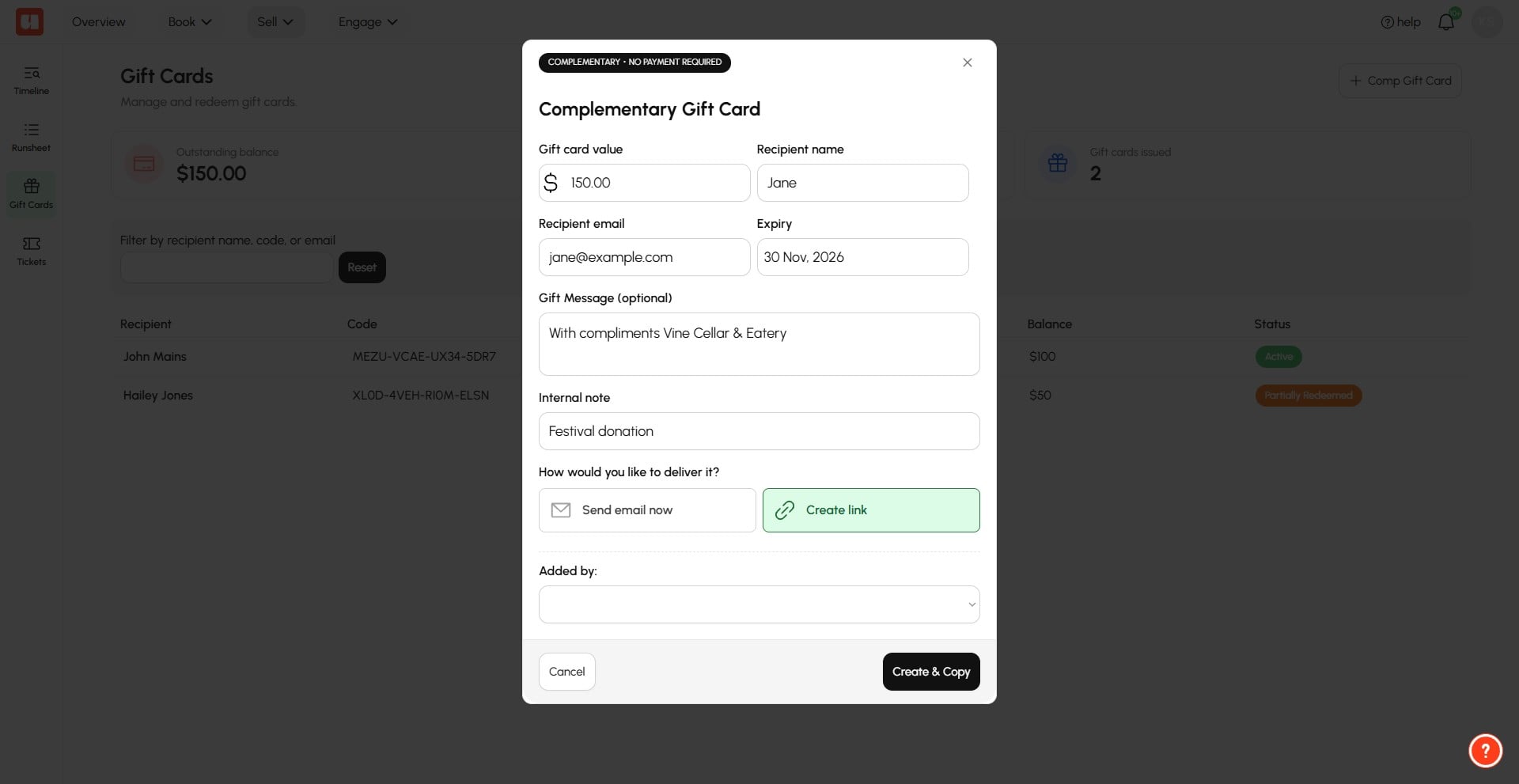
Click Create & Copy
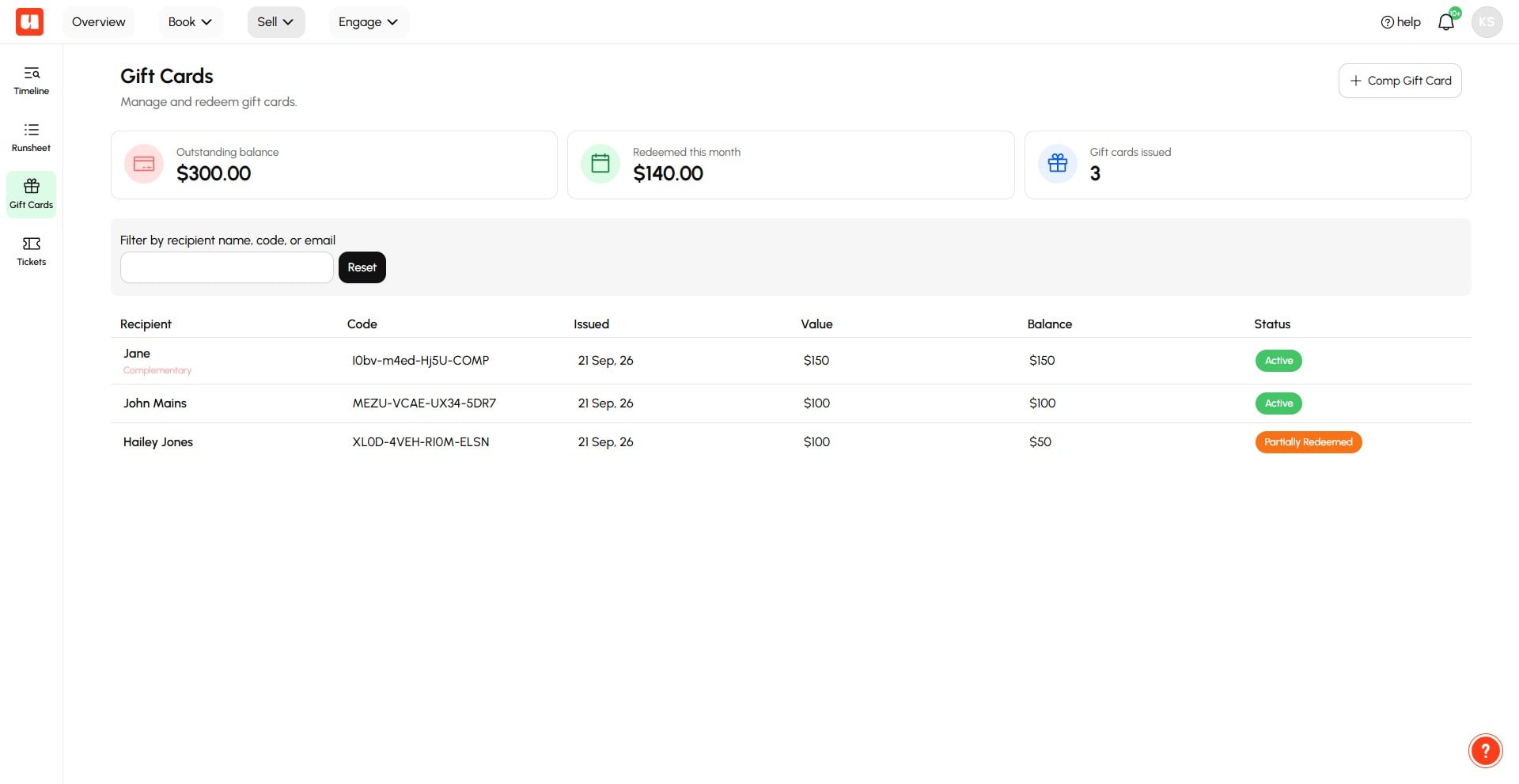
Complimentary gift cards are highlighted in your staff dashboard.
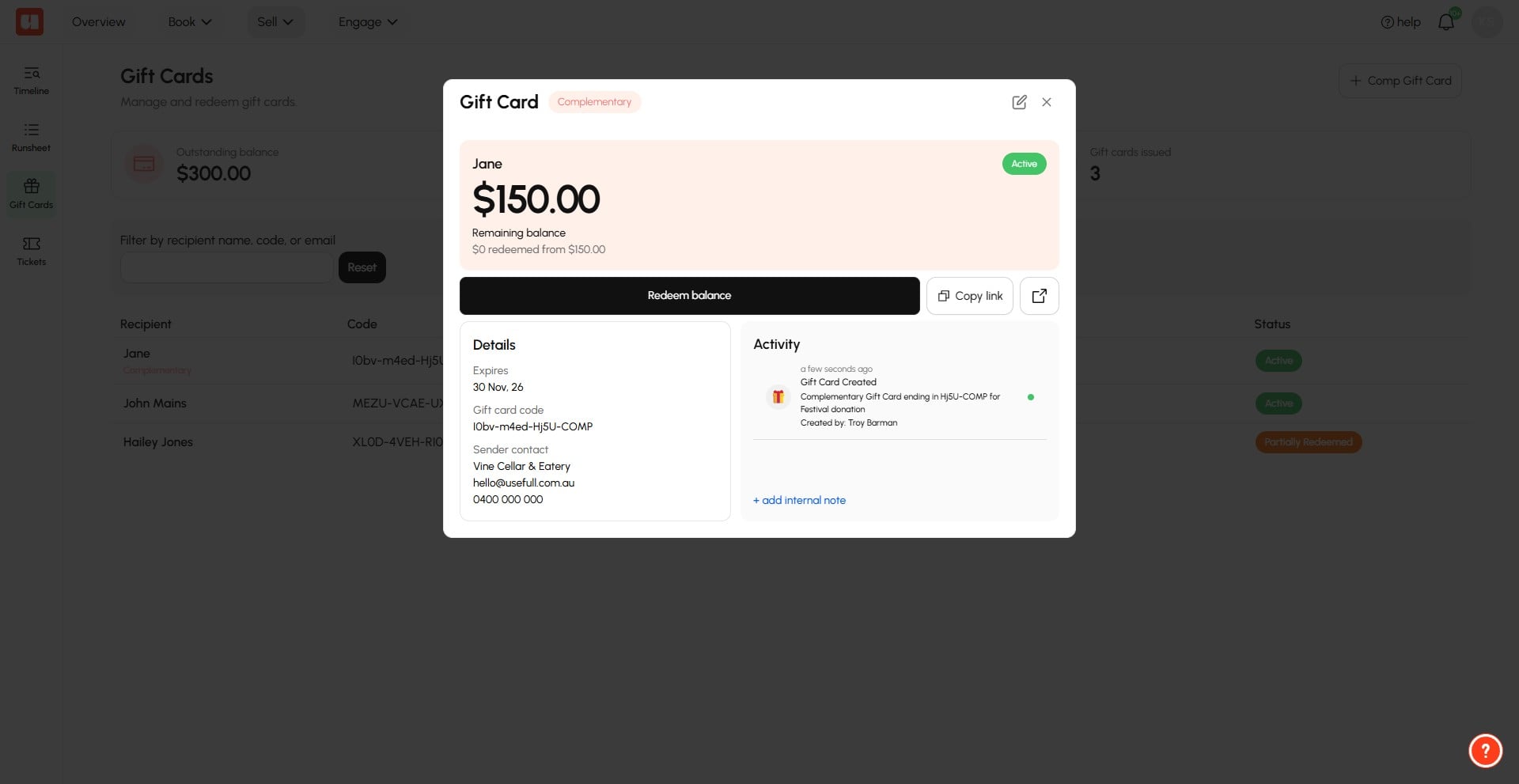
If you need to get a copy of the link, open the gift card and click Copy Link.
Frequently Asked Questions
- What details do I need to enter for a complimentary gift card?
You need to fill out the gift card details, including its redeemable value and expiry date. You also select an option under How would you like to deliver it?.
- Can I send the complimentary gift card without emailing it directly?
Yes. Select Create link to generate a link that you can copy into a personal email instead of emailing the gift card directly.
- Can I get the gift card link again later?
Yes. Open the gift card in the staff dashboard and click Copy Link to copy it again.
- How can I tell which gift cards are complimentary?
Complimentary gift cards are highlighted in the staff dashboard.