

Managing Venue Capacity
This guide steps through Usefull's Booking Capacity Settings used to manage the number of online bookings that can be made for a given timeslot.
When managing your venue's capacity, it's essential to control the flow of guests coming into your restaurant at any one time. This is achieved by adjusting three key settings that work together to help you manage bookings and guest numbers booking online.
Step 1: Access Booking Capacity Settings
Navigate to your Booking Settings section in your management system.
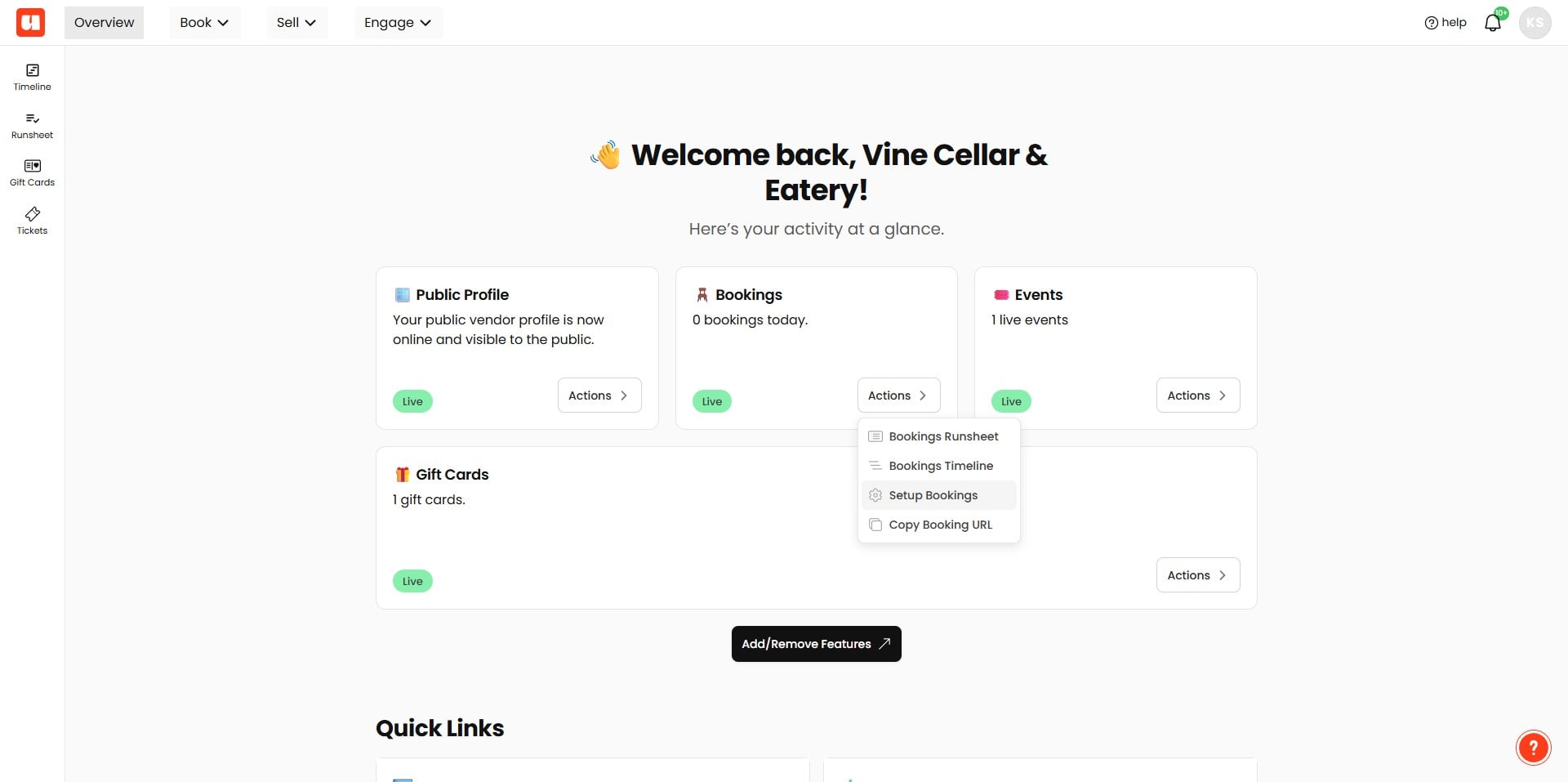
You'll want to be in the General Settings area.
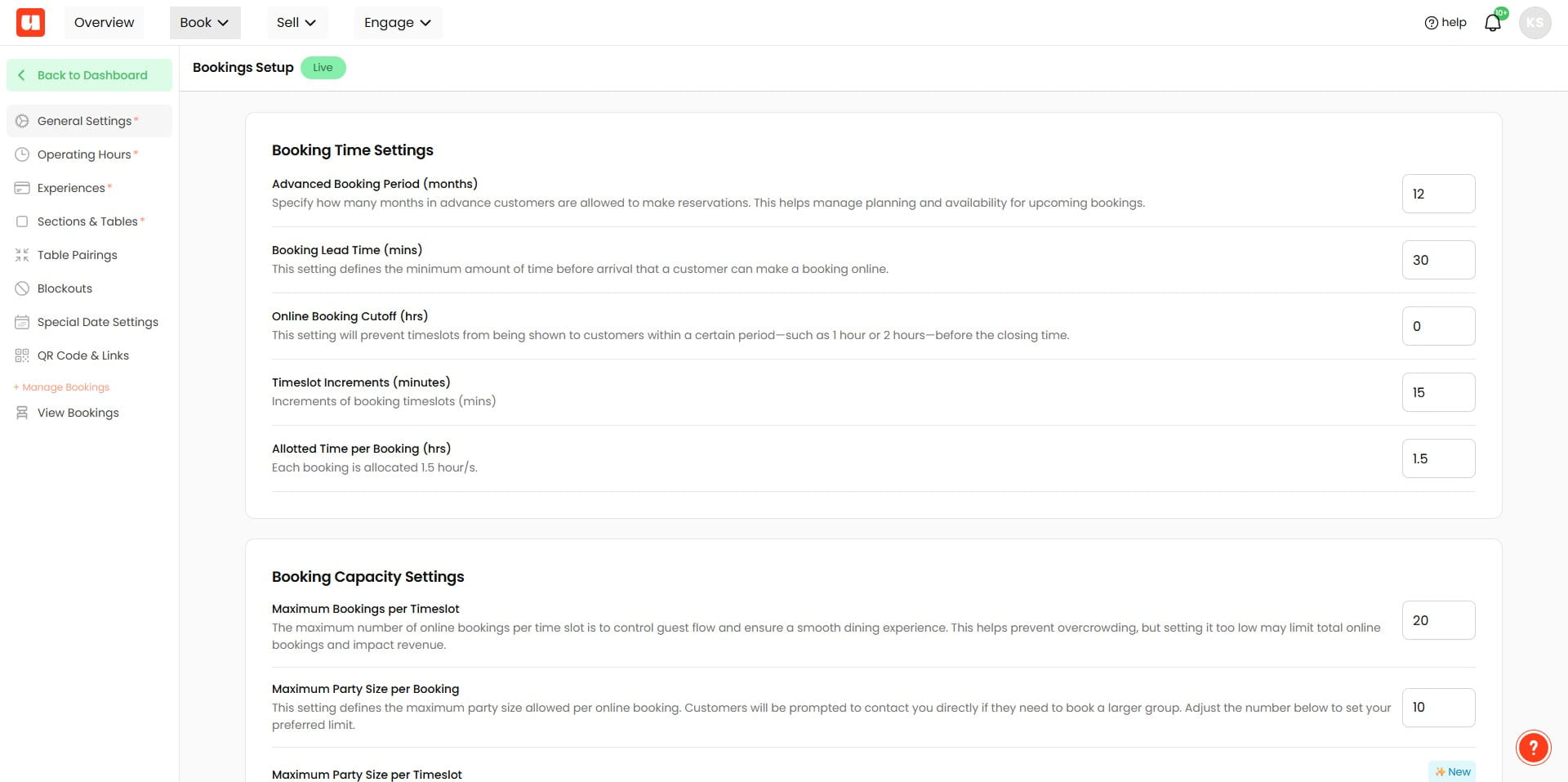
Scroll to Booking Capacity Settings. You will find three settings here.
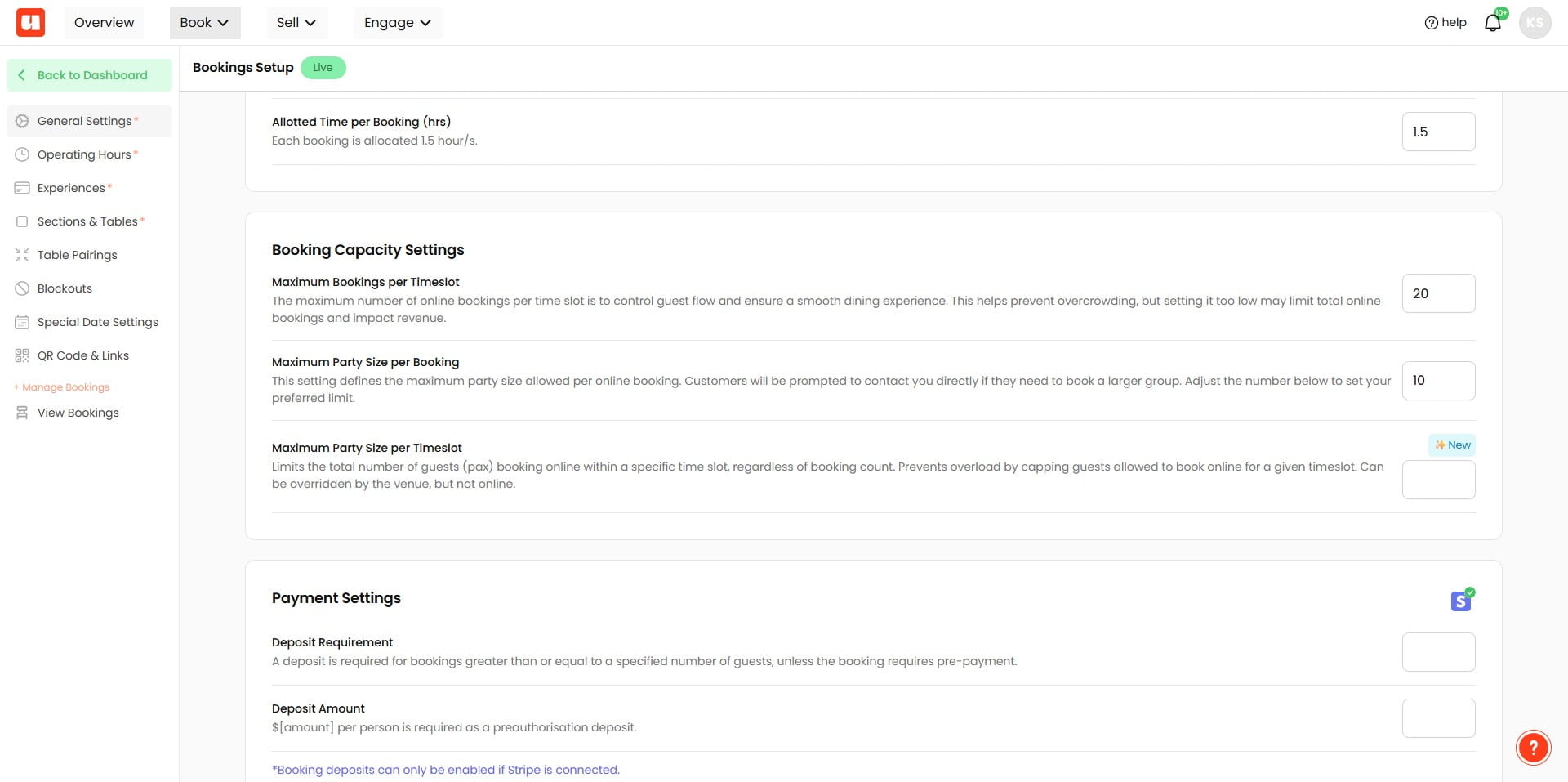
Step 2: Understand and Set the Capacity Limits
Maximum Bookings per Timeslot
- This setting limits how many online bookings can be requested for a given timeslot.
- Example: If set to 10, no more than 10 bookings can be made online for the same time.
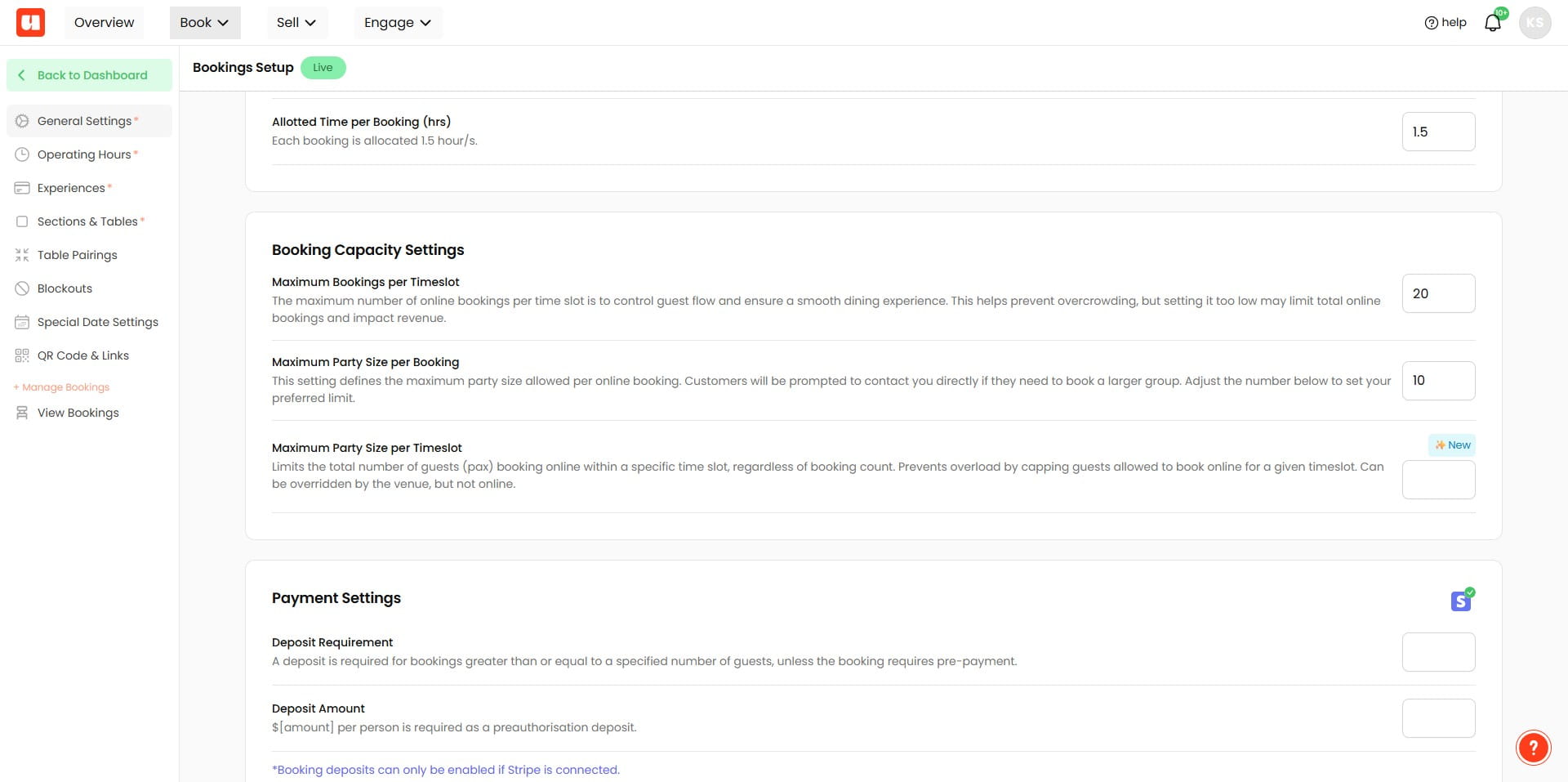
Maximum Guests per Online Booking
- This works alongside the maximum bookings to limit the size of each booking made online.
- Example: Setting this to 10 means no single online booking can exceed 4 guests.
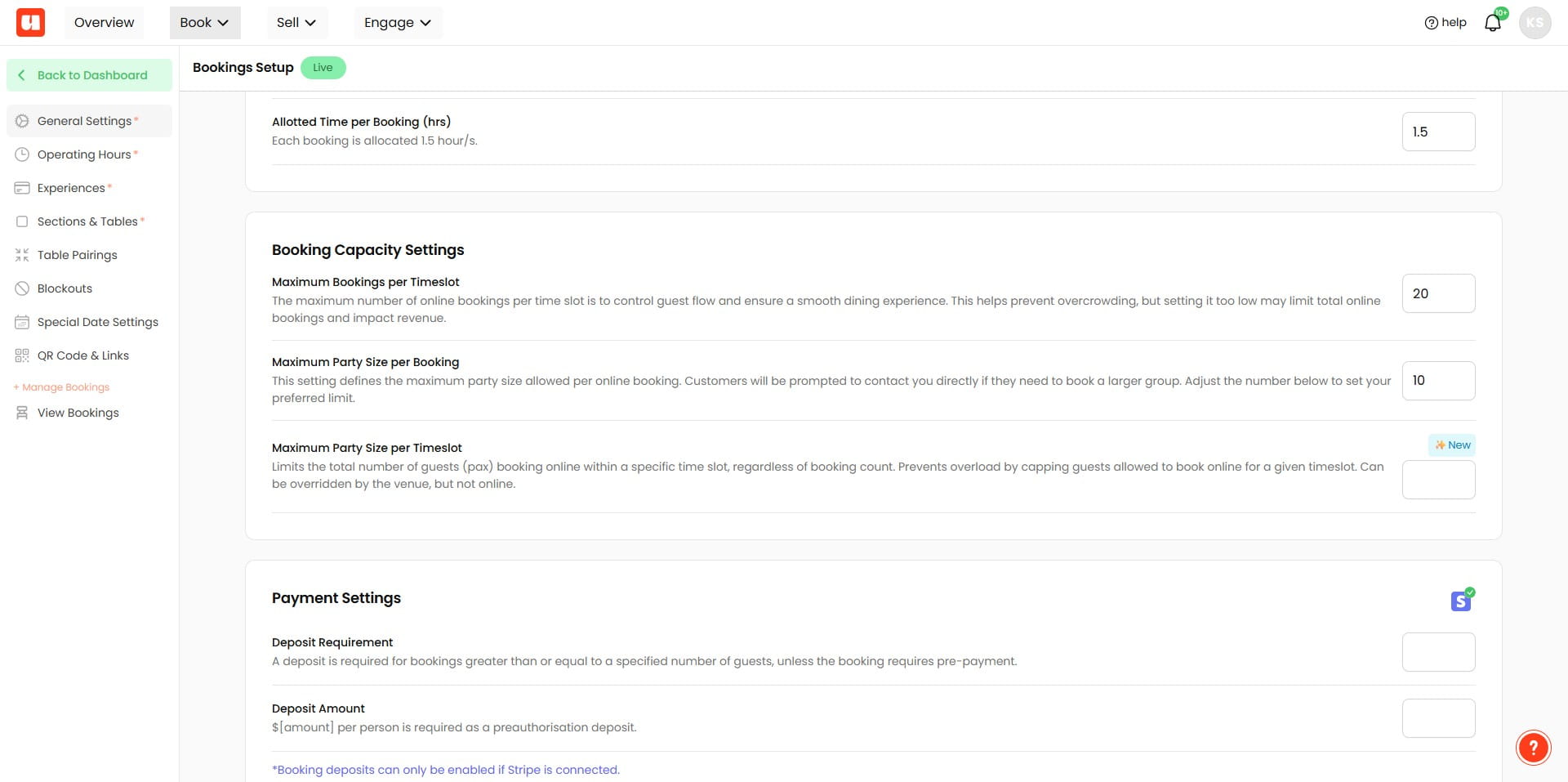
Tip: All capacity settings relate only to online bookings; as the venue manager, you can manually override these limits if needed.
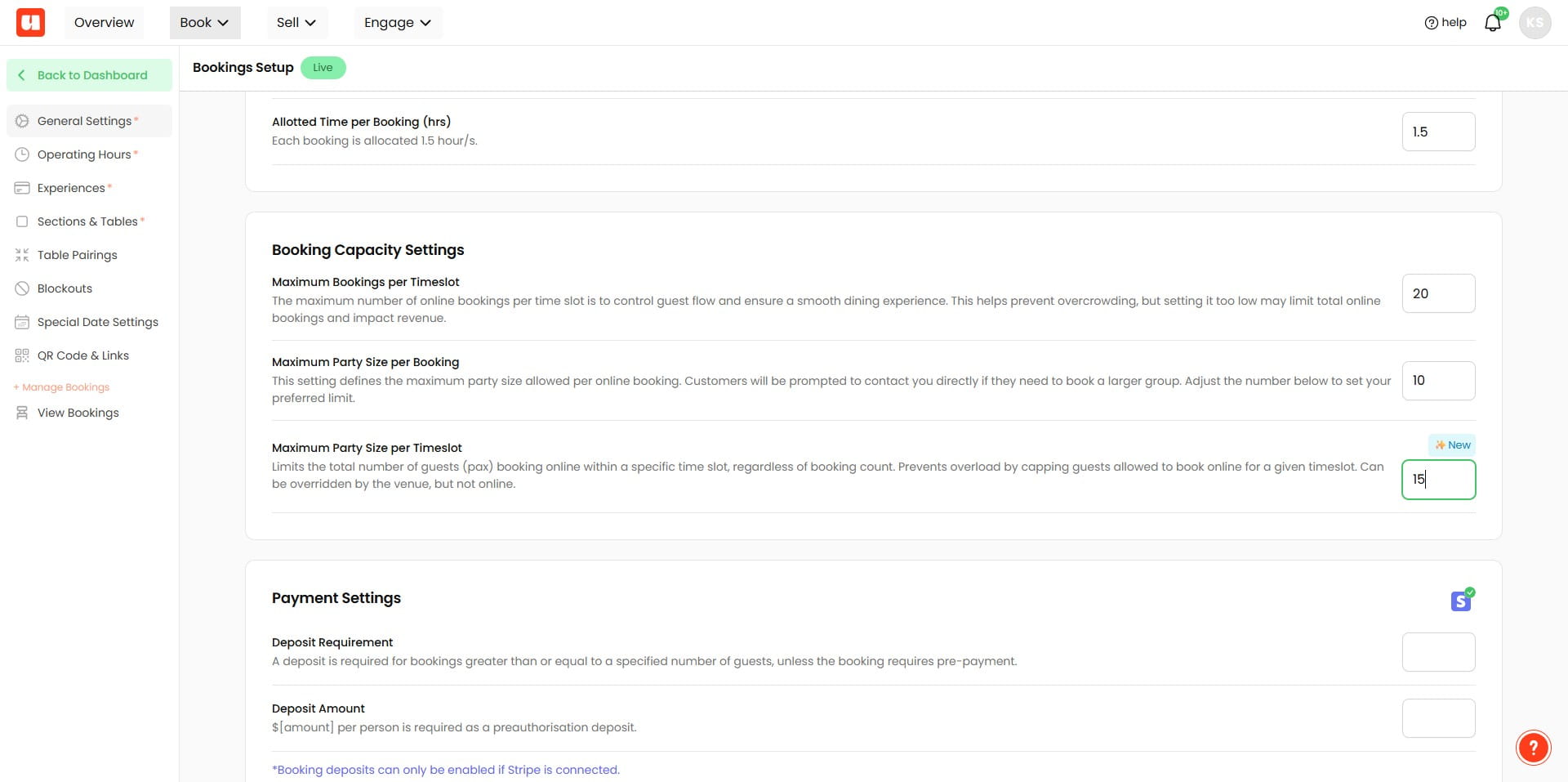
Maximum Party Size per Timeslot
- This setting restricts the total number of guests that can book in a given timeslot, regardless of how many bookings they are spread across.
- Example: Setting this to 15 means the total guests booked at that time cannot exceed 15.
Automatic Customer Messaging:
When a timeslot is full, customers will receive a message informing them the slot is unavailable and advising them to contact you directly. This helps manage expectations and allows for manual adjustments.
Frequently Asked Questions
- Where do I find the booking capacity settings in the management system?
Go to Booking Settings, open the General Settings area, and scroll to Booking Capacity Settings. You will find the three capacity controls there.
- What is the difference between the three capacity settings?
Maximum Bookings per Timeslot limits how many online bookings can be requested for the same timeslot (e.g., setting it to 10 prevents more than 10 online bookings at that time). Maximum Guests per Online Booking limits the size of each individual online booking (e.g., set to 4 means no single online booking can exceed 4 guests). Maximum Party Size per Timeslot restricts the total number of guests booked in that timeslot across all bookings (e.g., set to 15 means total guests at that time cannot exceed 15).
- How do these settings work together — which one takes priority?
All three work together and the most restrictive limit will effectively control online availability. For example, many small bookings allowed by Maximum Bookings per Timeslot could still be blocked if the combined guest count hits the Maximum Party Size per Timeslot. As manager you can manually override these limits if you need to admit more guests than the online settings allow.
- What happens when a timeslot is full online and a customer tries to book?
When a timeslot is full, customers have a visual que that the timeslot is unavailable. If they try to select the unavailable timeslot a message is displayed to tell them the slot is unavailable and advising them to contact you directly. This lets you manage expectations and offers the option for manual adjustments or overrides.
- Do these capacity settings apply to manual bookings or only online bookings?
These capacity settings apply only to online bookings. As the venue manager you can manually override the limits when taking bookings directly.