

Getting Started with Usefull Connect
Usefull Connect is Usefull's mobile app for event management at your actual event. It includes efficient QR code and attendee check-in as well as point of sale capability to sell tickets at the gate.
Setting Up Usefull Connect
New Tip! If you plan to use Usefull Connect to check in attendees, you’ll need to set up access for your devices before the day. This guide shows how to do this.
Start from your event setup.
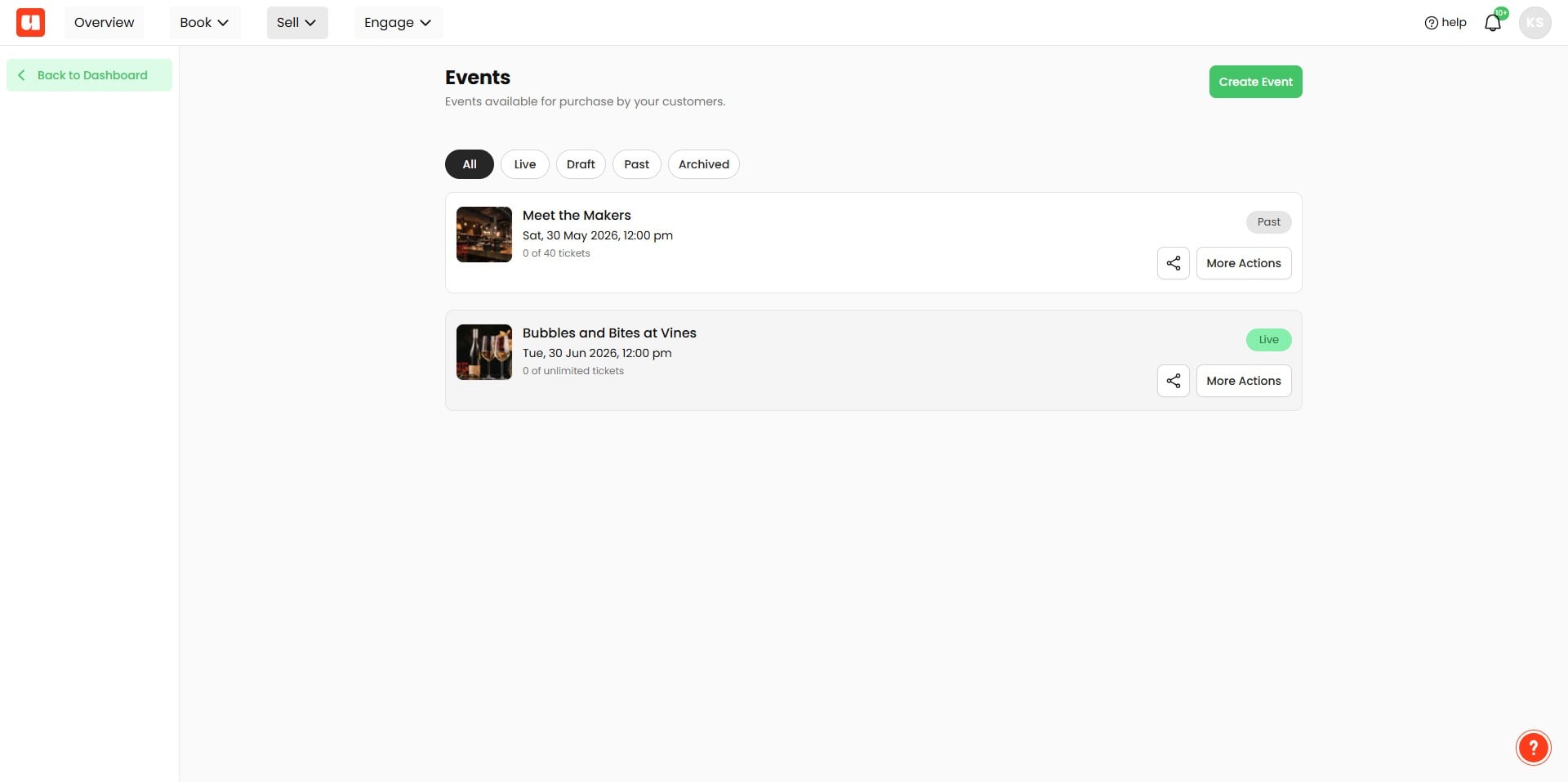
In the left menu, click "Usefull Connect," then "Register Device."
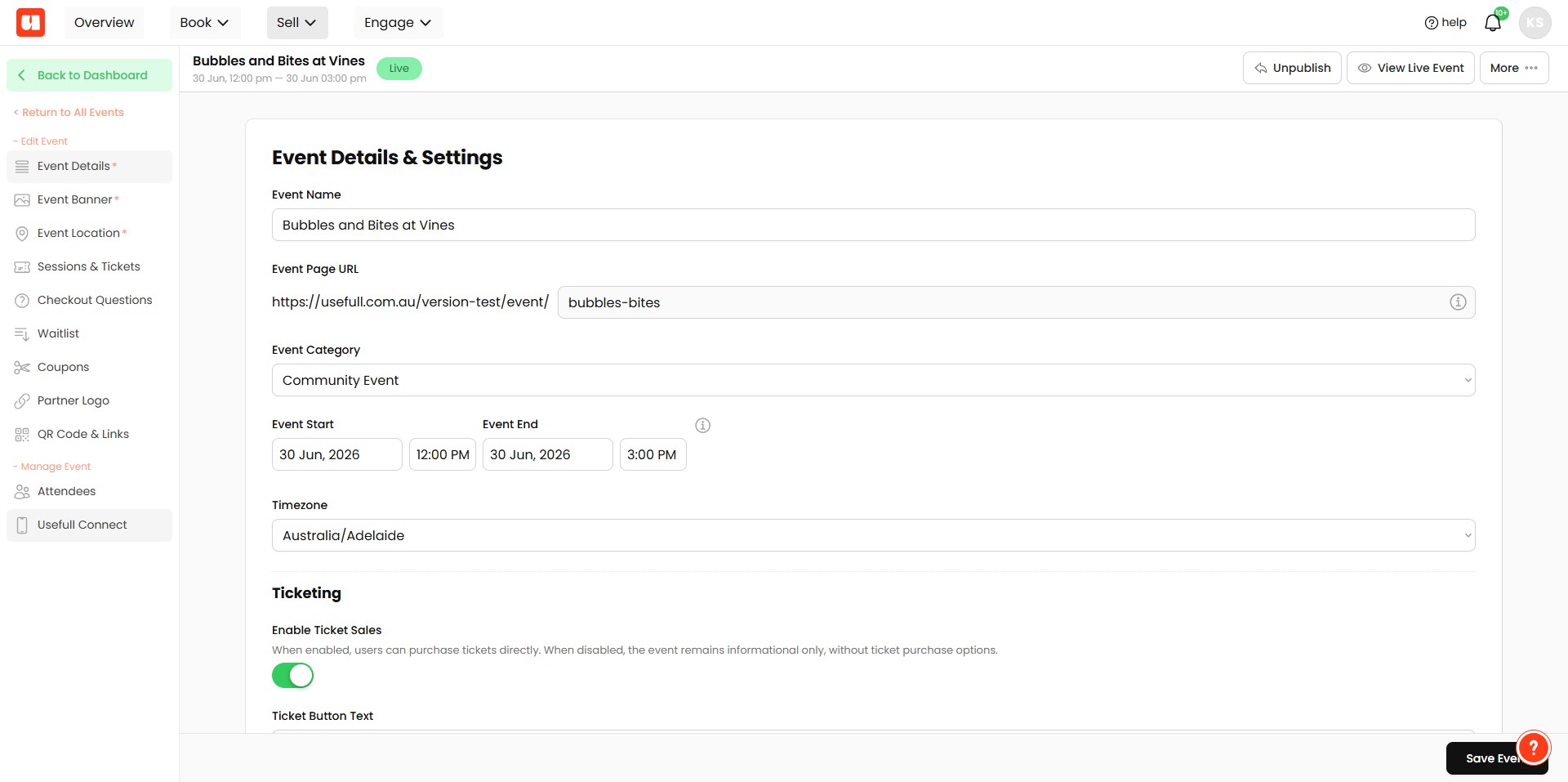
Click on "Register Device"
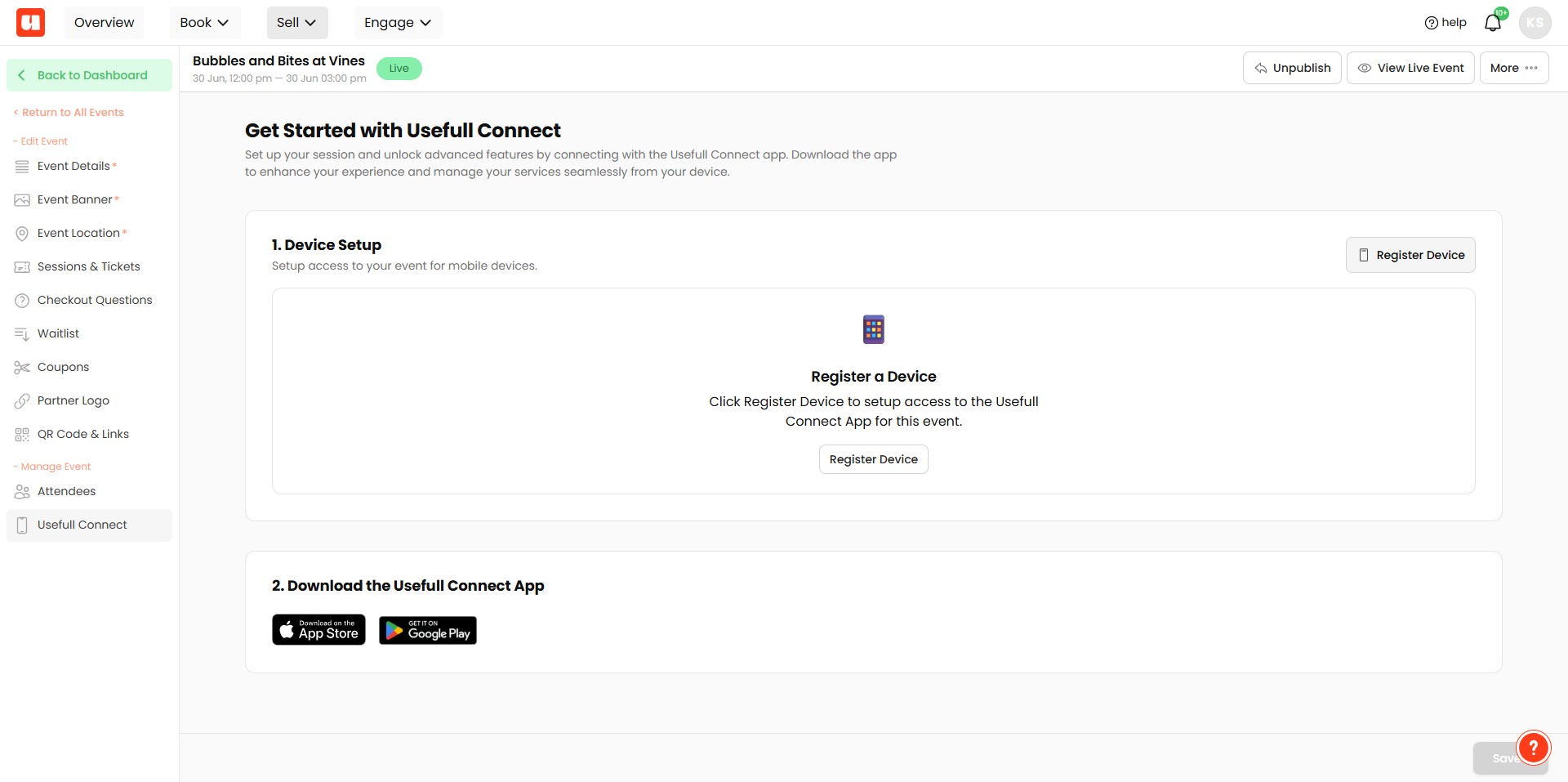
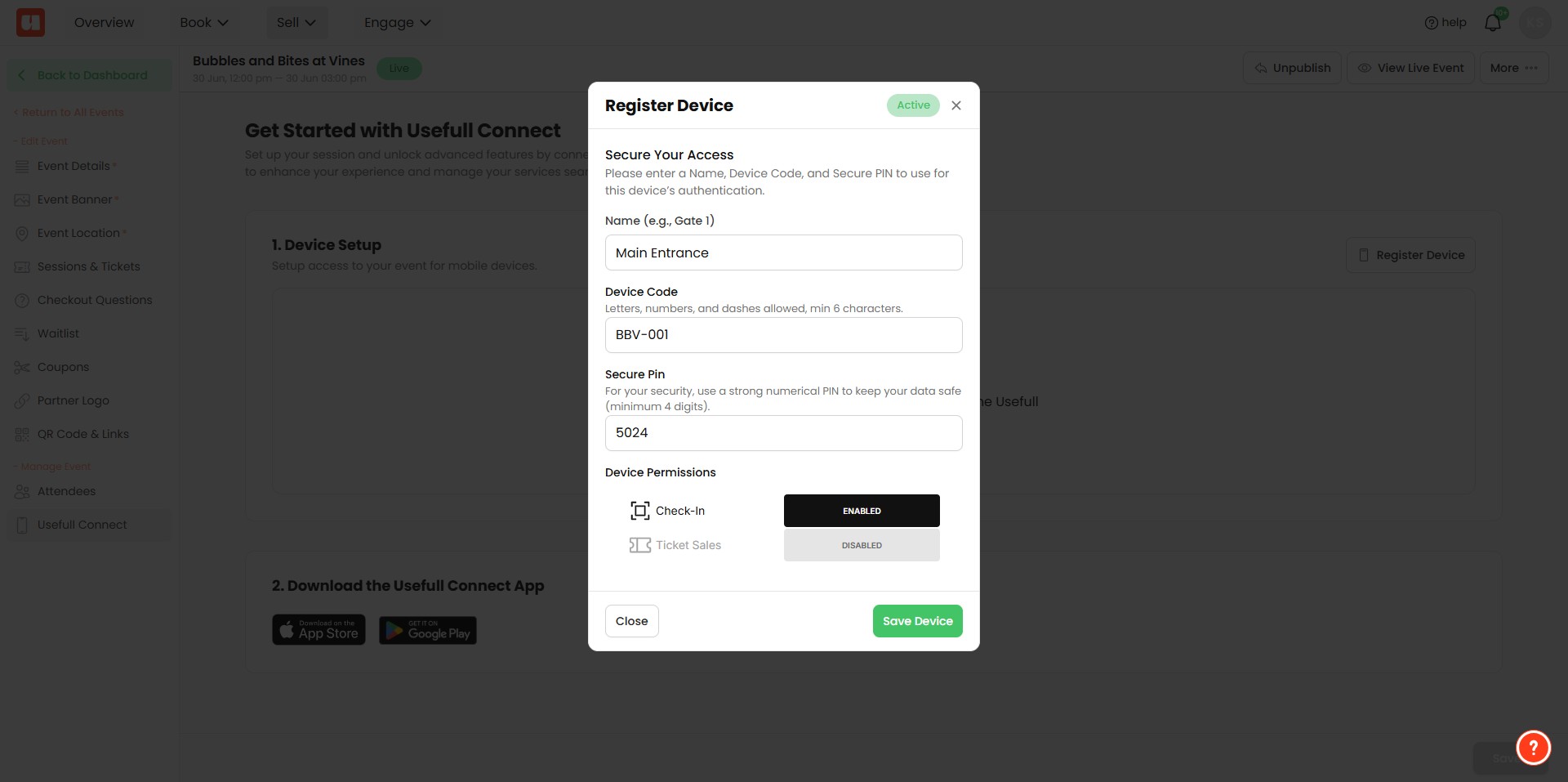
Enter a Name (e.g., Gate 1), a Device Code, and a Numeric Password.
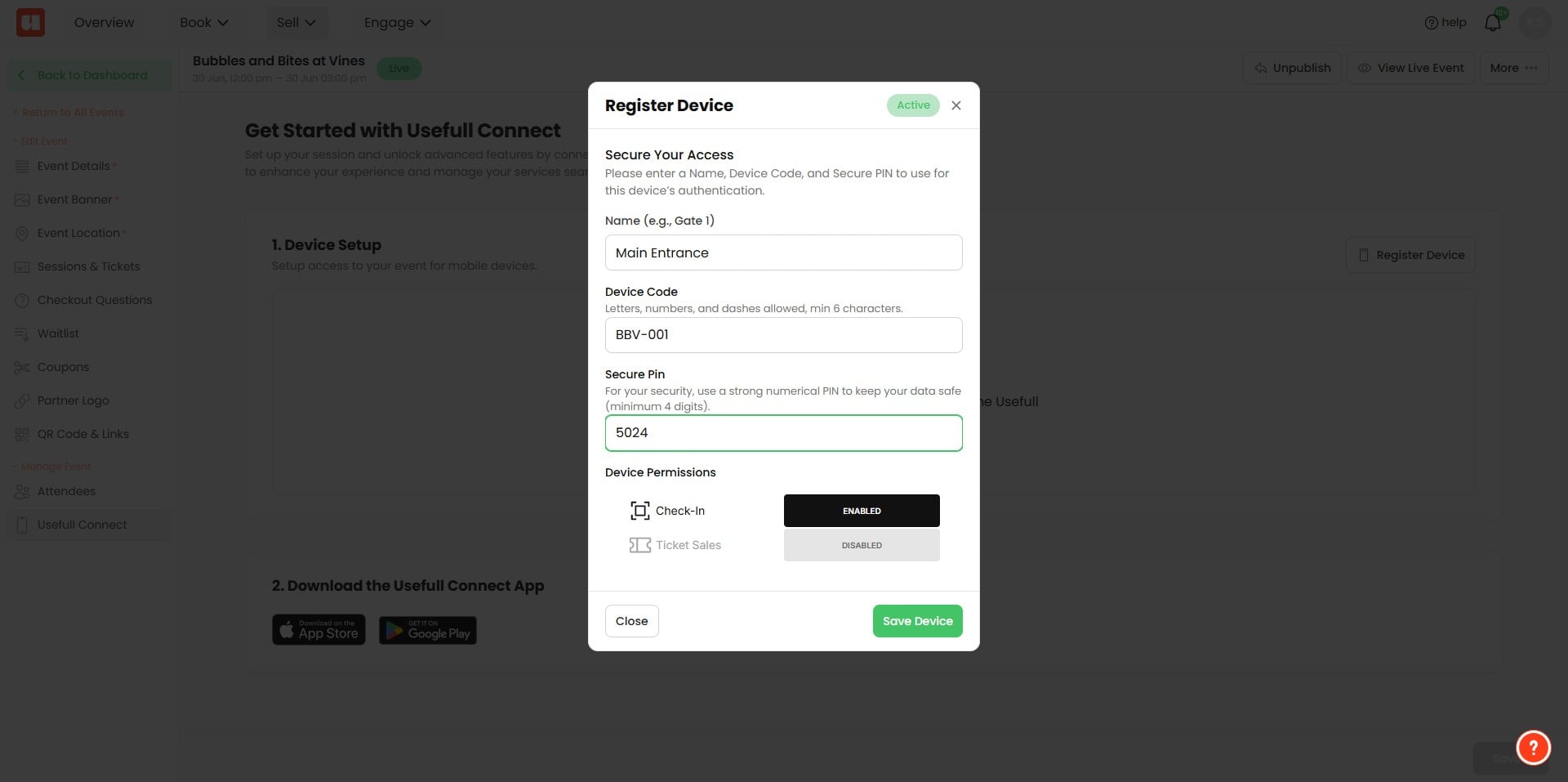
Tip! This needs to be unique. It’s a secure feature, so don’t use easy-to-copy things like "abc123."
Setting Device Permissions
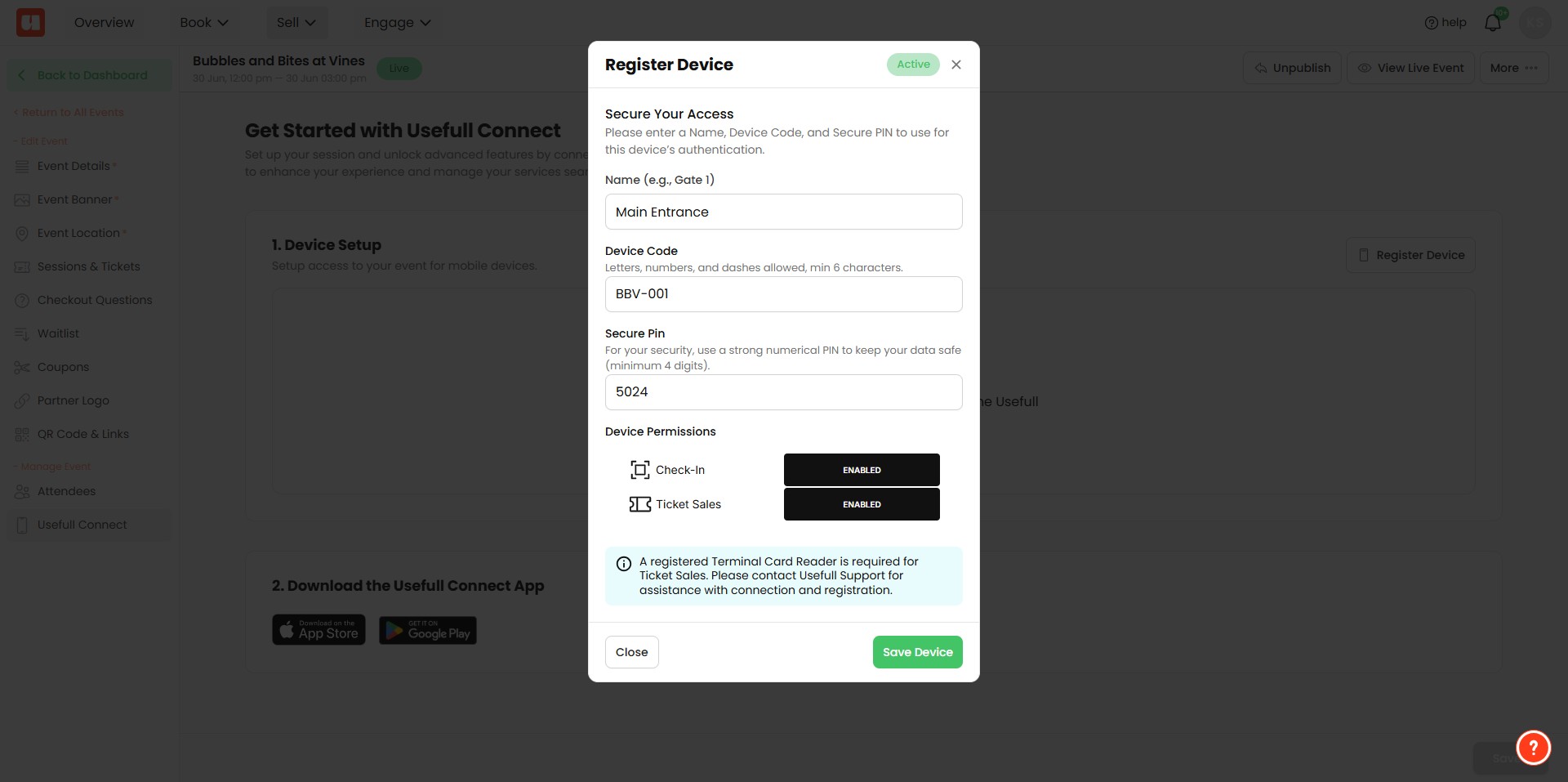
Now select your capabilities, i.e., Check-in and/or Ticket Sales. This will determine what your device sees when you log in.
If you are planning on using Point of Sale to sell tickets at the gate. You'll need to register a Stripe Terminal Reader. Please contact Usefull Support to assist with this step.
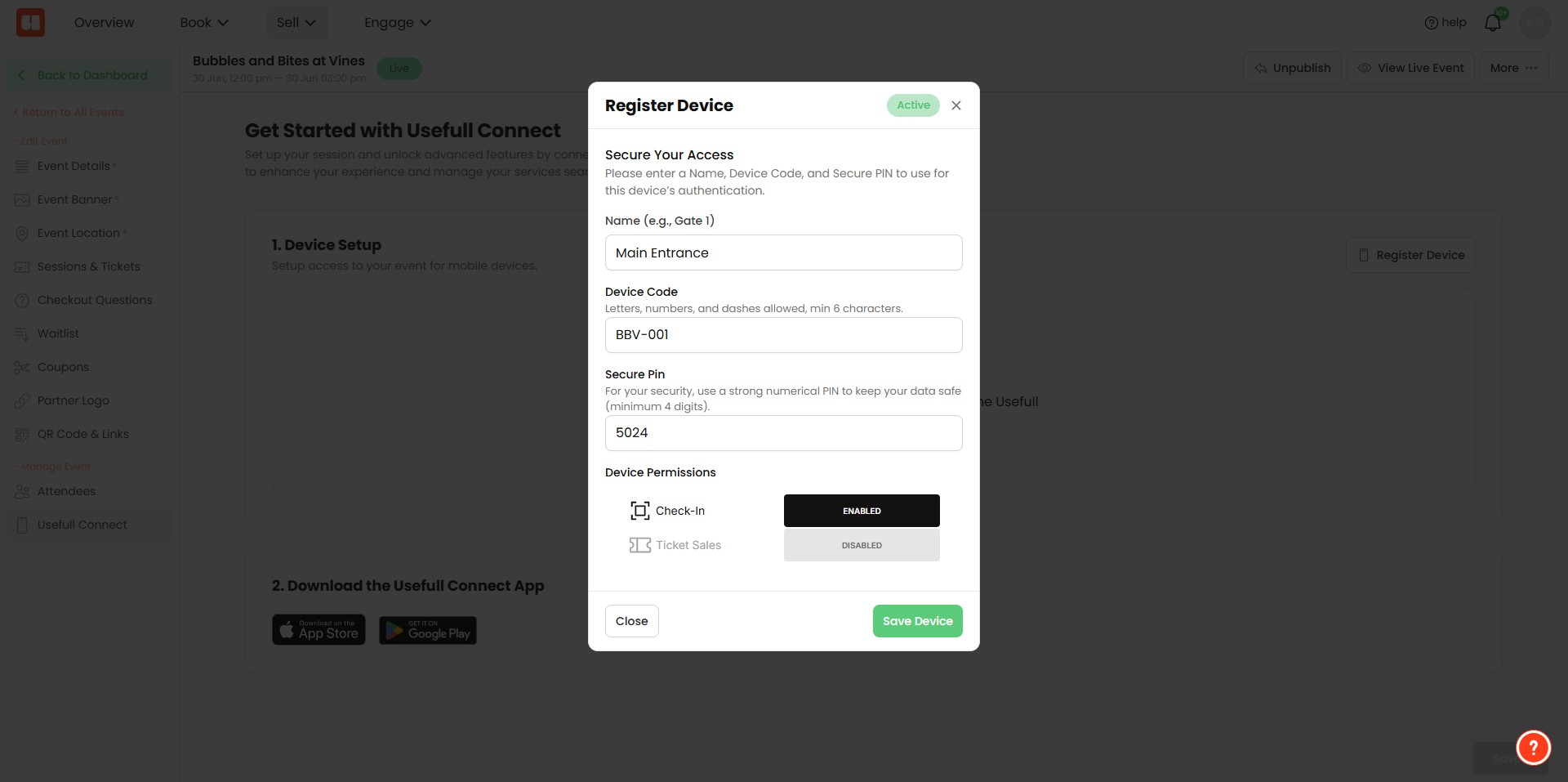
Click on "Save Device"
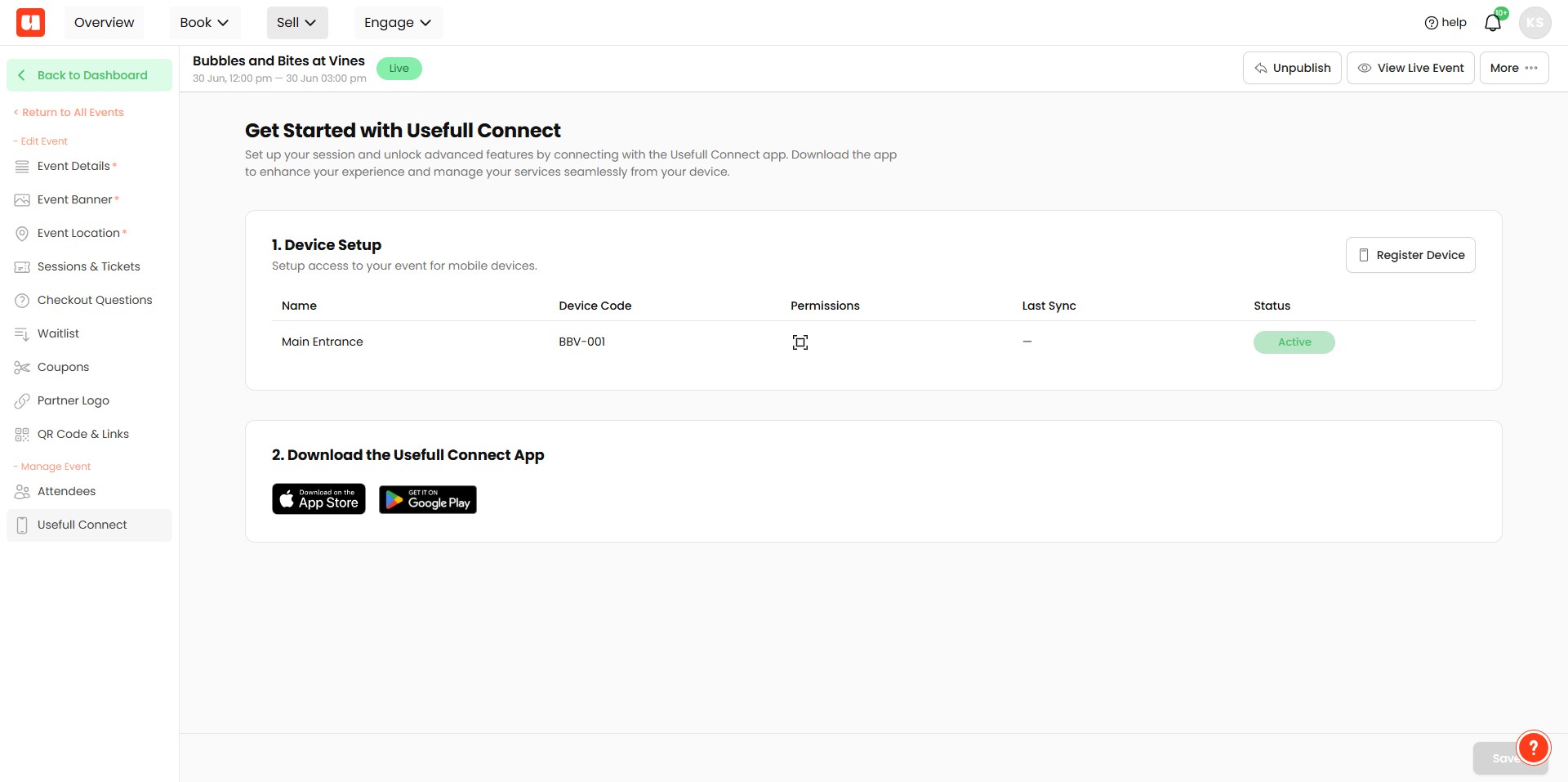
That’s it! Now you can go to either the App Store or Google Play Store to download the Usefull Connect app and log in using the credentials you set up.
Frequently Asked Questions
- Where do I start to register a device for Usefull Connect?
From your event setup, open the left menu and click "Usefull Connect", then "Register Device". Click on "Register Device" to open the registration form.
- What information do I need to register a device and are there any naming rules?
You must enter a Name (e.g., Gate 1), a Device Code, and a Numeric Password. Each Device Code and password needs to be unique; don’t use easy-to-copy values such as "abc123".
- When should I register my devices?
Register your devices before the event day so they have access when you need to check in attendees.
- How do device permissions work and what should I select?
When registering, select the device capabilities you want (Check-in and/or Ticket Sales). These permissions determine what the device will see when you log in.
- How do I enable point-of-sale ticket sales at the gate?
If you plan to sell tickets at the gate using Point of Sale, you must register a Stripe Terminal Reader. Contact Usefull Support to assist with registering the Stripe Terminal Reader.