

How to Flag a Booking as a Special Booking
Sometimes you may want to highlight a particular booking as important — for instance, if it’s a potential wedding booking or requires special attention. Flagging it as a special booking helps you and your team easily identify it.
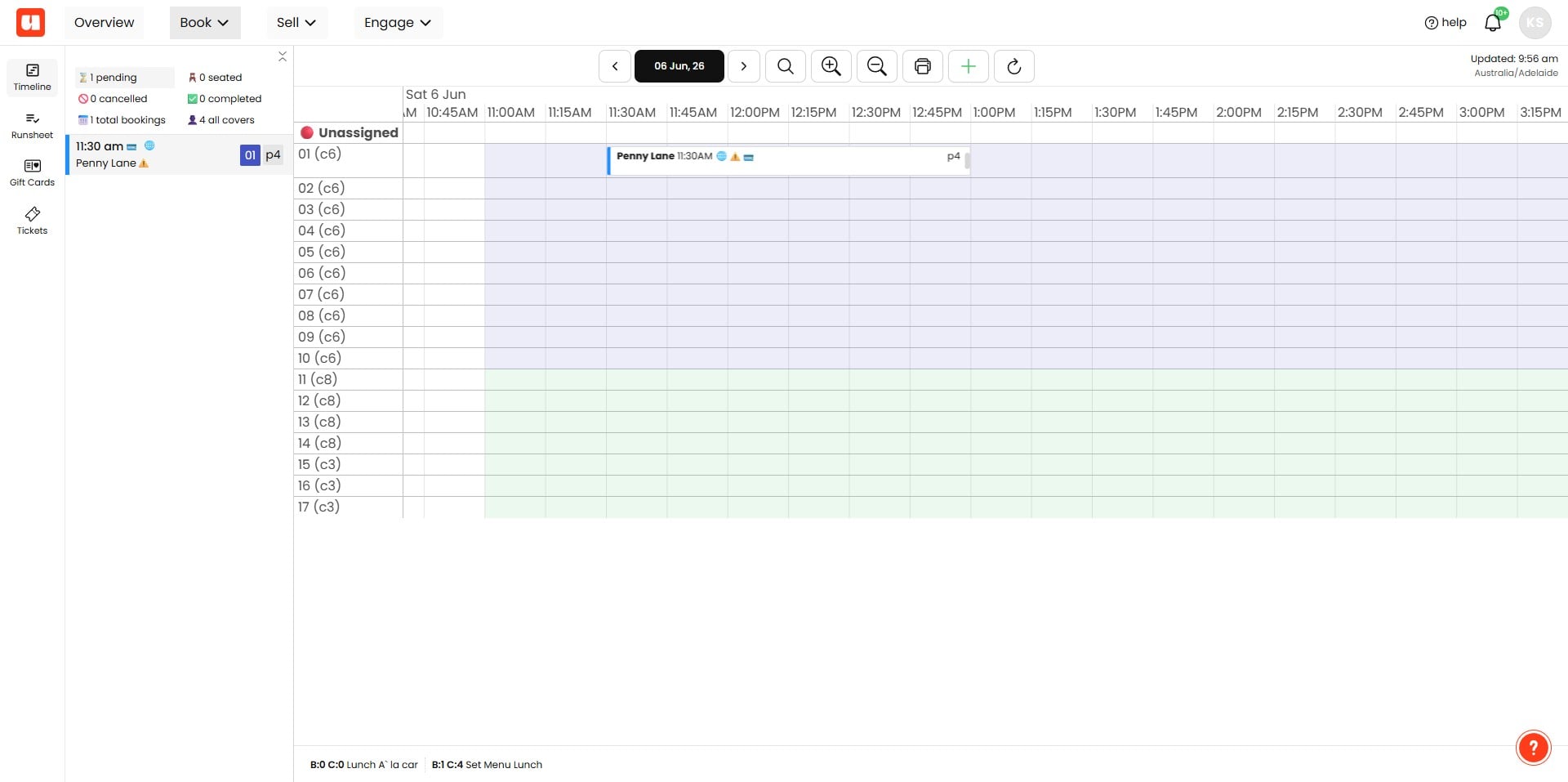
Open the Booking: Locate the booking you want to flag and open it in your booking system.
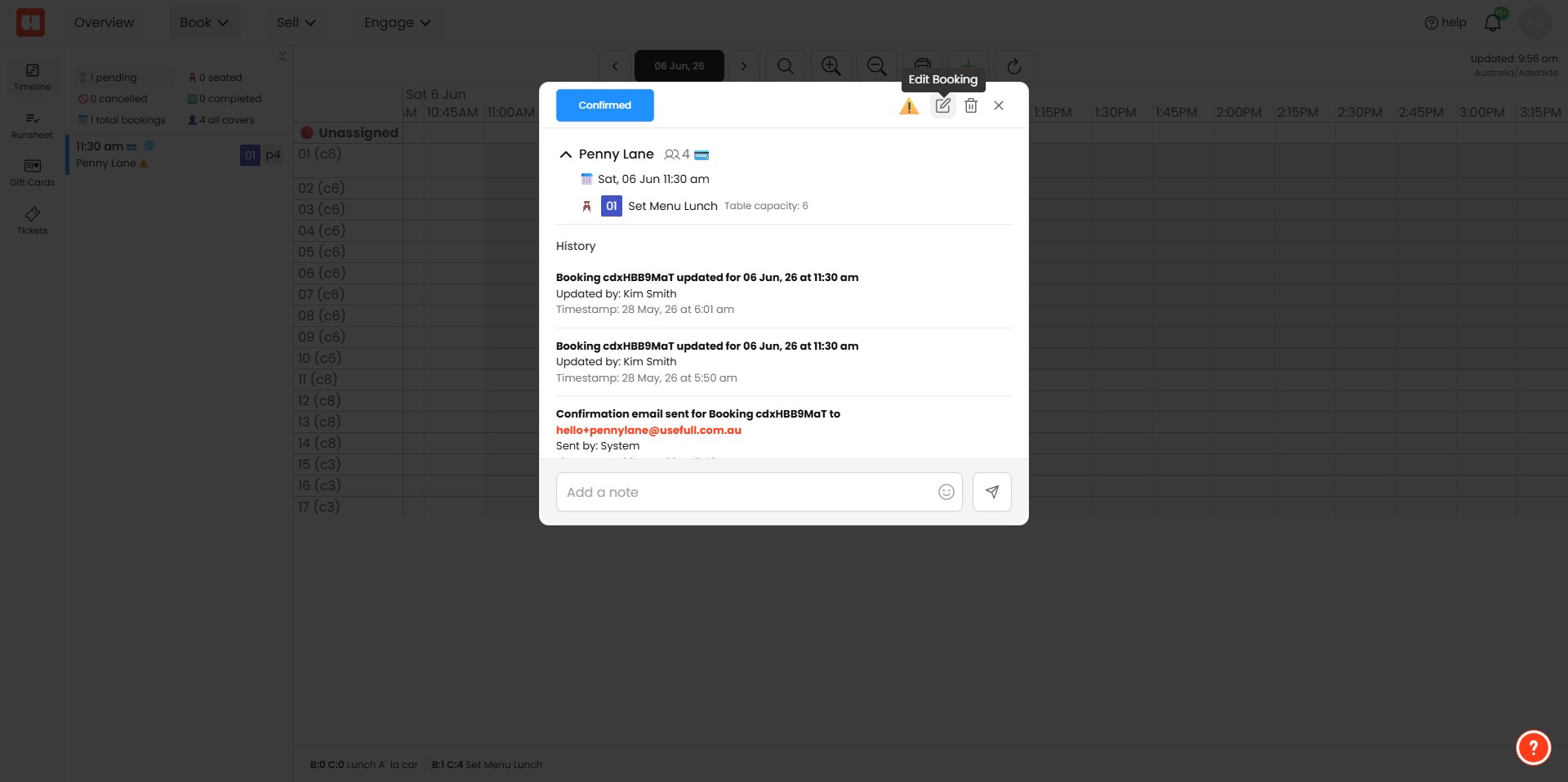
Click Edit Find and click the Edit icon to make changes to the booking details.
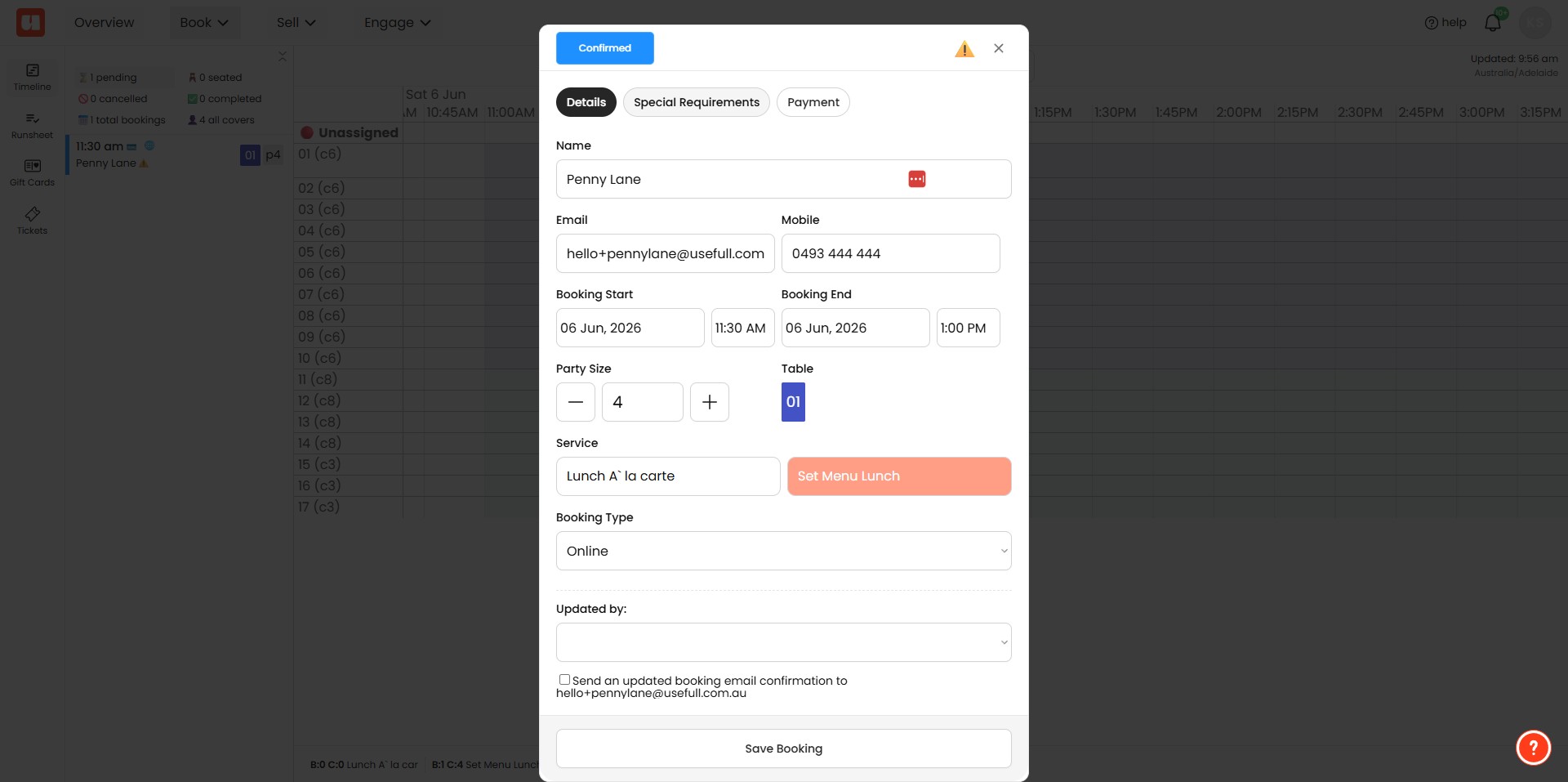
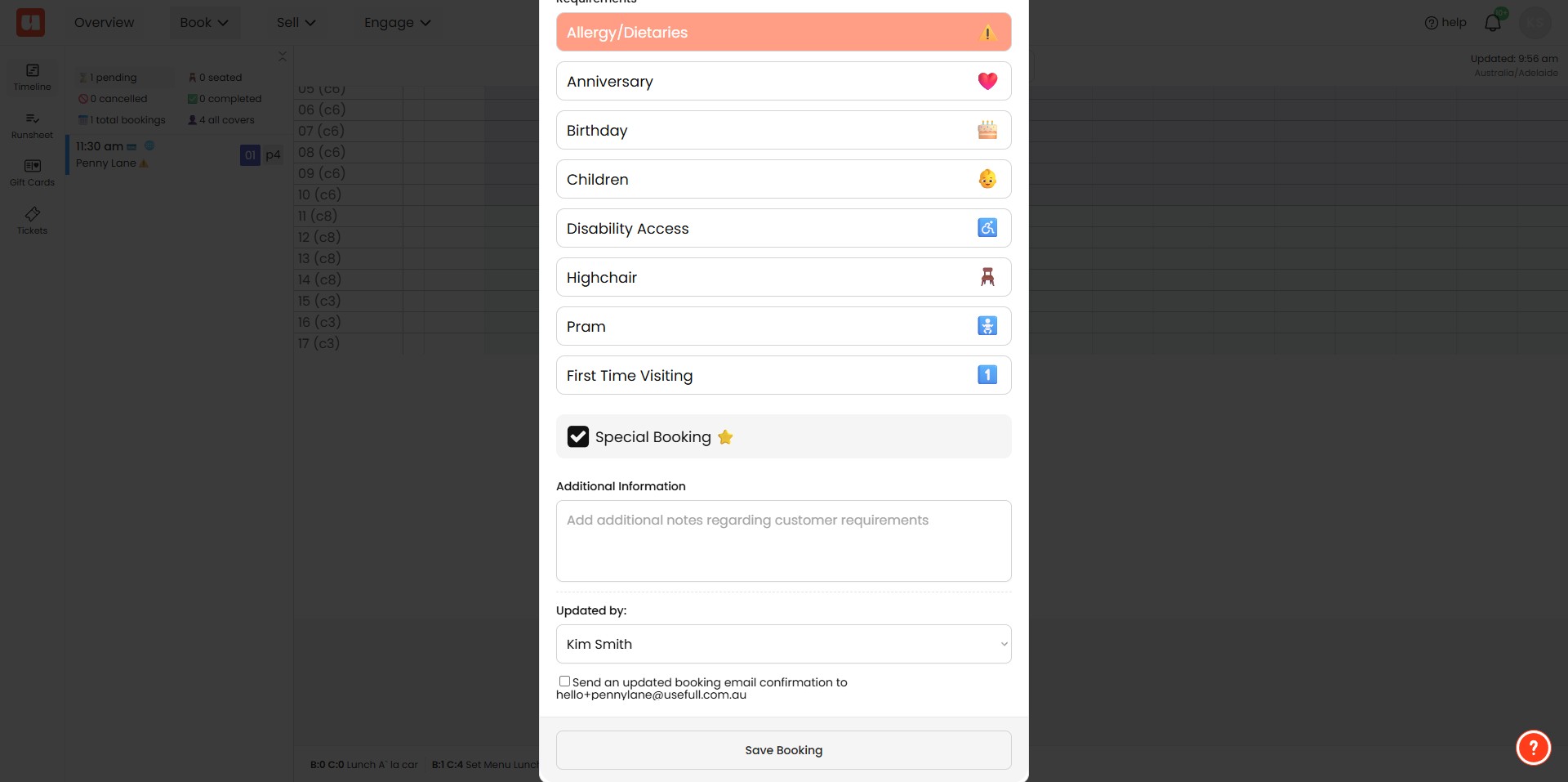
Navigate to the Special Requirements tab within the booking editing window.
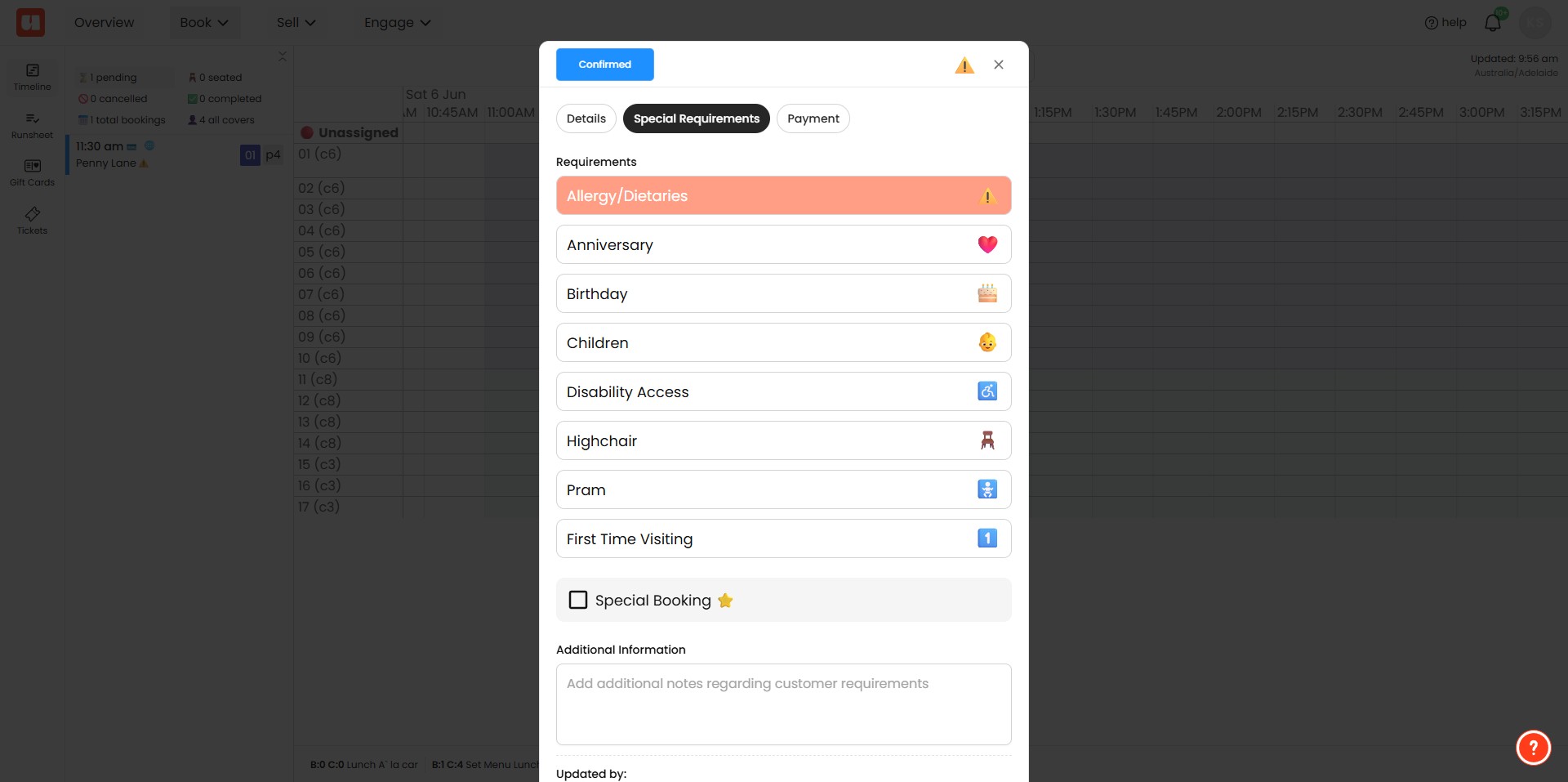
Select Special Booking checkbox to mark the booking as special.
Click on "Save Booking"
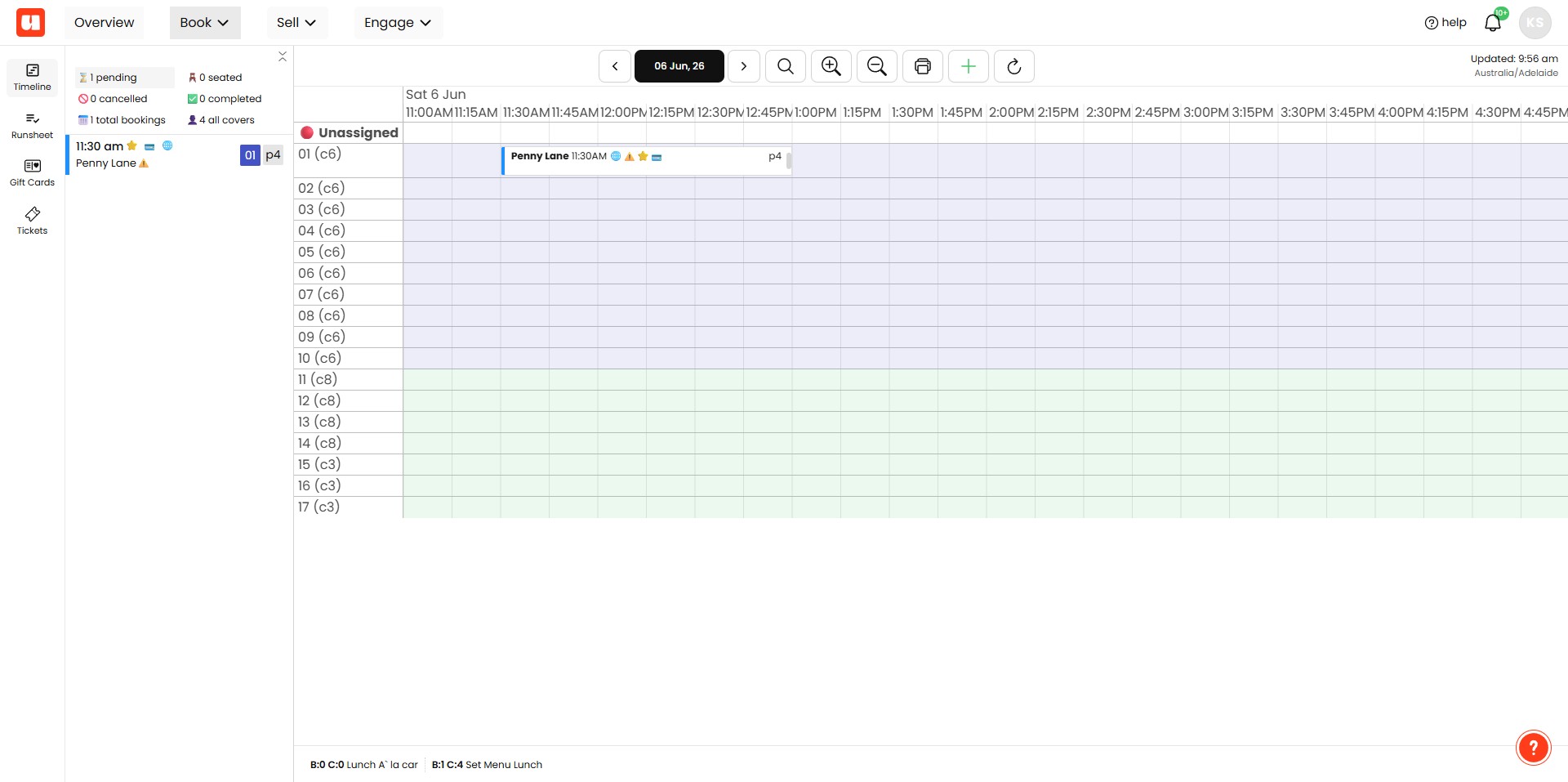
Your booking is now flagged with a ⭐emoji to highlight it as a special booking.
Frequently Asked Questions
- What are the steps to flag a booking as a special booking?
Open the booking in your booking system, click the Edit icon, navigate to the Special Requirements tab, select the Special Booking checkbox, then click "Save Booking". The booking will then be flagged with a ⭐ emoji.
- Where do I find the Special Requirements tab?
The Special Requirements tab is inside the booking editing window—open the booking and click the Edit icon to access it.
- How can I confirm the booking was flagged successfully?
After selecting the Special Booking checkbox and clicking "Save Booking", the booking will show a ⭐ emoji to indicate it is flagged as special. If you don't see the emoji, verify you selected the checkbox and clicked "Save Booking."
- I don't see any option to change the booking—what should I do?
Make sure you have opened the booking and clicked the Edit icon first; the Special Requirements tab and the Special Booking checkbox are available within the booking editing window.