

How to Process a Ticket Refund
You might need to process a ticket refund if a customer requests it. You can issue a full or partial ticket refund.
Tip: This feature is currently available only for tickets purchased online.
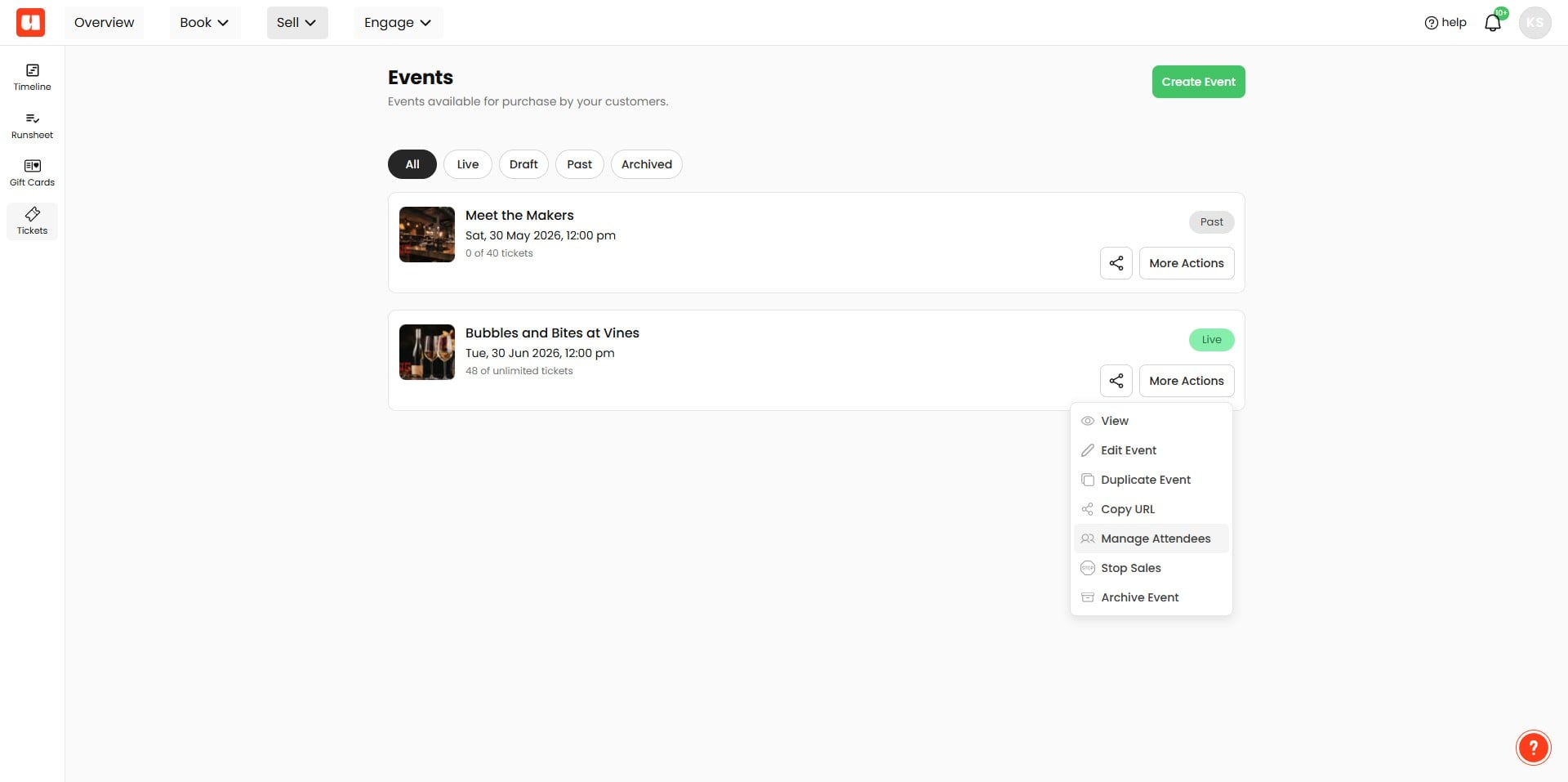
Open Your Event:
Log into your event management system and open the specific event for which the refund is requested.
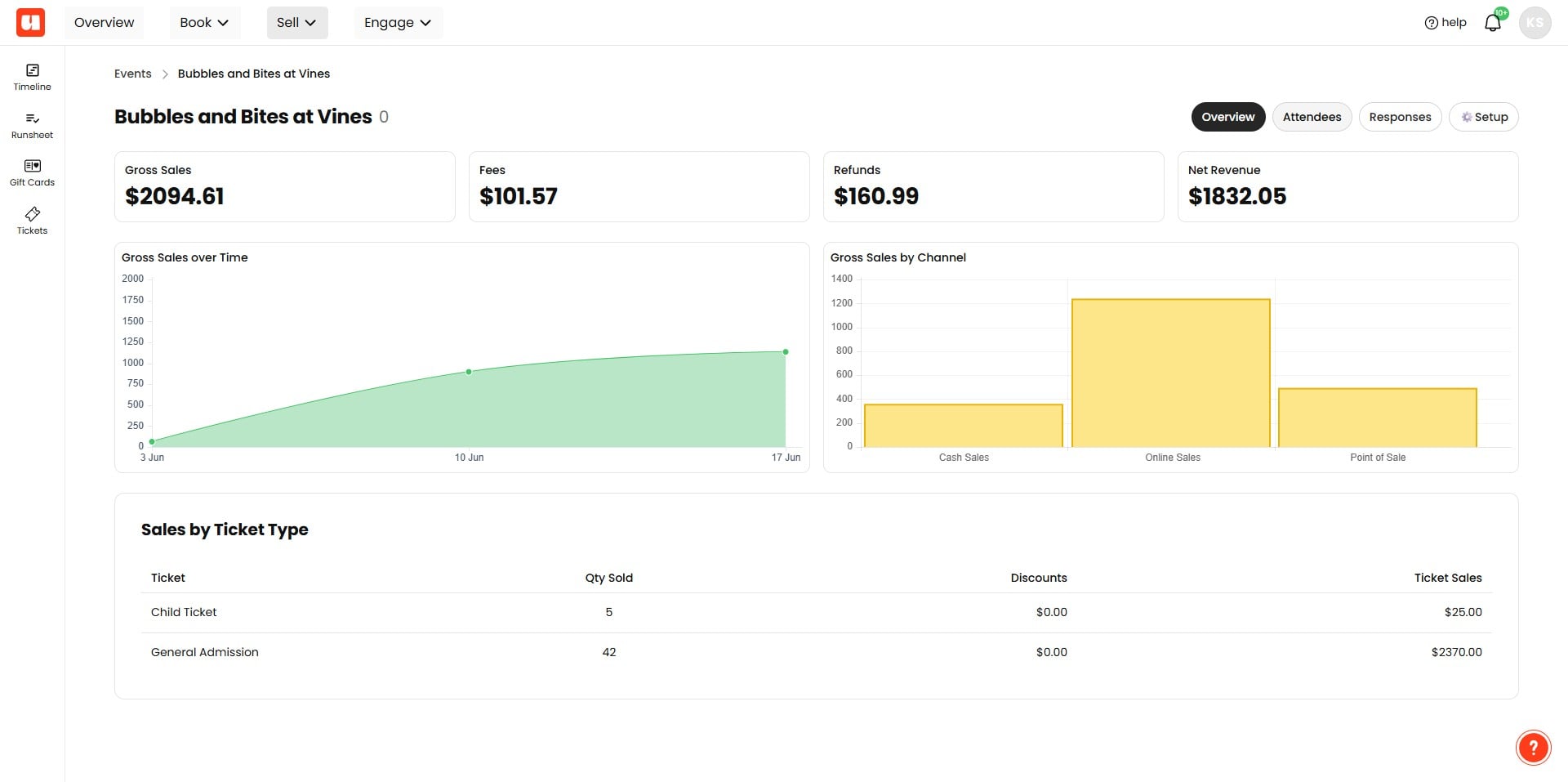
Click on "Attendees" tab
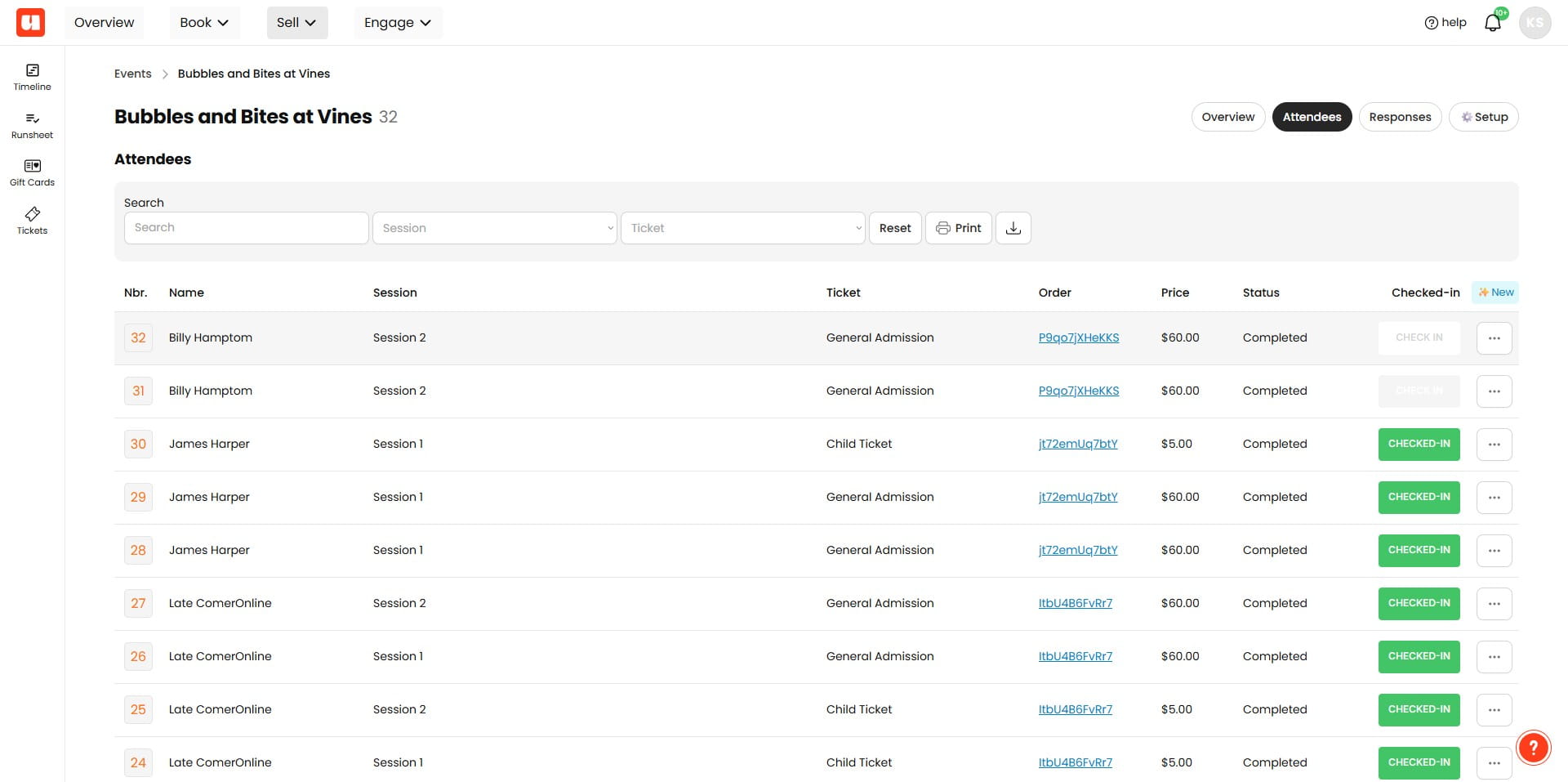
Find the Order: Locate the order for which you want to process either a full or partial refund. Click on the order number to open a popup window displaying detailed information about the order.
Find the Process Refund section.
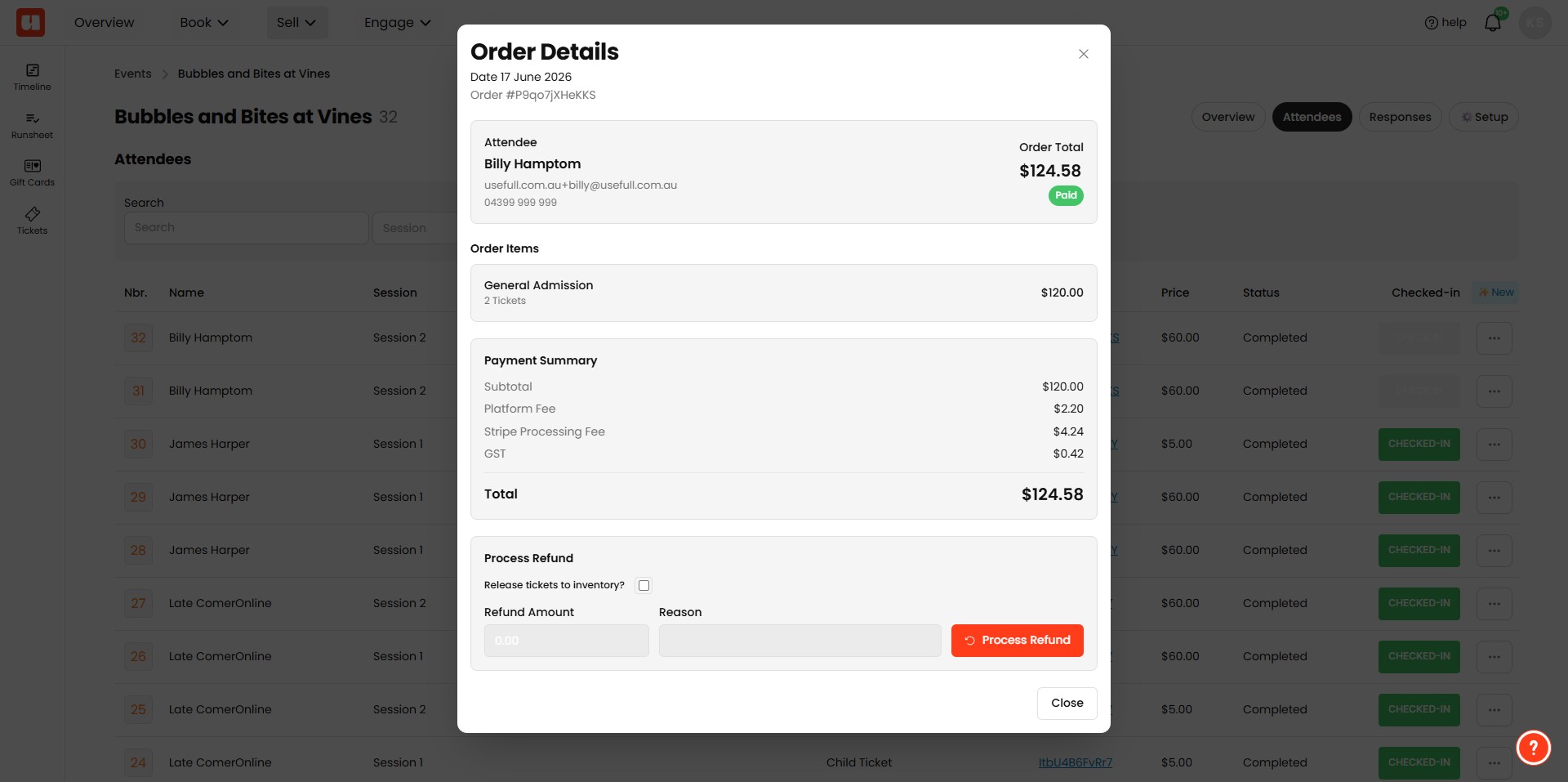
Release Tickets to Inventory (Optional):
If you want to return the tickets to your inventory pool, click the checkbox and select the tickets you'd like to release.
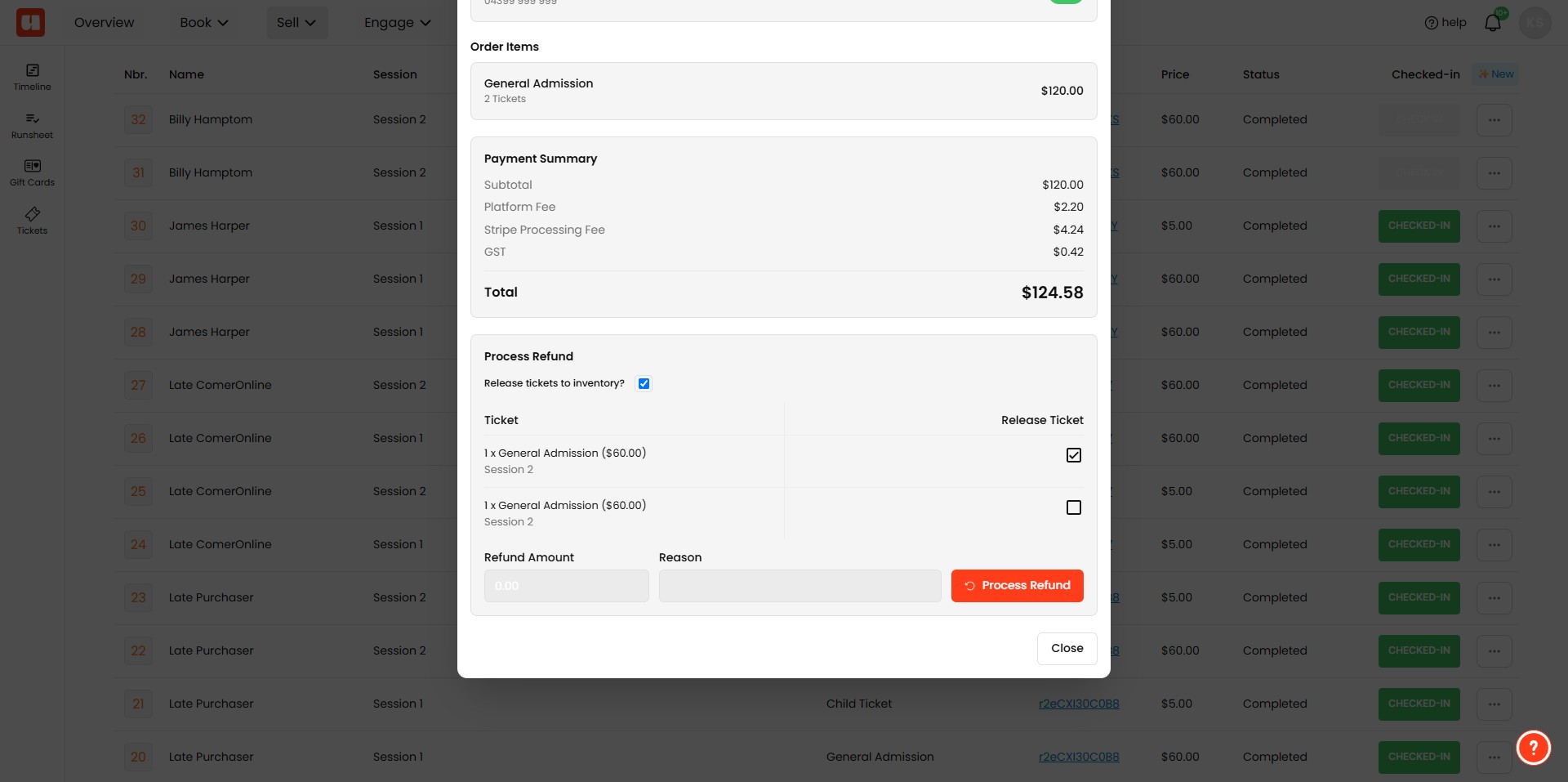
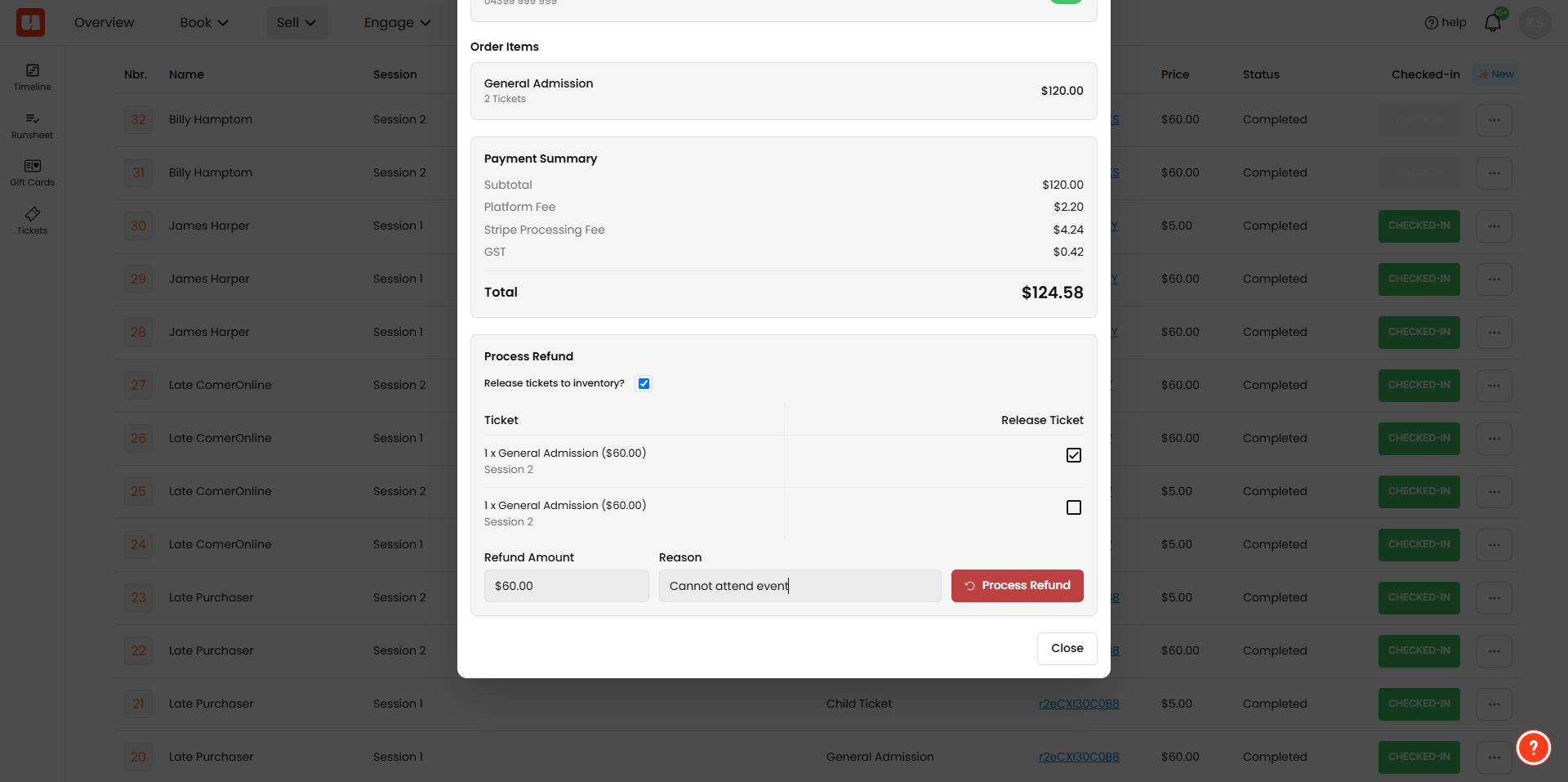
Enter Refund Amount
- For a full refund, enter the total amount shown in the "Total" column.
- For a partial refund, enter the specific amount you wish to refund. Next, Click the Refund Button
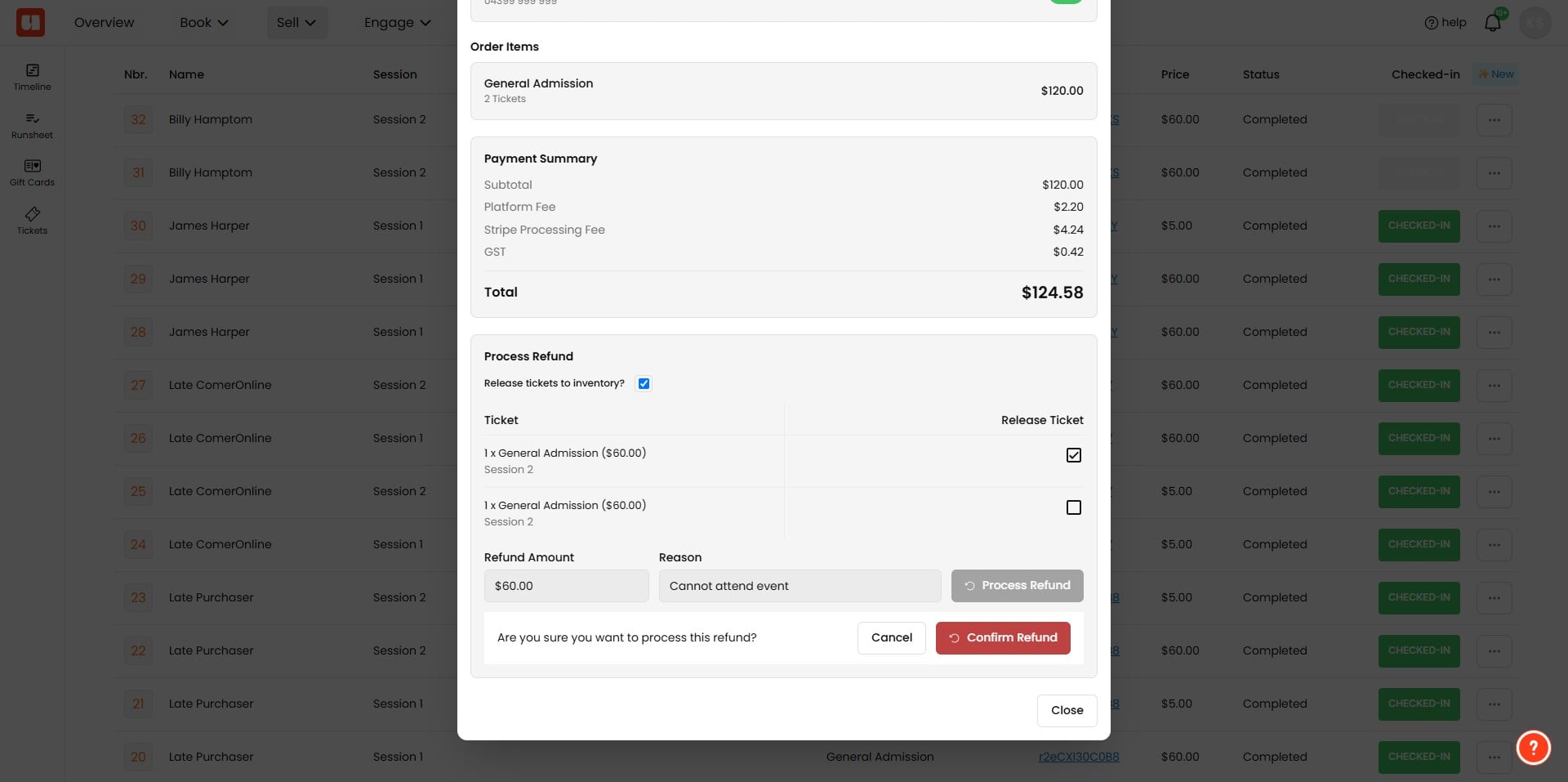
You'll be prompted to confirm the refund before continuing. If you'd like to make changes click 'cancel'
You're refund will be listed in your order with a status of either Succeeded, Pending, or Failed.
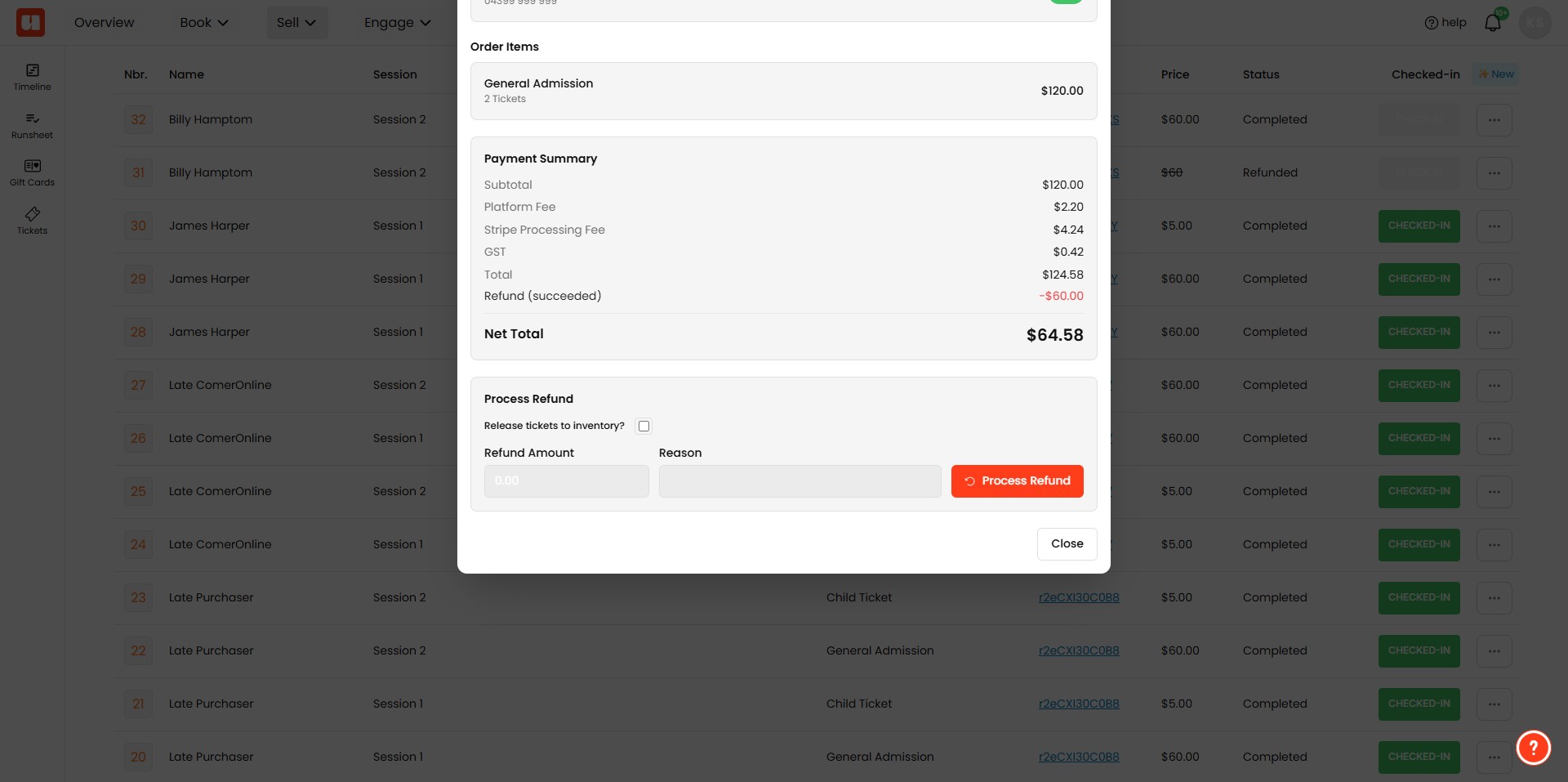
Refund Status:
- Refunds can be processed immediately and will show a "Succeeded" status.
- Sometimes refunds show a "Pending" status if additional funds are needed in your Stripe account to process the refund. You will be notified of this.
- Refunds can remain pending for up to 45 days.
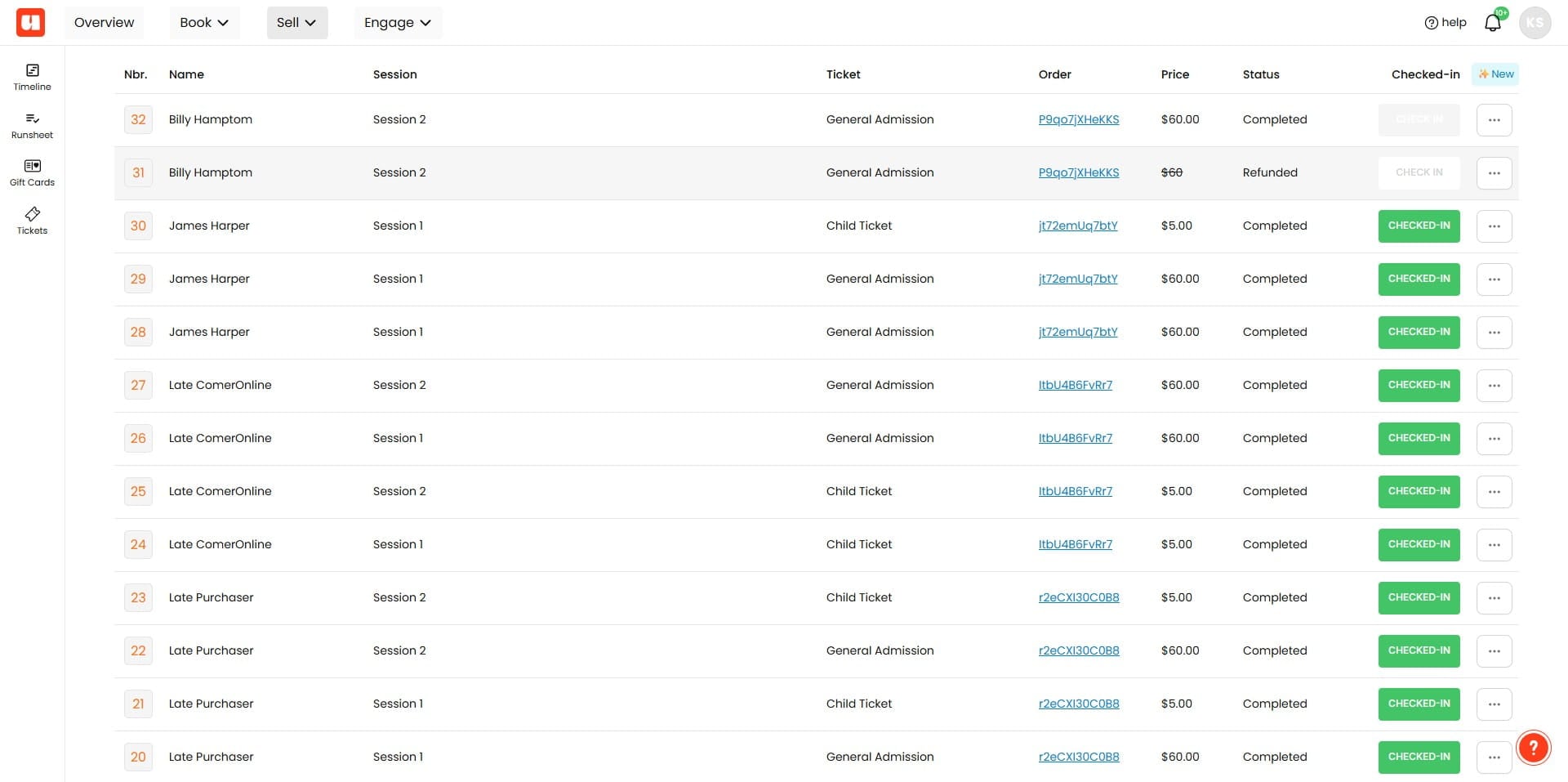
Tickets returned to inventory will be flagged with a strikethrough and 'refunded' status against the ticket.
Notifications:
- Your customer will receive an email notifying them that their refund is processing and another email when the refund is successful.
- You will also receive notifications about the refund status.
Frequently Asked Questions
- Can I process refunds for any ticket purchase type?
No. This refund feature is currently available only for tickets purchased online. Make sure the order you want to refund was purchased online before starting the refund process.
- What are the step-by-step actions to process a full or partial refund?
Log into your event management system and open the event. Click the "Attendees" tab, locate the order, and click the order number to open the order details popup. In the Process Refund section, optionally check the box to release tickets to inventory and select tickets to release. Enter the refund amount (for a full refund enter the total shown in the "Total" column; for a partial refund enter the specific amount). Click the Refund button and confirm when prompted (or click Cancel to make changes). The refund will then be listed on the order with a status.
- What happens if I release tickets back to inventory when refunding?
If you choose to release tickets to your inventory pool, select the tickets to release during the refund process. Returned tickets will be flagged with a strikethrough and a 'refunded' status against the ticket. And your ticket availability will be updated to allow more attendees to purchase tickets.
- What do the refund statuses (Succeeded, Pending, Failed) mean and what should I expect?
Succeeded indicates the refund processed immediately. Pending can occur if additional funds are needed in your Stripe account to process the refund; pending refunds can remain for up to 45 days and you will be notified if this occurs. Failed indicates the refund did not complete. You (the organiser) and the customer will receive notifications about a successful refund status—an email when the refund is processing. Only you the vendor will receive notifications about Failed refunds so that you can make other arrangements with your customer.