

How to add an open seating area in Usefull
Create an Open Seating section in Usefull with a guest capacity, so guests can book the area.
Open Seating Areas are sections in your venue without formal table allocations, such as a lawn area or open function space
Click the Book menu in the top navigation
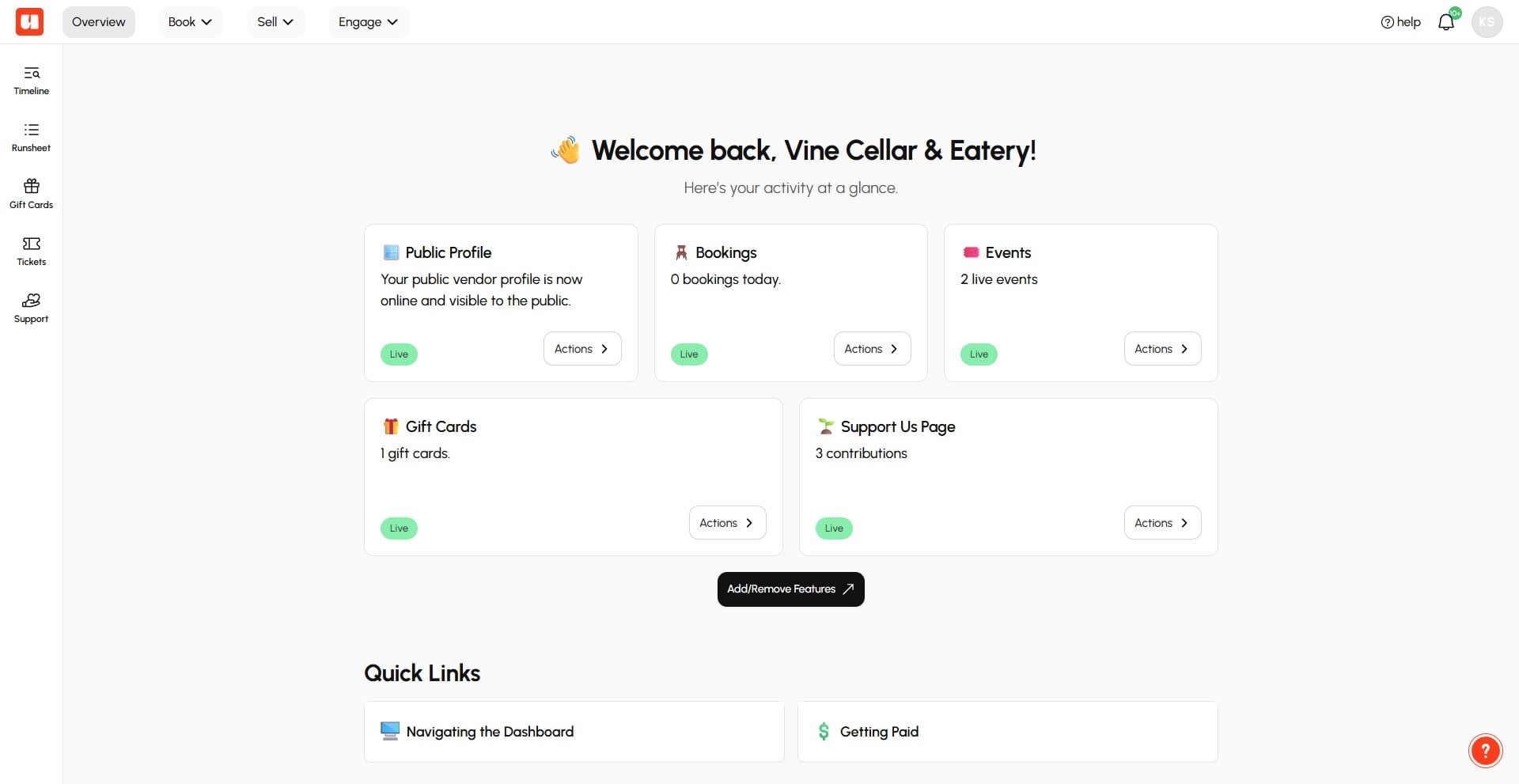
Select Setup Bookings from the Book menu
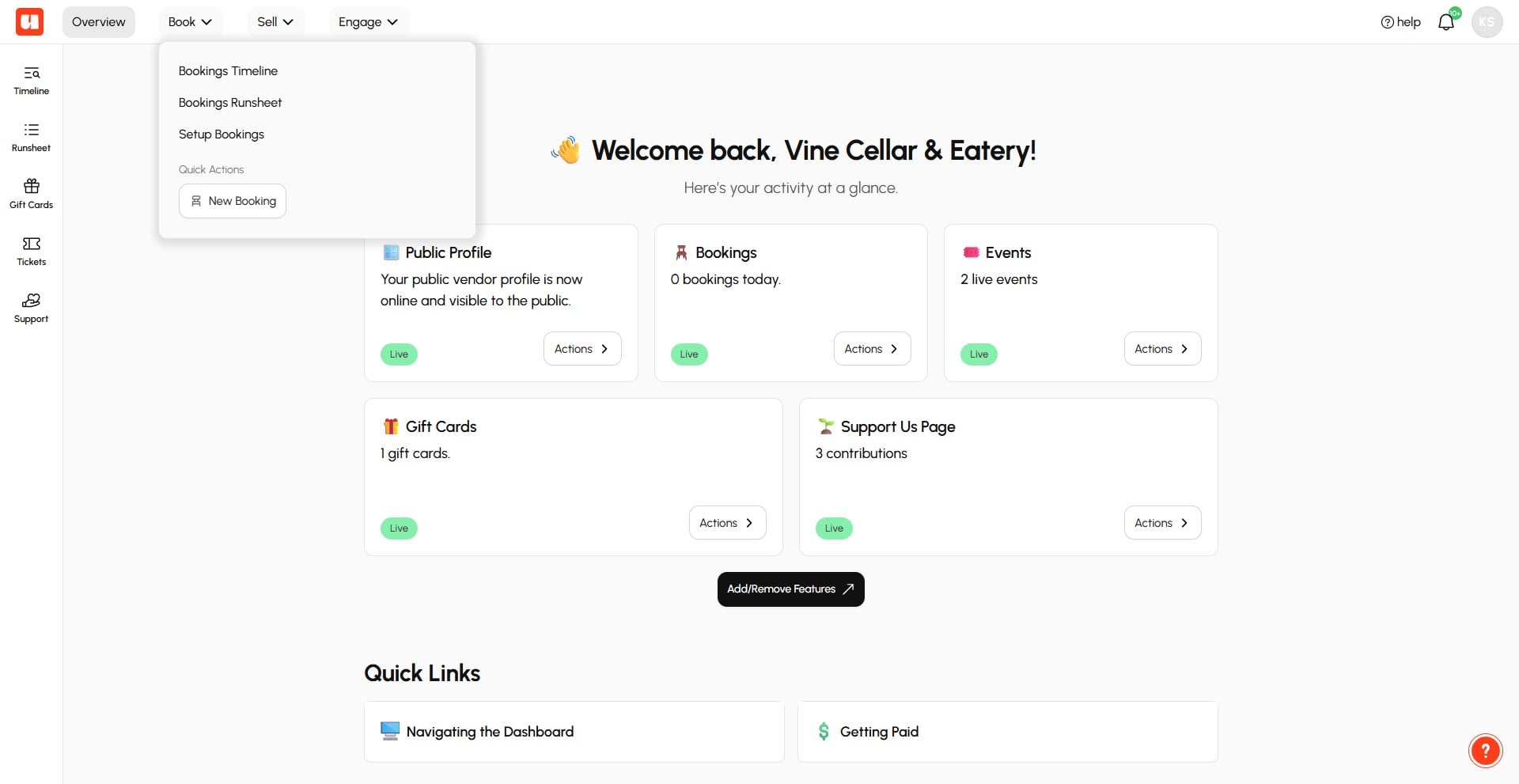
Select Sections & Spaces in the Bookings Setup sidebar
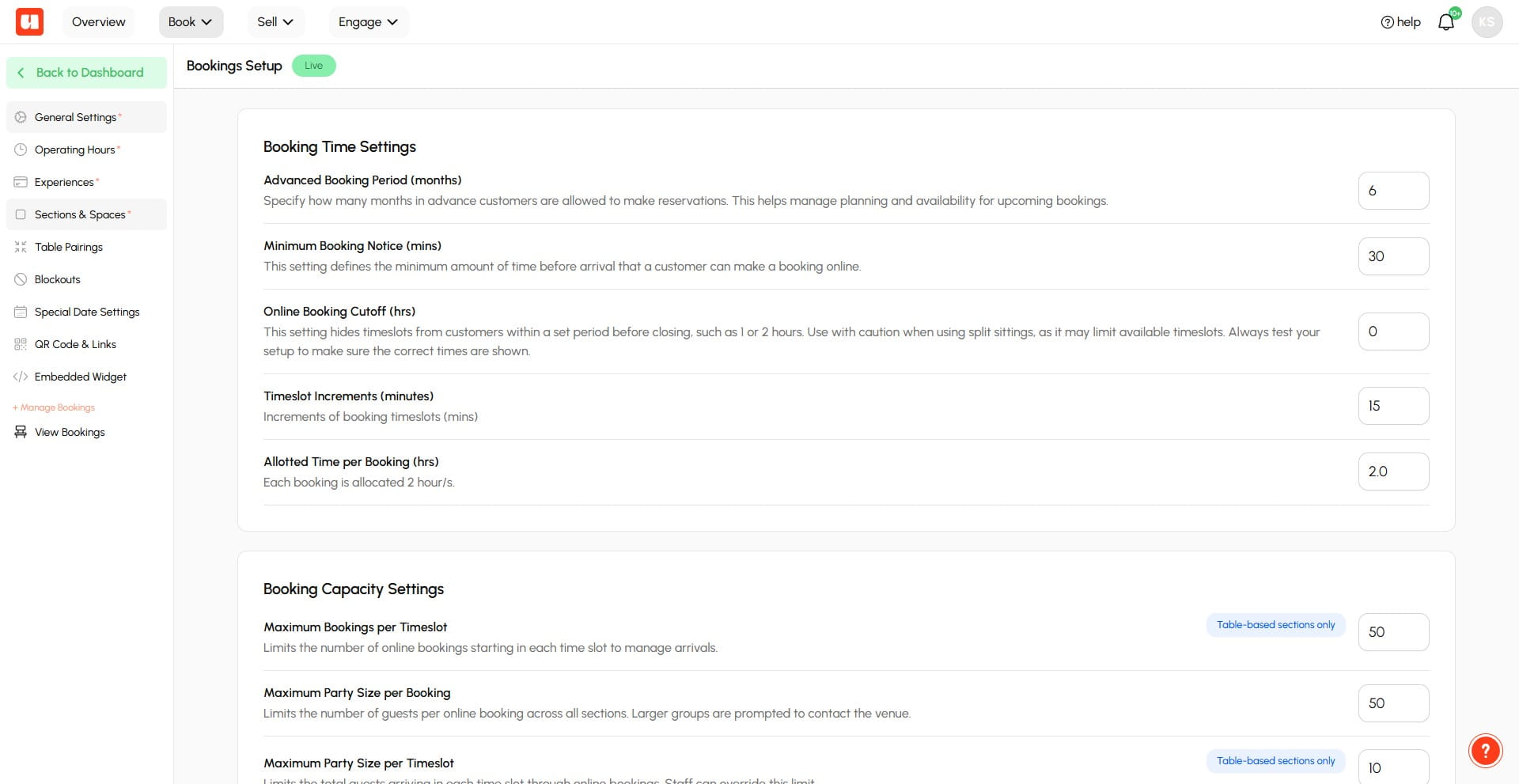
Click Add Section
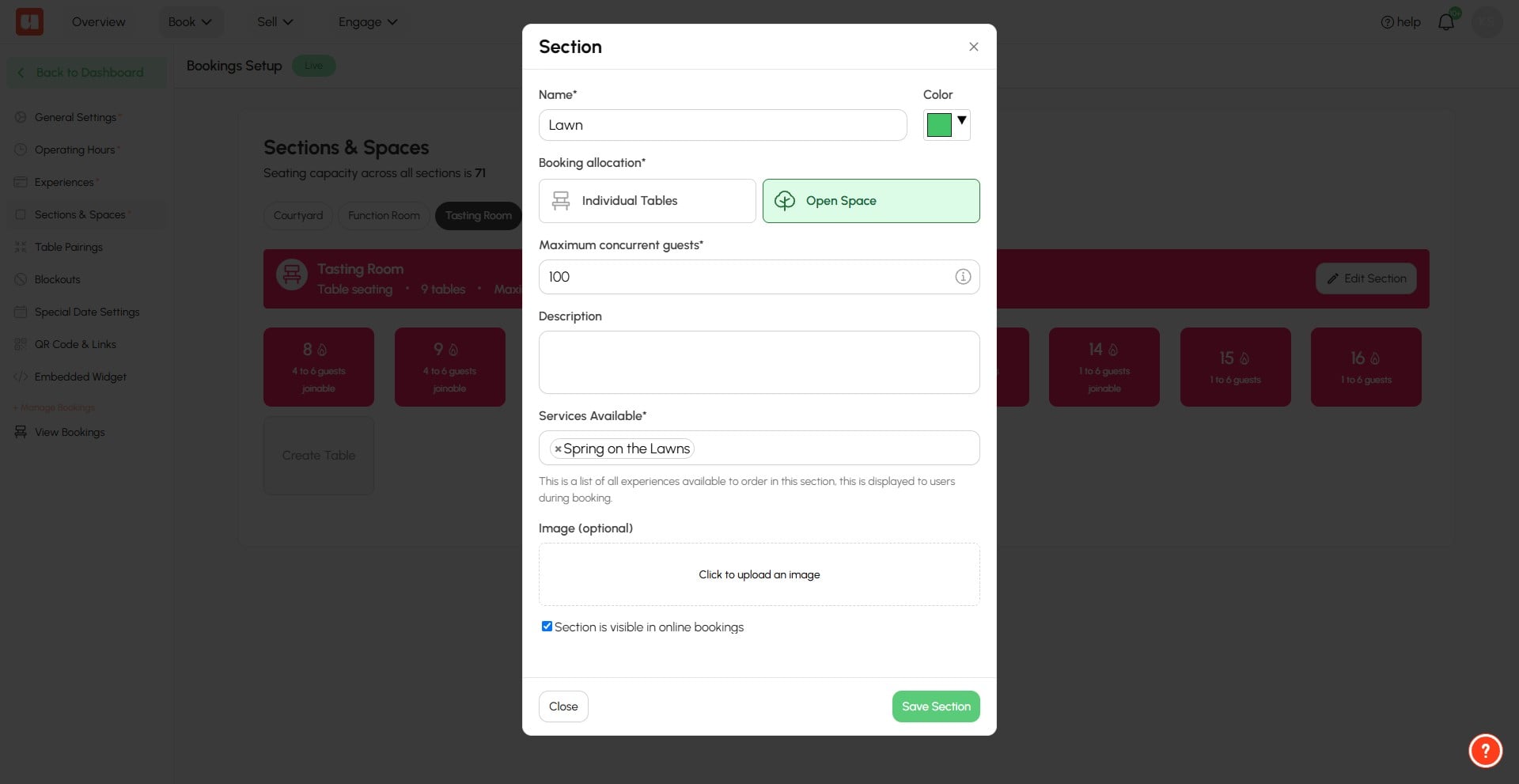
Select Open Space under Booking allocation
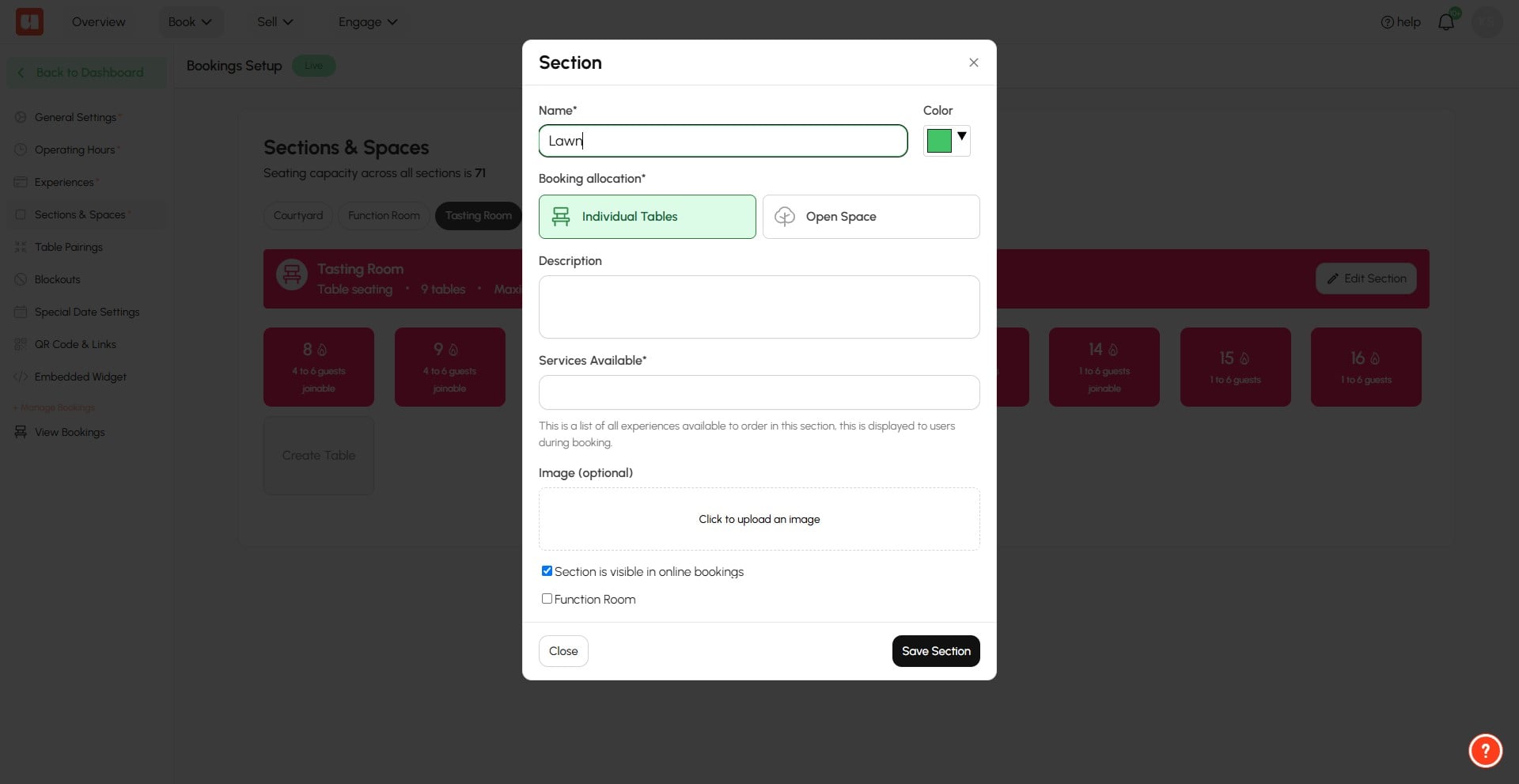
Enter a Maximum concurrent guests capacity for this space.
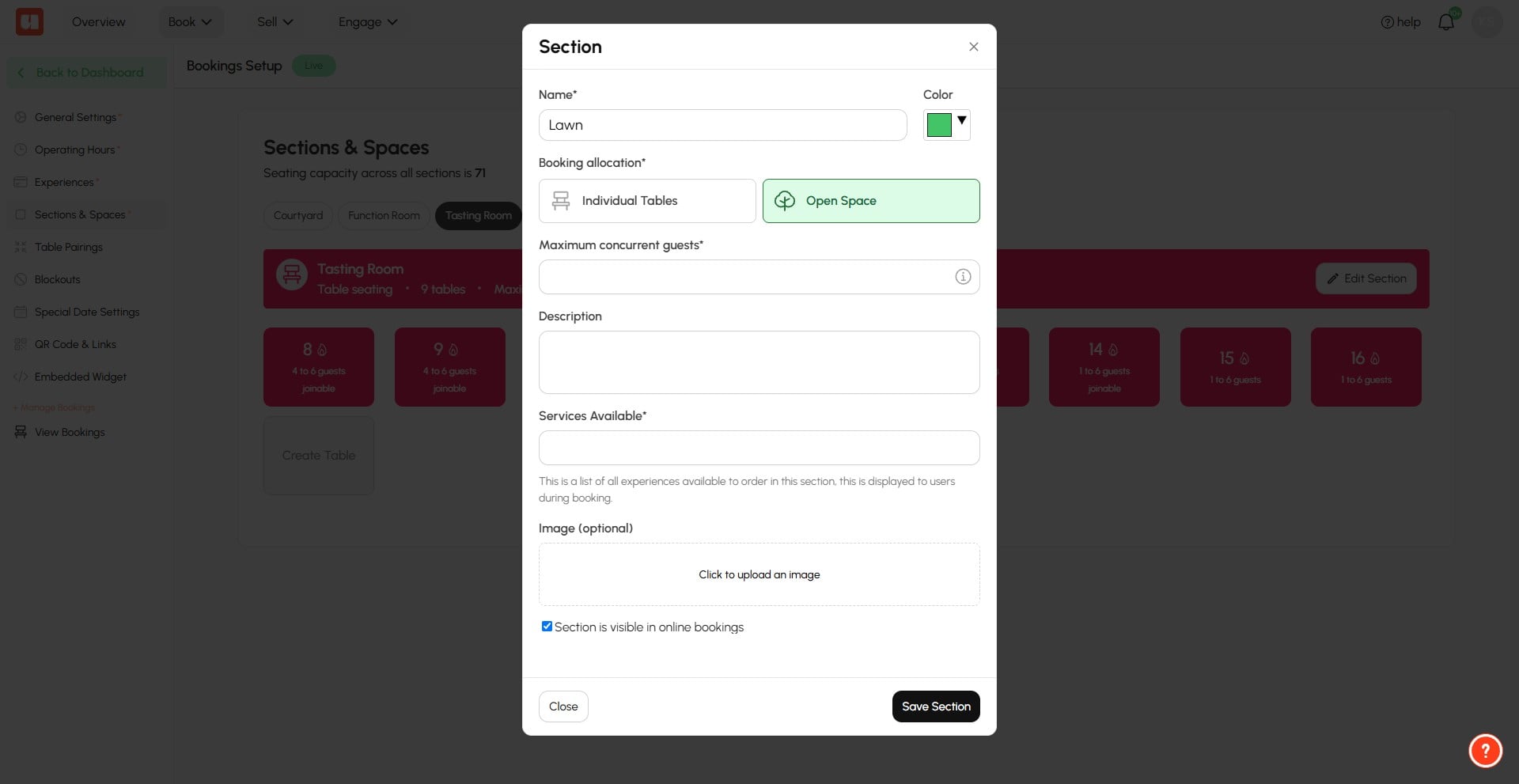
Maximum concurrent guests will turn off online bookings availability when this capacity is met. This setting can be overridden in your management window.
Select Services Available for booking in this new space.
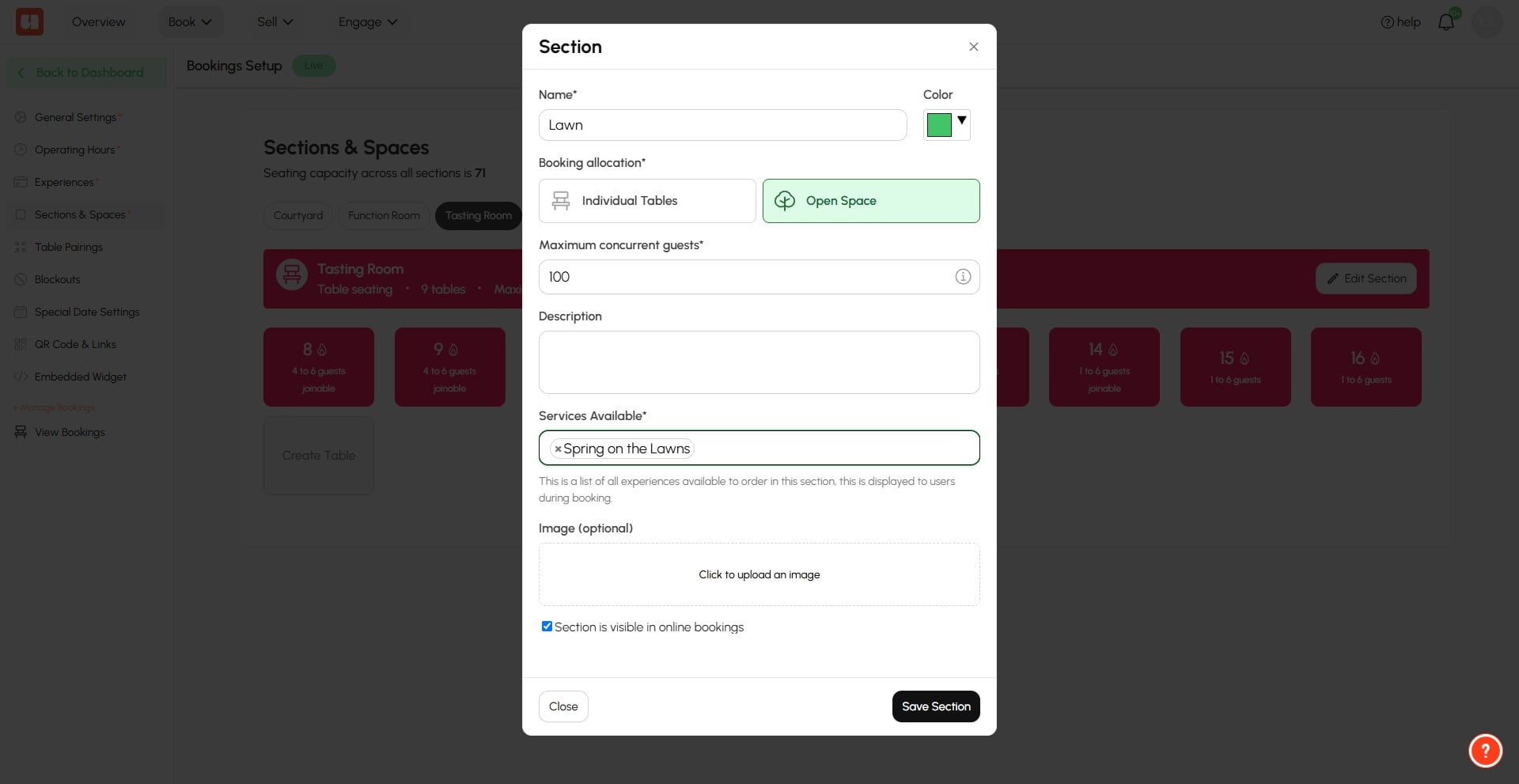
Decide if this section is visible in online bookings.
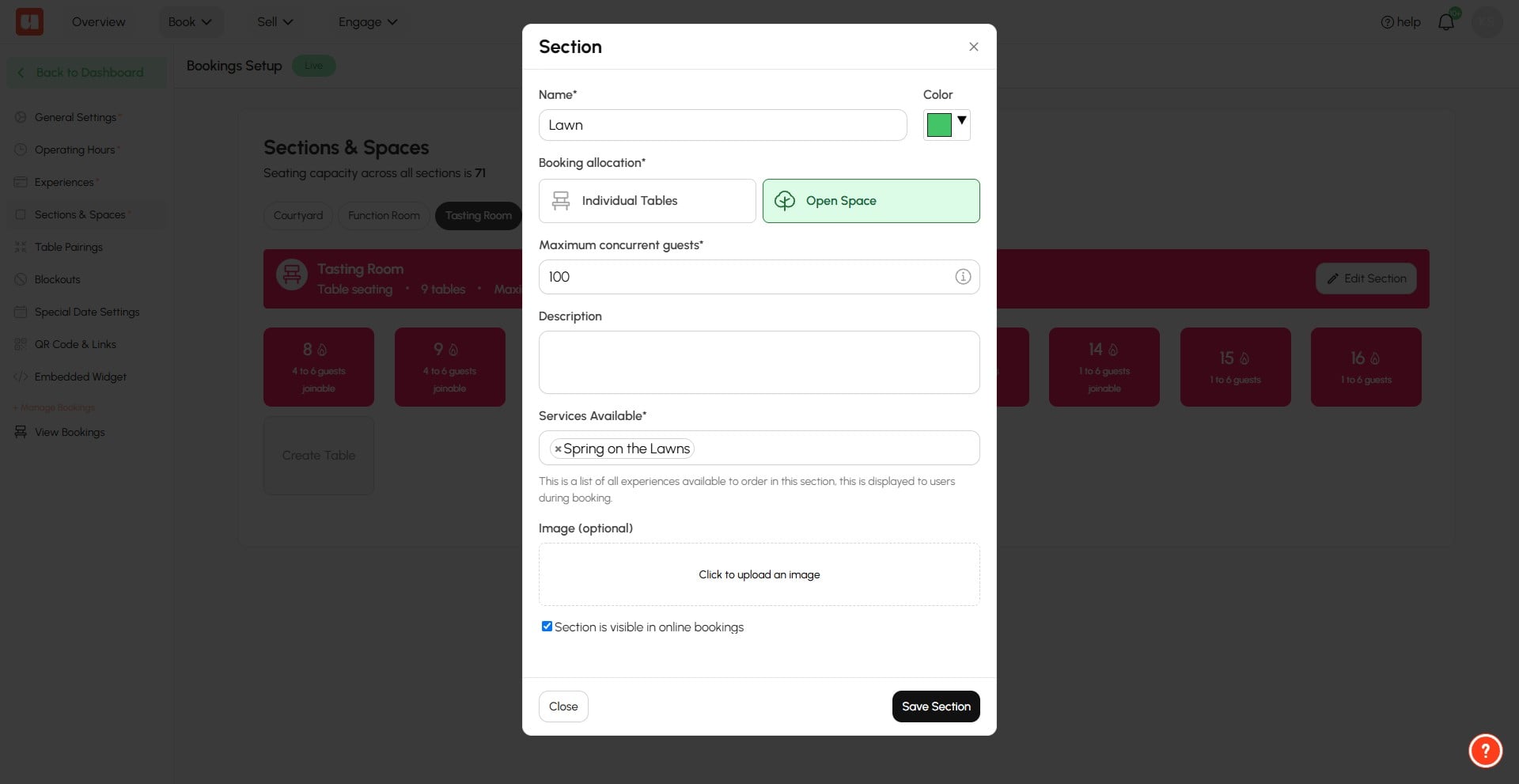
Click Save Section
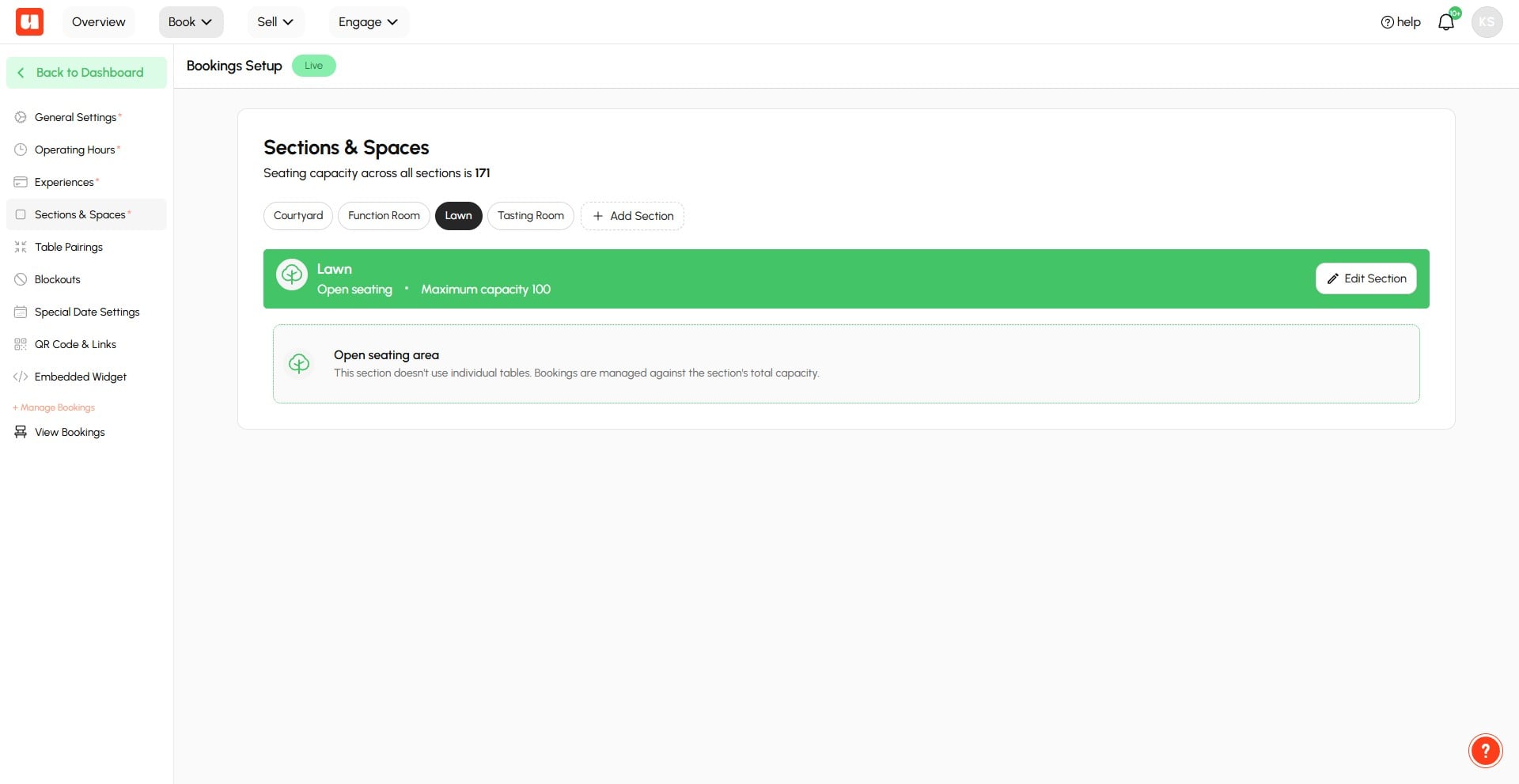
Here is your new Open seating area. Now let's see how this looks in your timeline view.
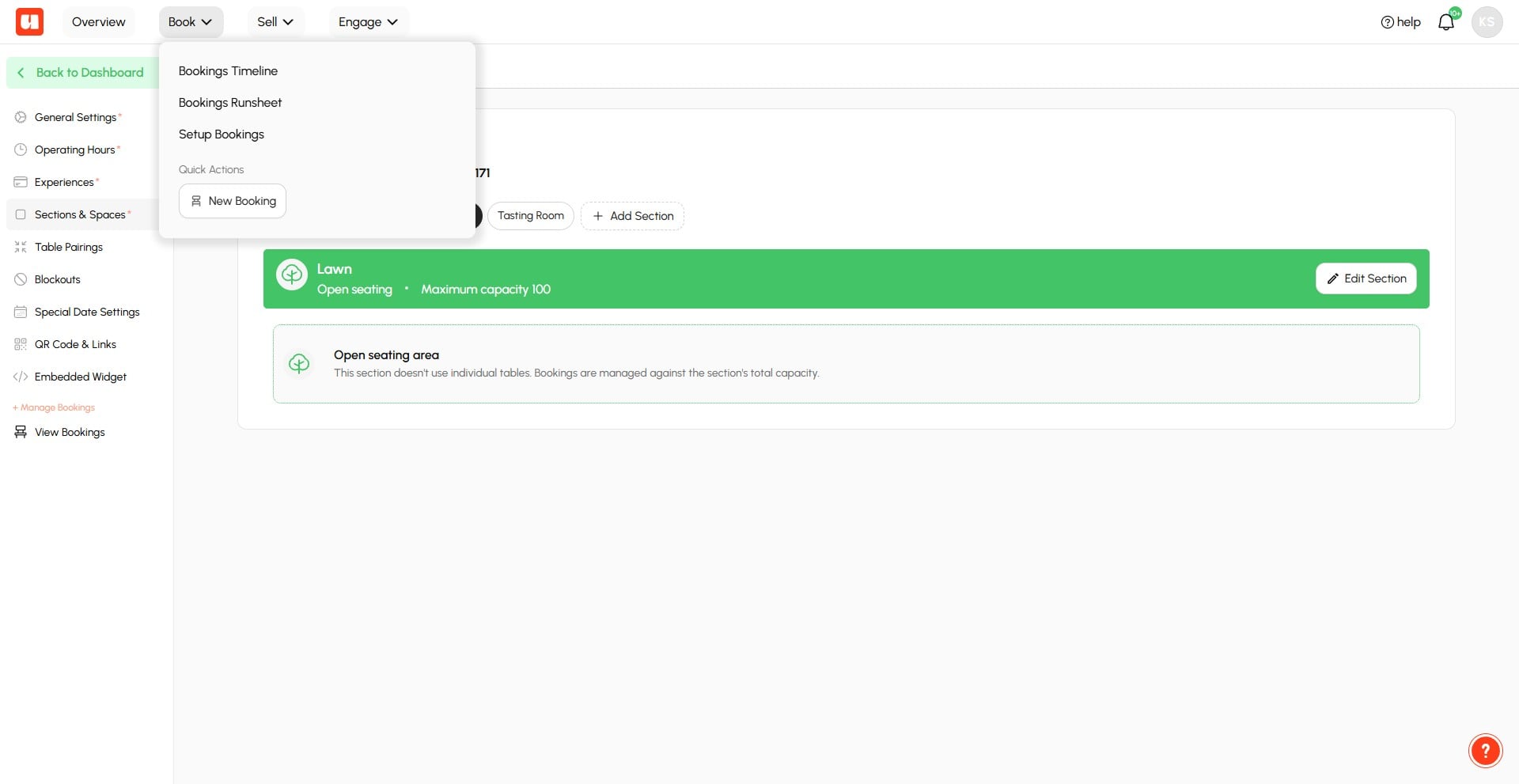
Select Bookings Timeline from the Book menu
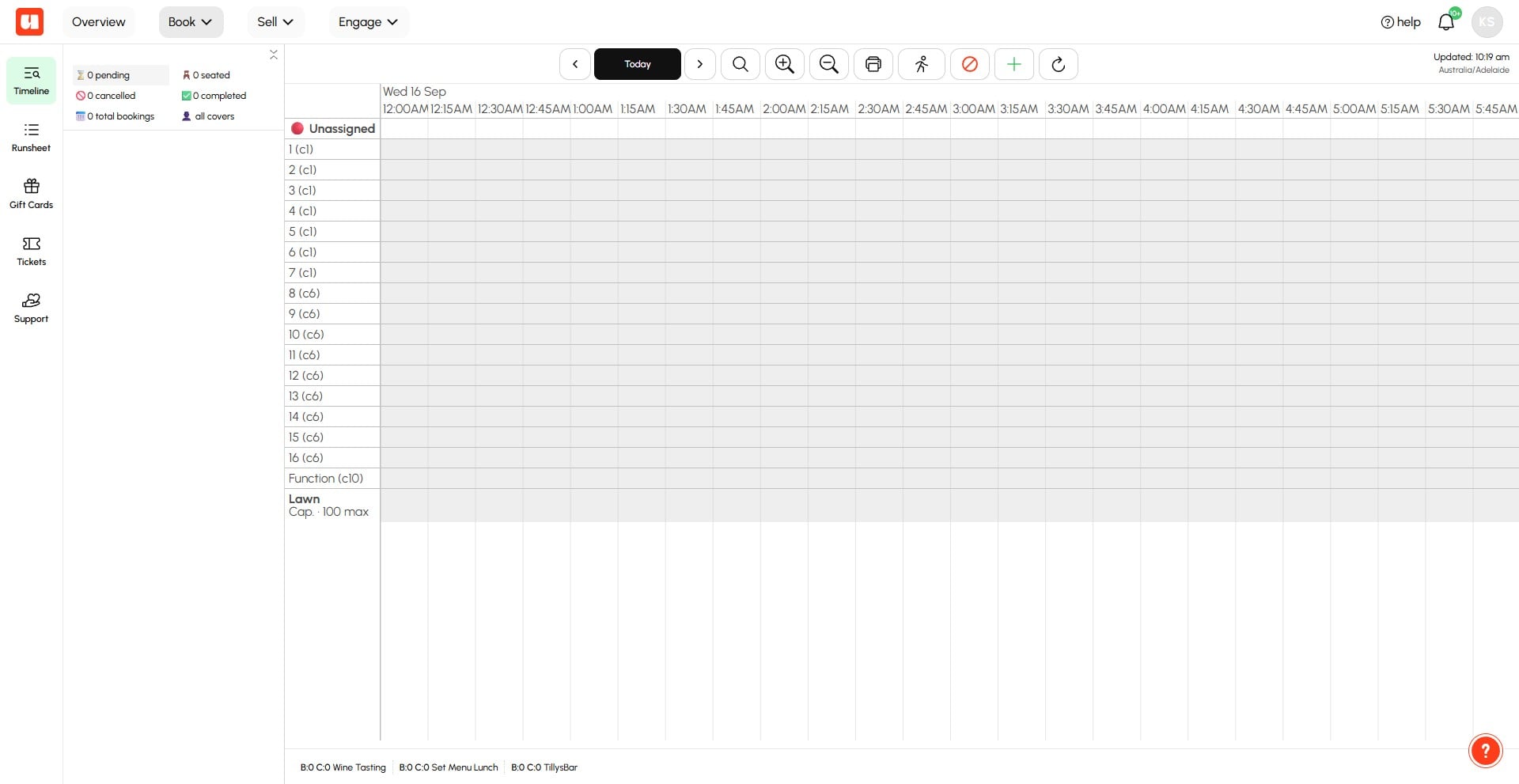
Your new open seating section is visible at the bottom of your booking timeline. 🚀
Frequently Asked Questions
- What is an open seating area in Usefull?
An open seating area is a venue section without formal table allocations, such as a lawn area or open function space. In Usefull, create it by choosing Open Space as the booking allocation.
- What happens when an open seating area reaches its maximum concurrent guests?
Online booking availability turns off when the configured maximum concurrent guests capacity is met. This capacity can be overridden in your management window.
- Can I control which services are bookable in an open seating area?
Yes. You select the Services Available for booking when creating the new open seating area.
- Can I hide an open seating area from online bookings?
Yes. You decide whether the section is visible in online bookings before saving it.
- Where can I see the new open seating area after saving it?
It appears at the bottom of your Bookings Timeline.